mn
mn  ru
ru 
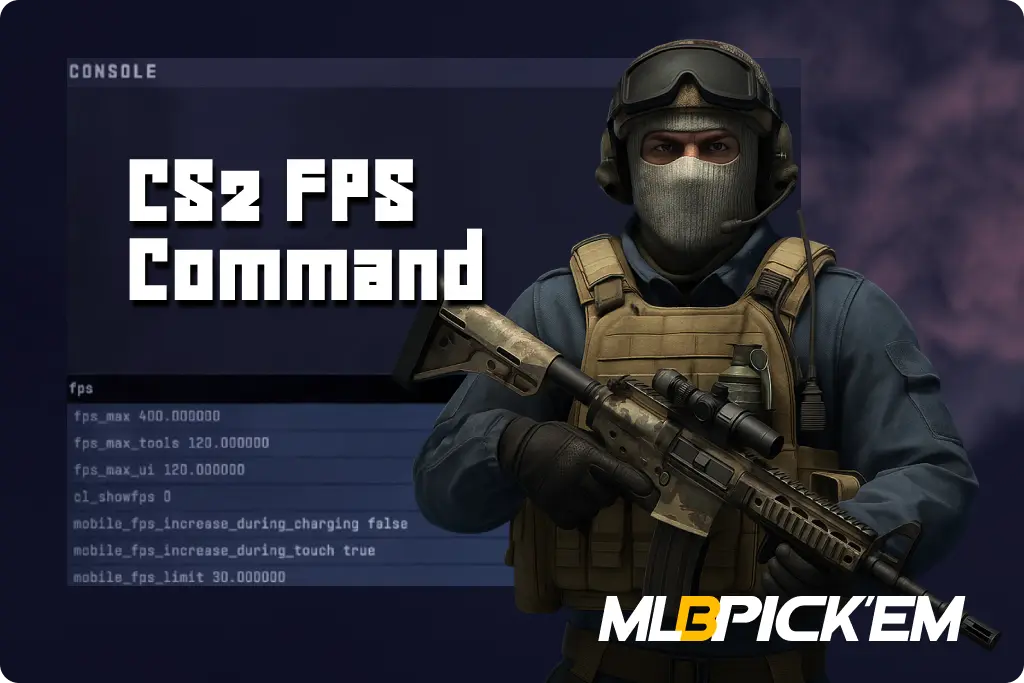
CS2 FPS Command: How to Show FPS in Counter-Strike
Want to check how stable Counter-Strike 2 is running on your PC or laptop? You’ve come to the right place! In this detailed guide for MelBet Pickem, we’ll explain how to enable the FPS counter in CS2 to monitor game performance in real time. We will present several ways to show FPS CS2 at once so that you can choose the most suitable one. We’ll also help you eliminate lag and freezes in CS2 to enjoy the smoothest possible gameplay!
What Is FPS in CS2 and Why It Matters
FPS (frames per second) is a measure of the number of frames a game displays on the screen every second. Simply put, the higher the FPS CS2, the more frequently the image on the screen is refreshed. If you have 60 FPS, the image is refreshed 60 times per second. If you have 240 FPS, it’s refreshed 240 times.
In our beloved CS2, FPS is crucial. High frames per second make all movements smooth, provide instant response, and predictable enemy movements. When the FPS in CS2 is low, the game feels laggy. At very low CS2 FPS, lag becomes very noticeable, and the mouse feels lagging. In such moments, you lose fractions of a second that can decide the outcome of a round.
How to Show FPS CS2 in 2026
There are several ways to show FPS in Counter-Strike 2. We’ve conducted a comprehensive search and compiled all the current methods for displaying FPS CS2 in 2026. Each of the methods below is suitable for different purposes, and you can choose the one that suits you best.
1. Using Developer Console (cl_showfps Command)
The most accurate and simple way to display FPS in CS2 is to use the developer console. This method has absolutely no impact on performance, which is why it’s widely used by many players:
- Open Settings → Game → Enable Developer Console (~) – set it to “Yes.”
- Press the ~ (tilde) key to open the console.
- Enter the command cl_showfps 1 and press Enter.
The FPS counter will then appear in the upper left corner of the screen.
There are also additional levels of the cl_showfps command:
- cl_showfps 1 – basic FPS counter (current frame rate).
- cl_showfps 2 – adds minimum and average FPS statistics.
- cl_showfps 3 – displays server data (tickrate, frame drop).
- cl_showfps 4 – enables FPS logging to a file for later analysis.
How to Keep the FPS Counter Always On
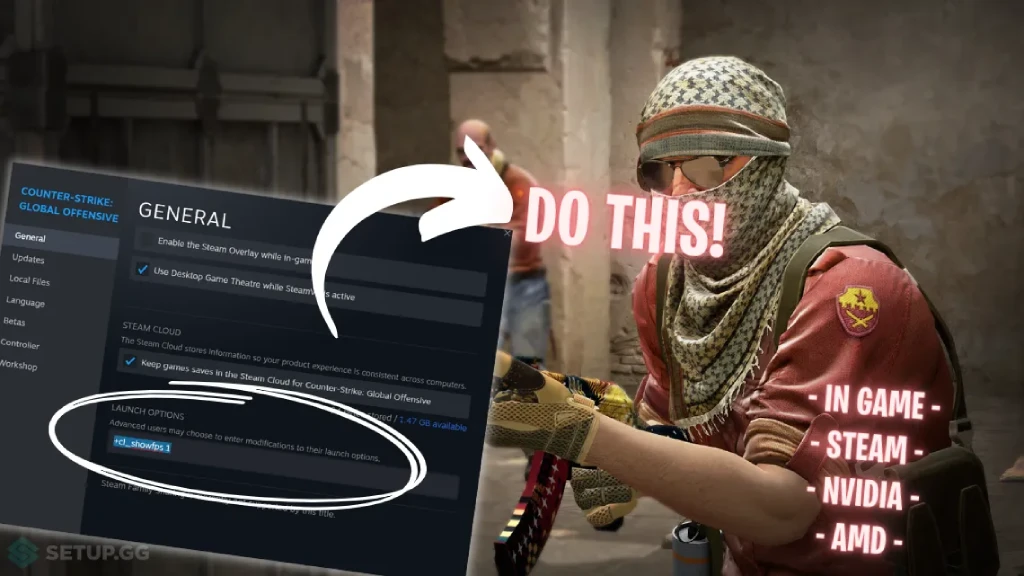
To enable the CS2 FPS counter automatically every time you launch the game, you need to configure certain settings once. This way, you won’t have to open the console and enter the command each time. There are two ways to keep the FPS display on:
1. Using Steam Launch Options
- Open Steam and go to: Counter-Strike 2 → Properties → General → Launch Options.
- In the options field, add the command: +cl_showfps 1.
2. Using the autoexec.cfg configuration file
- Go to the game folder: Steam → steamapps → common → Counter-Strike Global Offensive → game → csgo → cfg.
- If there’s no file named autoexec.cfg in the opened folder, you’ll need to create it.
- After creating the file, open it with any text editor and add the line cl_showfps 1.
- Save the file and make sure the extension is correct.
- After this, add the following to the Steam launch options: +exec autoexec.cfg
- The commands in autoexec.cfg will run automatically every time CS2 is launched, even after updates or a settings reset.
2. Using CS2 Telemetry Menu
A year ago, CS2 introduced one of the best ways to track FPS—via telemetry. If you’re “afraid” of the console and just want to monitor FPS, ping, and latency, follow these three steps:
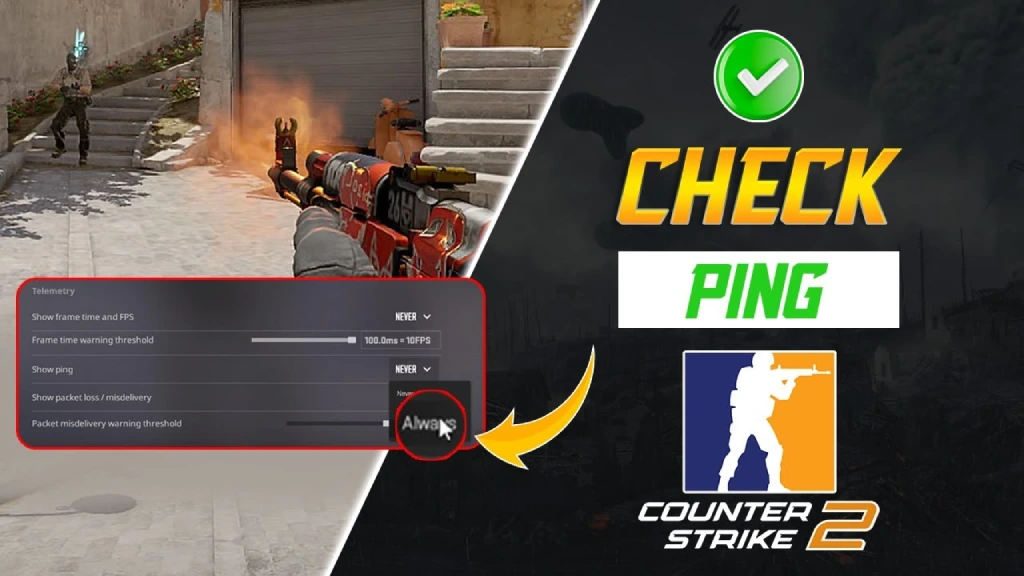
- Open Settings → Game → Telemetry.
- Enable Show FPS and Frame Time → set to Always.
- If necessary, enable Show Ping and Show Packet Loss for network diagnostics.
| Parameter | Displays |
|---|---|
| Show FPS and Frame Time | Current FPS and frame time (ms) |
| Show Ping | Server latency (ping) |
| Show Packet Loss | Percentage of lost network packets |
Telemetry Mode is especially useful for performance debugging. It clearly visualizes the correlation between FPS CS2, frame rate, and network latency spikes, helping to distinguish between graphical issues and network issues.
3. Using Steam Overlay FPS Counter
Another way to display the CS2 FPS counter quickly and without commands or the console is the Steam Overlay. It’s quite easy to turn on:
- Open Steam → Settings → In-Game.
- Find the In-game FPS Counter option.
- Choose a location (top/bottom corner of the screen).
- Enable the “High contrast color” option so the FPS CS2 is visible on a light background.
Steam Overlay is very convenient and versatile, but its downside is that it places a slight load on the system. Having studied numerous tests and conducted my own, on average, FPS in CS2 drops by 1-2% when using this method of displaying the frame rate. Therefore, if your PC is below average, we recommend the console method.
4. GPU Software (NVIDIA & AMD FPS Counter)
Graphics card manufacturers care about their users. While they previously created only hardware and drivers for its basic functionality, in 2026, they now offer a wealth of useful tools. One of the most popular is monitoring FPS, GPU load, and temperature. This method for displaying FPS in CS2 is the most accurate. To use it, find out the manufacturer of your graphics card and read the brief instructions below:
NVIDIA GeForce
- Press Alt + Z to open GeForce Experience Overlay.
- Go to HUD Layout → Performance → FPS Counter.
- Select the counter position on the screen.
AMD Radeon
- Press Alt + R to open AMD Adrenalin Overlay.
- Go to Performance → Metrics Overlay.
- Enable FPS Monitoring.
This method is quite convenient and accurate, but it has a serious drawback regarding performance. Hardware overlays (especially those that include graphics and GPU temperature) can reduce FPS by 1-5%. If your PC is below average, we, as with the third method, recommend the console method of displaying FPS or the Telemetry Menu.
Best Console Commands to Boost FPS in CS2
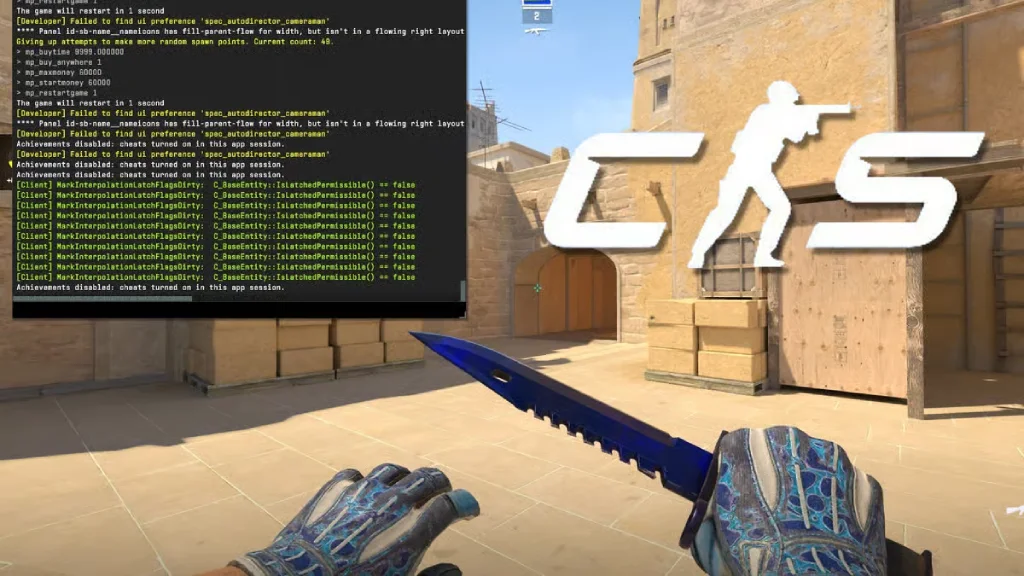
Optimizing Counter-Strike 2 FPS starts with the correct use of console commands. The parameters controlled by these commands greatly impact rendering, particle processing, and GPU load. We recommend trying some of the commands listed in the table below. They may be able to boost your system’s frame rates without sacrificing quality.
| Command | Description | Impact on FPS / Performance |
|---|---|---|
| cl_disable_ragdolls 1 | Disables death body physics (ragdoll), reducing CPU load. | Increases FPS by 5-10% in active firefights. |
| r_drawparticles 0 | Turns off particles – smoke, sparks, dust, and fire effects. | Significant FPS stability boost, especially on weaker GPUs. |
| mat_disable_mipmap 1 | Disables texture mipmaps, lowering memory usage. | Slight FPS gain but reduced texture clarity. |
| fps_max 300 | Sets a maximum FPS CS2 limit to stabilize performance. | Reduces FPS fluctuations and GPU load. |
| r_dynamic 0 | Disables dynamic lighting and flashes. | +10-15 FPS increase on light-heavy maps. |
| muzzleflash_light 0 | Removes muzzle flash lighting effects. | Small but consistent FPS improvement. |
| cl_forcepreload 1 | Preloads resources into memory before the match starts. | Fewer micro-freezes when loading maps. |
| r_shadows 0 | Completely disables all shadows. | Strong FPS boost but loss of visual depth. |
| cl_csm_enabled 0 | Disables Source 2 cascade shadows (very GPU-intensive). | +10–25 FPS increase in complex scenes. |
Also, for stable FPS in CS2, you can combine these commands with the optimal Steam launch parameters:
–novid -high +fps_max 300 +cl_disable_ragdolls 1 -threads X, where X is the number of physical cores on your processor.
Troubleshooting Low FPS in CS2
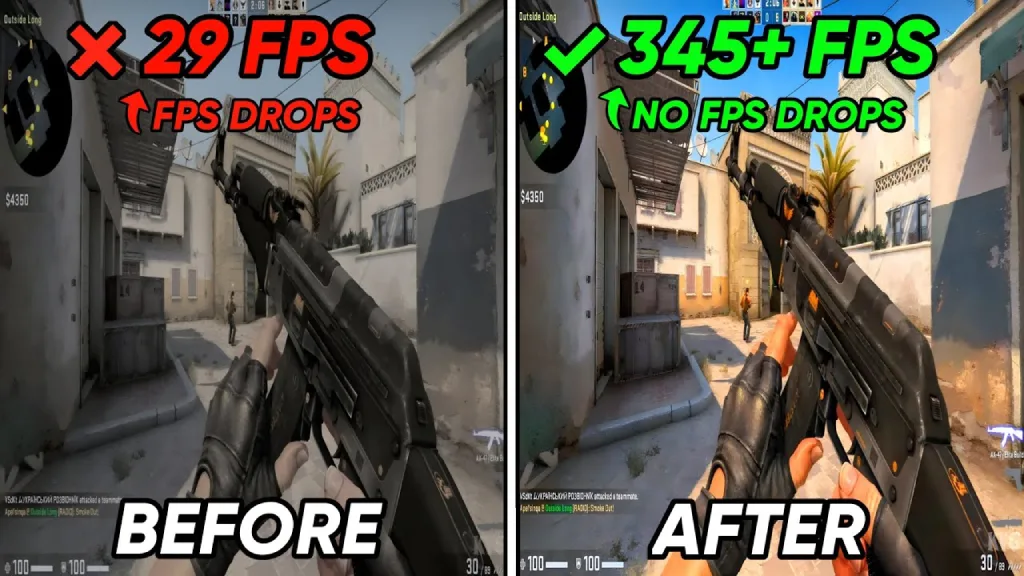
A good graphics card and processor are, of course, essential for high and stable CS2 FPS. However, there are still some factors that, if ignored, can cause FPS drops in CS2. And no, it’s not about game optimization (it’s good enough), but about system settings, drivers, and background processes. We’ve prepared a short checklist to help you eliminate low FPS and lag in CS2:
- Optimize graphics: The most effective and proven method. Simply set low values for textures, shadows, and anti-aliasing. Reduce the effects quality and disable post-processing. This will free up to 30% of your GPU resources.
- Disable background applications: Discord, Chrome, OBS, Windows Game Bar, and all other applications and processes create additional load on the system. They actively use memory and CPU, consuming resources needed for high FPS in CS2. If you don’t need them while playing, we recommend closing them, ideally through the Task Manager.
- Update your graphics card drivers: Use the latest stable version of NVIDIA GeForce or AMD Adrenalin. We recommend uninstalling older drivers first using Display Driver Uninstaller.
- Adjust your power plan: In the Windows Control Panel, enable the “High Performance” plan and disable automatic CPU frequency limiting.
- Check your temperature and cooling: Overheating of the GPU/CPU can cause sharp FPS drops in CS2. To fix this problem, you can clean the cooling system, replace the thermal interfaces, and check the functionality of all fans. If, after performing all these steps, temperatures are still high, consider replacing the cooling system or purchasing additional case coolers to provide air intake and exhaust.
What Is the Best FPS for CS2
There are many myths surrounding CS2’s frame rate. One of the most widespread is that the human eye perceives a maximum of 24 frames per second. This myth arose because Europe previously had an analog television standard (PAL), which set the frame rate at 25 frames per second. However, in reality, this is only the minimum rate at which our brain perceives motion as smooth.
Reputable studies suggest that, on average, people perceive around 45 frames per second. But there’s a caveat here. In fast-paced games, such as Counter-Strike 2, people may notice a slight difference in frame rates above 100. For example, more than half of experienced shooter players notice a difference between 120 and 240 CS2 FPS. This is especially noticeable with sharp camera movements and rapid fire.
| FPS | In-Game Feel | Responsiveness | Advantage |
|---|---|---|---|
| 30 | Choppy, noticeable lag | High input delay | Minimal |
| 60 | Smooth and stable | Moderate response (~16 ms) | Standard level |
| 120 | Very fluid, precise control | Fast reaction (~8 ms) | Good |
| 144 | Optimal for CS2 | Low input-lag | High |
| 240 | Ultra-smooth gameplay | Near-instant response (~4 ms) | Esports level |
| 360+ | Barely perceptible difference | Ultra-low latency | For pro players |
FPS vs. Ping: Understanding the Difference
Many players confuse performance issues with network latency. The fact is, CS2 lag can have various causes, and it’s not always about frames per second. FPS CS2 and ping are two completely different metrics, responsible for different aspects of game performance:
- FPS (frames per second) is your computer’s performance. Technically, this is how many frames per second your graphics card renders.
- Ping is the time it takes for a signal from your computer to reach the game server and return.
To help you understand the cause of lag in CS2, we’ve prepared a simple diagnostic chart with symptoms and solutions:
| Symptom | Cause | Solution |
|---|---|---|
| Low FPS + Good Ping | GPU/CPU bottleneck or overheating | Lower settings, update drivers, improve cooling |
| Good FPS + High Ping | Network instability | Use a wired connection, check the ISP, and disable Wi-Fi |
| FPS Drops + Ping Spikes | System overload or background apps | Close background tasks, check antivirus, and monitor CPU |
| Stable FPS but Lag When Shooting | Packet loss or bad routing | Enable cq_netgraph 1, check packet loss, switch server |
Conclusion – Monitor, Optimize, Dominate!
A high and, most importantly, stable FPS in CS2 is a significant factor in determining your success. It’s long been proven that there is a significant difference. It’s no wonder professional esports players strive to acquire a very powerful PC and monitor with the highest refresh rate.
But if you don’t want to spend thousands of dollars on PC hardware, we recommend using the tips in our article. The console commands for displaying CS2 FPS (cl_showfps, cq_netgraph), the telemetry system, and the Steam overlay are quite useful. Also, don’t forget to properly configure your graphics settings, update your drivers, and close unnecessary programs. This way, you can ensure the highest possible FPS in CS2 for your hardware. This, in turn, means more accurate aiming and more victories!
FAQ
The best way is to use the telemetry menu. To do this, open Settings → Game → Telemetry. In the window that appears, find and enable the “Show FPS and Frame Time option.”
The net_graph 1 command, familiar to many CS:GO players, is no longer relevant in 2026. However, a complete equivalent still exists. The cq_netgraph 1 command in C2 displays a network graph, packet loss, and ping fluctuations.
It’s very easy to do. Open the console by pressing the “~” key and enter fps_max 0 . This command will immediately remove the frame rate cap. We also recommend using it automatically. To do this, add this command to your Steam launch options.
The difference is subtle, but it’s there. cl_showfps 1 only shows the current FPS CS2. This is sufficient for many. However, if you want to analyze your device’s performance in more detail, use cl_showfps 3. This command, in addition to the FPS required by all CS2 players, displays information about the server and frame rate stability.
No, and again no. This is a common myth. The cl_showfps command operates at the engine level and has absolutely no impact on performance. A minimal performance reduction is possible when using external overlays (Steam or MSI Afterburner), but not the cl_showfps command.
It all depends on your monitor’s refresh rate. If you have a 144Hz monitor, it’s best to use fps_max 300. This will prevent any frame rate spikes. It’s recommended that CS2’s FPS be equal to or higher than your monitor’s refresh rate.
When it comes to 60Hz monitors, when using vertical sync (i.e. locking at 60 FPS), there may be a delay between the input and the display of the frame. Ideally, use a frame rate lock at least 20 FPS higher than your monitor’s Hz.
No, if we’re talking about a direct connection between these parameters. However, there is a small indirect correlation between network latency and FPS CS2. High ping and/or packet loss visually simulate a drop in FPS. To distinguish network latency from a real drop in CS2 FPS, you can use the cq_netgraph 1 command.
Read also: