mn
mn  ru
ru 
CS2 Damage Prediction: On or Off?
On November 14, 2024, Valve added the Damage Prediction feature to CS2. Initially, many players experienced its benefits, but over time, some issues emerged. Some players began complaining about fake headshots and false hits. Complaints were especially common among players with high or unstable ping.
In this article for MelBet Pick’em, we’ll explain what damage prediction is in CS2 and whether it’s worth enabling. This is the most comprehensive guide on the internet, and after reading it, you’ll understand why many pro players avoid enabling these settings!
What is Damage Prediction CS2?
Damage Prediction in CS2 is a setting that previews damage effects before the server confirms them. This means there are no changes to damage, recoil, or registration. This setting only affects how quickly the player sees feedback after a shot.
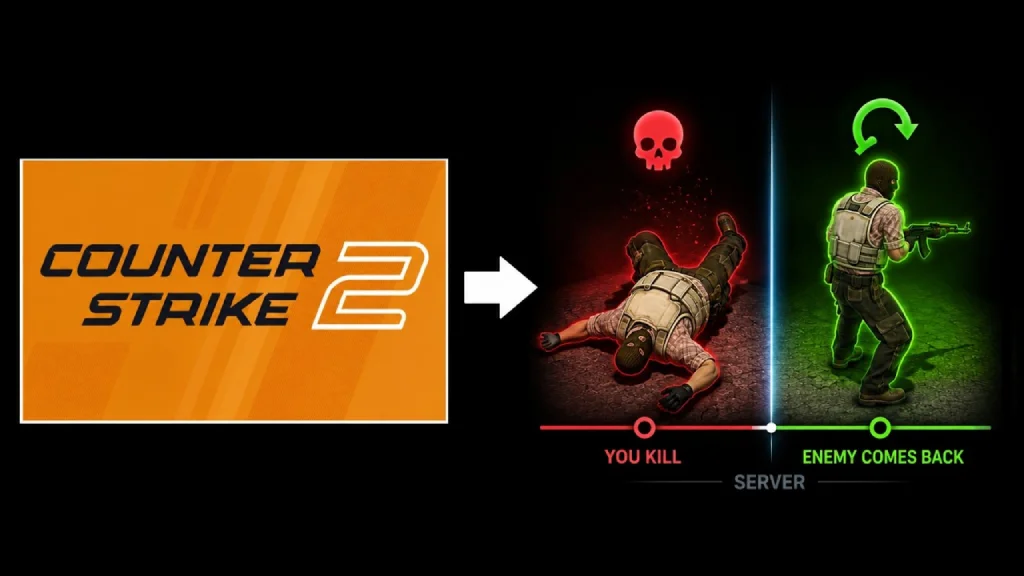
If Damage Prediction is enabled, the game may show body shot effects, headshot effects, or even a death animation sooner. However, the server still makes the final decision. Therefore, if the server doesn’t confirm the hit, the player may see a fake hit effect and an enemy model that appears to have died, only to resume moving a moment later.
How CS2 Damage Prediction Works
Counter-Strike 2 mechanics are built on two sides – the client and the server. The client is the game running on your computer, and the server is the “source of truth.” It verifies every in-game event, taking into account network synchronization, latency, tagging, and many other factors.
When you enable Damage Prediction CS2 in the game settings, the client will no longer wait for the server’s response. It will only evaluate what’s happening on your screen and immediately display the predicted result. An example of this mechanic in action is listed below:
- You shoot an enemy in the head;
- The client predicts a headshot;
- CS2 immediately displays the headshot effect;
- The server verifies the shot;
- If the server confirms the hit, the effect remains correct;
- If the server doesn’t confirm the hit, the effect is false.
How to Turn Off Damage Prediction CS2
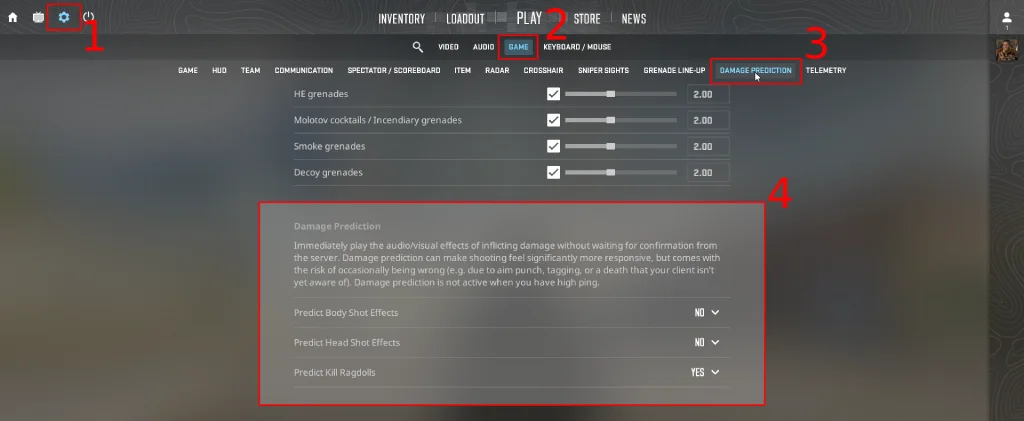
For CS2 damage prediction turn off; you can use the standard game settings. This doesn’t require console commands or a CS2 autoexec file. Simply follow these steps:
- Open CS2.
- Click the gear icon in the upper left corner.
- Go to the Game tab.
- Find the Damage Prediction section.
- Change the desired settings:
- Body Shot Effects
- Head Shot Effects
- Kill Ragdolls
For each setting, you can choose Yes or No. If you choose Yes, the game will display the corresponding effect in advance. If you choose No, CS2 will wait for server confirmation.
CS2 Damage Prediction Settings Explained
There are three separate Damage Prediction settings in the game. You can enable them all or individually. First, we recommend understanding each one individually. This will help you better understand whether you need them or if they will do more harm than good.
Predict Body Shot Effects
This setting controls the early display of body shot effects. If you select “Yes,” the game will show you that a bullet has hit an enemy’s body, arms, or legs without waiting for server confirmation.
Predict Head Shot Effects
Predict Head Shot Effects controls the early display of headshot effects. This setting is often considered the most controversial in the community. A false headshot can have a major impact on a player’s decisions, as it can cause them to stop shooting, change their aim, or simply give their teammates false information.
Predict Kill Ragdolls
This setting controls the early display of death animations. If you want to turn on CS2 Damage Prediction, this is usually the safest option to enable first. The enemy model may fall before the server confirms the kill, which makes death animations feel smoother. However, if the prediction is wrong, the ragdoll effect can still be corrected by the server.
CS2 Damage Prediction On or Off: Which Is Better?
Most players are advised to leave Predict Body Shot Effects and Predict Head Shot Effects off, and Predict Kill Ragdolls on. This is because body and headshot prediction create a high risk of false feedback, which can be very dangerous in competitive matches.
Predict Kill Ragdolls is safer, as it only affects the death animation. It doesn’t change decision-making as much because you will usually keep firing until the player dies, and in many cases, you may already fire one extra bullet after the kill happens.
Therefore, the recommended CS2 Damage Prediction setting is as follows:
| Setting | Recommended Value |
|---|---|
| Predict Body Shot Effects | Off |
| Predict Head Shot Effects | Off |
| Predict Kill Ragdolls | On |
However, there are situations where it makes sense to test all three settings, and we’ll discuss them below.
When You Should Turn Damage Prediction On
If you have low and stable ping in most games, you can try enabling all three settings. This will speed up feedback, which is useful in some cases.
Damage Prediction is worth testing if:
- You have a stable ping;
- You rarely experience packet loss or sudden latency spikes;
- You value the fastest possible visual and auditory feedback;
- You often play aggressively;
- You want gunfire to feel sharper and snappier.
These requirements are explained by the fact that all these factors minimize the latency between your client and the server. Therefore, the predictions and actual results are more likely to match.
But keep in mind that enabling all the Damage Prediction settings in CS2 at once in Competitive Mode or FACEIT is not recommended. It’s best to test these settings in other CS2 game modes first. You might notice any unpleasant moments and thus protect yourself from them by disabling these settings before playing competitive matches that affect your CS2 ranks.
Best Settings for Low Ping
| Setting | Recommended Value |
|---|---|
| Body Shot Effects | Optional / Test |
| Head Shot Effects | Optional but risky |
| Kill Ragdolls | On |
When You Should Keep Damage Prediction Off
If you have high and unstable ping, it’s best to disable these settings. Otherwise, you’ll very often encounter discrepancies between the client prediction and the server result. False hits and fake headshots will become your “best” friends, but you don’t really need that, right?
Best Settings for High Ping
| Setting | Recommended Value |
|---|---|
| Body Shot Effects | Off |
| Head Shot Effects | Off |
| Kill Ragdolls | On or Off by preference |
Do Pro Players Use Damage Prediction in CS2?
Most professional CS2 players don’t use all the Damage Prediction settings. A table with 120 CS2 pro player configurations shows that only a small percentage have the full set of prediction settings enabled. The majority either disable Damage Prediction completely or leave only Predict Kill Ragdolls enabled.
| Damage Prediction Setup | Number of Pros |
|---|---|
| All settings disabled | 73 |
| Only Kill Ragdolls enabled | 41 |
| All three settings are enabled | 5 |
Damage prediction CS2 turn off is the most popular option among pro players. The second most popular option is leaving only Kill Ragdolls enabled. Overall, these numbers support our explanations and recommendations. It’s better to understand what actually happened, and feedback speed is secondary.
Pros and Cons of Damage Prediction in CS2
The CS2 Damage Prediction mechanic can make shooting and kills feel smoother, but the drawback of false feedback can be quite frustrating. For those who want to evaluate this tradeoff between responsiveness and accuracy and finally decide, we’ve prepared a list of pros and cons.
-
Visual feedback displays faster after firing.
-
Makes shooting feel more responsive.
-
Helps you switch between targets faster.
-
Can be useful for spray transfers.
-
With low ping, it more often matches the server result.
-
Can create false hit effects.
-
Can display a kill animation before the server confirms.
-
You can mistakenly switch to another target.
-
False feedback can lead to wrong information for your team.
-
Works worse with high or unstable ping.
FAQ
We recommend disabling all Damage Prediction settings or leaving only Predict Kill Ragdolls enabled. The other two settings often provide false feedback, which can negatively impact your match results.
No, this setting does not affect hit registration, weapon damage, spread, recoil, or hitboxes. It only affects the moment a player sees and hears hit and kill effects. The actual decision of whether a shot hits or misses is still made by the server, and enabling this feature has no effect.
The Damage Prediction settings are located in the CS2 menu at Settings > Game > Damage Prediction. There you will see three options, each with a Yes or No option.
Read also: