mn
mn  ru
ru 
How to Fix CS2 Stuttering
If you’ve reached this article, you’re likely experiencing CS2 stuttering, and the simple solutions you’ve come up with aren’t helping. Unfortunately, this is an incredibly common problem, and many players struggle with stuttering for years, not knowing how to fix it.
The guide below, written exclusively for MelBet Pick’em, contains methods for diagnosing and fixing stuttering that will work for most players. Follow all the steps carefully, and we guarantee you’ll say goodbye to stuttering today!
What Is CS2 Stuttering?
CS2 stuttering is uneven frame rates in the game. In such moments, the game stutters and freezes, even though the frame rate counter is showing fairly high values. Frames may appear unevenly spaced, making mouse movements inaccurate and disrupting shooting and overall gameplay.
Stuttering can be caused by a myriad of factors. Specifically, in CS2, this issue most often occurs after game updates, driver changes, incorrect launch options, background processes, and network surges. However, this list only covers the most common issues, so below we’ll discuss how to diagnose stuttering in CS2 directly on your PC or laptop.
How to Diagnose Your CS2 Stuttering Problem
The most important part of diagnosing the problem isn’t identifying it, but rather determining when exactly the stuttering occurs. We’ve prepared a list of problems by symptom. Go through each of them and remember which situation most closely resembles yours:
- In firefights: If stuttering occurs specifically during duels, sprays, or when an enemy appears, the cause is often related to sudden frametime jumps and increased CPU load. This is most noticeable when normal movement around the map is smooth, but micro-freezes occur upon contact with an enemy.
- In smoke and molotov cocktails: Jerking while viewing heavy graphical effects indicates a problem with shaders, video drivers, or graphics settings. Sometimes, in such cases, reducing the particle detail, shader detail, and shadows settings is sufficient.
- At 144Hz or 240Hz: If the monitor has a high refresh rate, but the game still feels like it’s running at 60Hz, check the other refresh rate settings. Users often change the refresh rate only in one place (Windows/Monitor Settings). This is a mistake, as the same high refresh rate should be set everywhere, including the FPS settings in CS2.
- With high FPS: If the monitor refresh rate is correct and the PC is powerful enough, but stuttering still occurs, check frame time. It’s possible that the average FPS is high, but sharp spikes are causing the game to stutter. You can use MSI Afterburner, CapFrameX, or CS2’s built-in telemetry.
- For ping spikes: Sometimes stuttering is caused by network issues. Jump into a match and check your ping, packet loss, and jitter.
- After 30+ minutes: If the first half of the match was perfect and then the game suddenly starts stuttering, your device may be overheating or running out of RAM. You can check this by opening the Task Manager before your next game. As soon as stutters start, minimize CS2 and check the CPU/GPU/RAM load and temperature for the CPU and GPU. If the load is close to 100% or the temperature exceeds 80%, this is most likely the problem.
The more accurate your diagnostics, the easier it will be to fix stutters CS2. Otherwise, you’ll have to try every possible solution, and even that might not help, not to mention the time it will take.
Best CS2 Settings to Reduce Stuttering
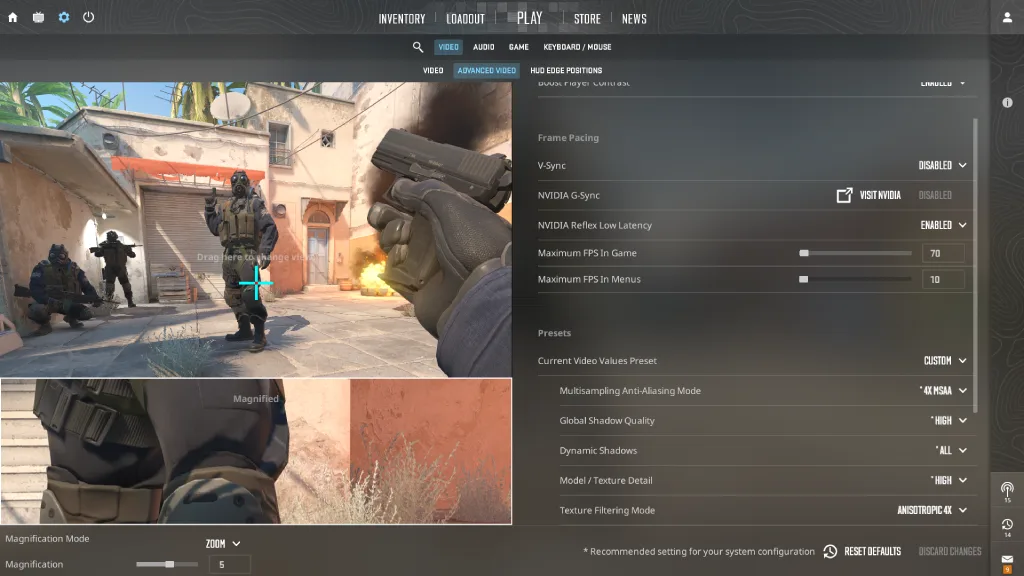
Before resorting to any updates or drastic, time-consuming methods, we recommend setting up the correct CS2 settings. This won’t take much time, but there’s a good chance it will eliminate stuttering. This is especially true for those whose devices are only slightly better than the CS2 minimum requirements.
However, you don’t necessarily have to lower all settings right away. You can start with heavy graphics effects, disable VSync, check the display mode, and test Nvidia Reflex. After each change, play a Deathmatch game, or better yet, run the map where you experienced CS2 stuttering most frequently. This settings-tweaking method will help identify what specifically affects the system.
| Setting | Recommended Value | Why It Helps |
|---|---|---|
| Global Shadow Quality | Low / Medium | Heavy shadows can cause drops on detailed maps. Lower values usually make frametime more stable. |
| Particle Detail | Low | Smokes, Molotovs, and explosions are easier on the system with this set to Low. |
| Shader Detail | Low / Medium | Keeps visual effects lighter and can reduce small hitches during fights or utility usage. |
| Texture Filtering Mode | Bilinear / 2x-4x Anisotropic | A moderate value is usually enough for clarity without adding unnecessary load. |
| VSync | Disabled | VSync can add input delay and make unstable FPS feel even worse. |
| Nvidia Reflex | Enabled / Enabled + Boost | One of the key CS2 Nvidia settings for lower input latency. If the game starts feeling uneven, try both modes or turn it off. |
| Multisampling Anti-Aliasing | None / 2x MSAA | Lower anti-aliasing reduces GPU load and helps keep performance steadier. |
| Ambient Occlusion | Disabled | Nice for visuals, but not worth the possible frametime instability in competitive play. |
| Motion Blur | Disabled | Makes movement less clear and gives no real benefit in CS2. |
| Fullscreen / Borderless | Try Fullscreen first | Fullscreen is usually the safer choice for stable performance. Test Borderless if you notice tearing, Alt-Tab issues, or strange stutters. |
| FPS Cap | Slightly below stable FPS | A sensible cap can smooth out frame pacing. If FPS jumps between 220 and 300, try capping it around 200-240. |
How to Fix CS2 Stuttering Step by Step
If changing all of the above CS2 settings hasn’t yielded any noticeable results, the problem lies elsewhere. In this case, it’s time to look into system-level issues. We’ve prepared nine ways to fix CS2 stuttering with high FPS.
They’re listed in order from the simplest and most likely to help to the most complex. We recommend starting with the first step and testing the game after each step. This will help resolve the issue promptly and continue enjoying the favorite game.
1. Close Background Apps Before Launching CS2
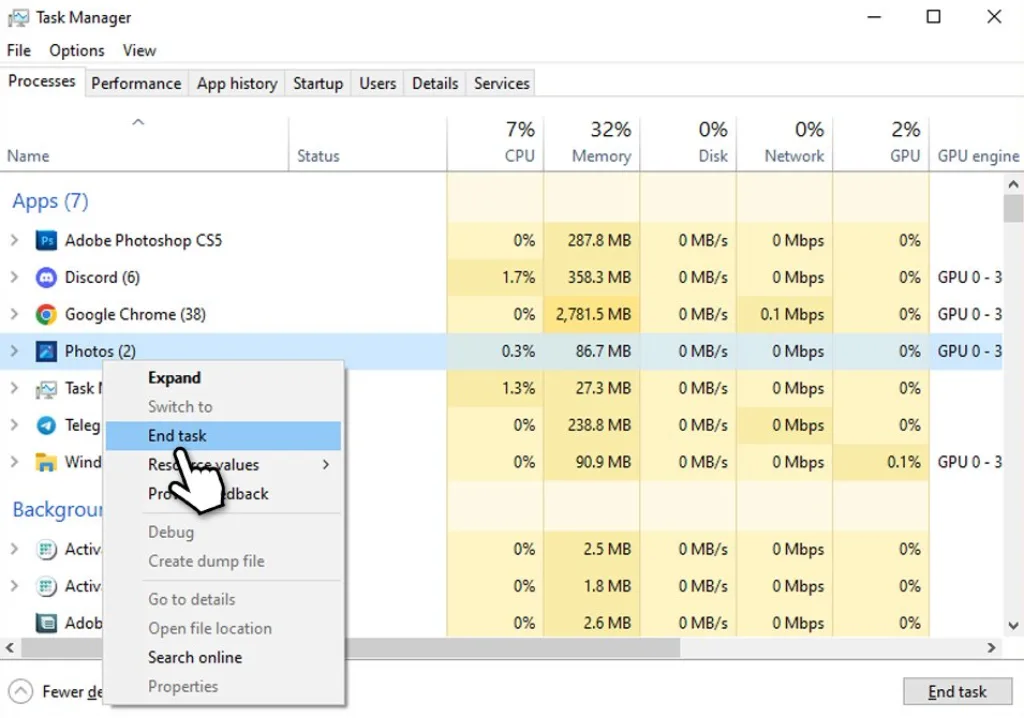
The simplest and most effective thing you can do is close all unnecessary programs before launching CS2. Even if you have a fairly powerful PC, it can still consume CPU, RAM, or network resources.
Browsers with dozens of open tabs, Discord, OBS, other game launchers, and so on are the most common culprits. Keep in mind that minimizing unnecessary programs isn’t enough. It’s best to disable them from autostart and reboot the system. This is necessary because some programs continue to run even after they’re closed, and opening the Task Manager each time can be inconvenient.
2. Disable Steam, Discord, and Nvidia Overlays
Overlays are convenient, and in most cases, software manufacturers claim they only reduce performance by 1-3% or don’t affect it at all. This is partly true, but sometimes Steam Overlay, Discord Overlay, Nvidia Overlay, Xbox Game Bar, and similar features run on top of the game and can interfere with frame rendering.
This is especially true during notifications and clip recording, as it is at these moments that CS2 stuttering with high FPS is often observed. That’s why we recommend simply disabling overlays. We’ve included instructions for the most popular ones in this list:
- Steam Overlay: Steam → Library → CS2 → Properties → Disable Steam Overlay.
- Discord Overlay: Discord → Settings → Game Overlay → Disable in-game overlay.
- NVIDIA Overlay: GeForce Experience / NVIDIA App → Settings → Disable in-game overlay.
- Xbox Game Bar: Windows Settings → Gaming → Xbox Game Bar → Off.
After disabling, be sure to restart CS2, or better yet, your entire PC. Then, test the game on the same map or in the same mode where you previously experienced CS2 constant stuttering.
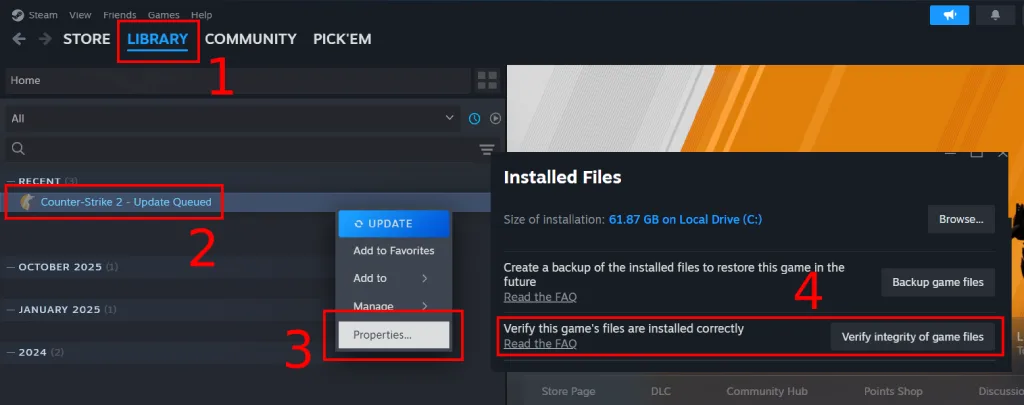
3. Verify CS2 Game Files in Steam
If you started experiencing stuttering after updating CS2 or installing a config, you should definitely verify the integrity of the game files through Steam. This doesn’t delete your account, skins, or progress. Steam will simply compare the installed CS2 files with the current version and download any missing files or replace any corrupted ones.
The process itself is completely automatic; you just need to follow the instructions and wait:
- Open Steam.
- Go to the library.
- Right-click Counter-Strike 2.
- Select Properties.
- Open Installed Files.
- Click Verify integrity of game files.
4. Set Windows Power Mode to High Performance
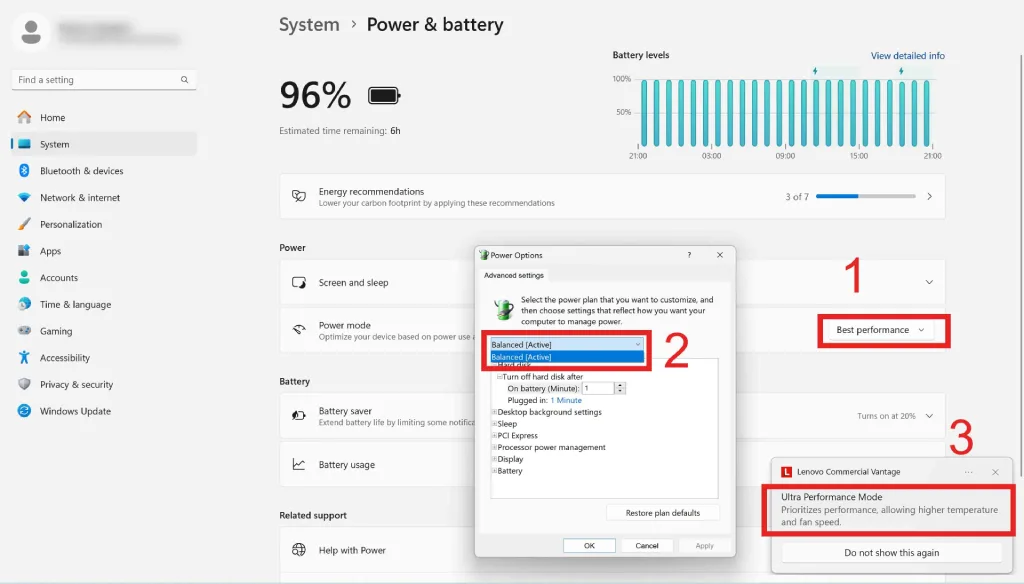
Windows may limit processor and graphics card performance. This is especially common on laptops to reduce power consumption. To ensure this doesn’t result in unstable FPS and micro-freezing, configure the system to run in high-performance mode:
- Open Windows Settings.
- Go to System.
- Open Power & battery or Power.
- In the Power mode section, select Best performance or High Performance.
If you have the classic Control Panel:
- Open Control Panel.
- Go to Power Options.
- Select High Performance.
We also recommend gaming on laptops only while plugged in, not on battery power. In battery mode, the system typically reduces CPU and GPU frequencies to extend battery life. This always negatively impacts performance.
5. Update Your Graphics Drivers
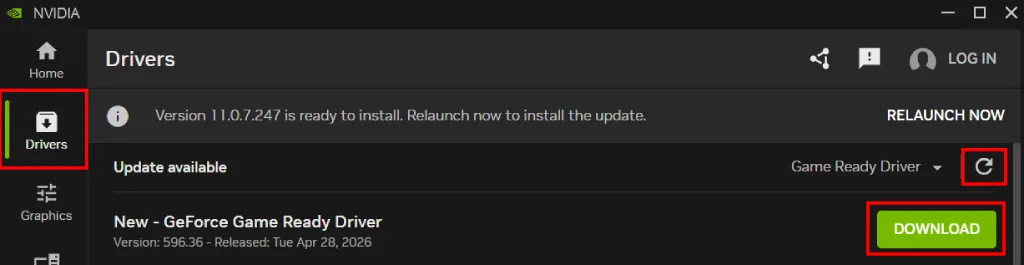
If the previous steps didn’t produce the desired effect and eliminate CS2 stuttering with high FPS, it’s time to move on to more complex methods, starting with updating your video drivers. An outdated video driver is one of the most common causes of CS2 stuttering. It may perform poorly with the latest shaders, effects, Reflex, Vulkan, or DirectX.
You should update your driver from the official website of the video card manufacturer. Windows Update doesn’t always perfectly select the latest drivers, and this is very important for gaming.
- Find your video card model. The easiest way to do this is by going to Start → Device Manager. There you’ll see the Display adapters tab. Clicking it will reveal the full model name.
- Go to the official Nvidia, AMD, or Intel website.
- Find the driver page, select the model, and download its latest driver.
- Install it and restart your PC.
- Launch CS2 and check the same map or mode where the stutters were before.
6. Clear Shader Cache
The shader cache is a cache of shaders, a temporary storage location for files that help the game process graphical effects faster. It is responsible for visual effects such as lighting, shadows, smoke, fire, reflections, materials, and much more.
When you first encounter an effect in the game, the system prepares it for loading by your graphics card. After that, these shaders are saved in the shader cache to load them faster.
However, after a CS2 update, driver change, or crash, these cached files can conflict and cause problems. To fix CS2 stuttering in such cases, do the following:
- Close CS2 and Steam.
- The easiest way to clear the shader cache is to press the key combination WIN + R. In the menu that appears, enter %localappdata%, open the NVIDIA folder, and clear the contents of the DXCache and GLCache folders. For AMD graphics cards, this is done using the AMD Software utility: Adrenalin Edition → Graphics → Reset Shader Cache.
- Delete the Steam shader cache for CS2. To do this, in the Steam installation folder, go to steamapps → shadercache → 730. Delete all contents of the 730 folder.
- Restart your PC.
- Launch CS2 and give the game a little time to recompile the shaders.
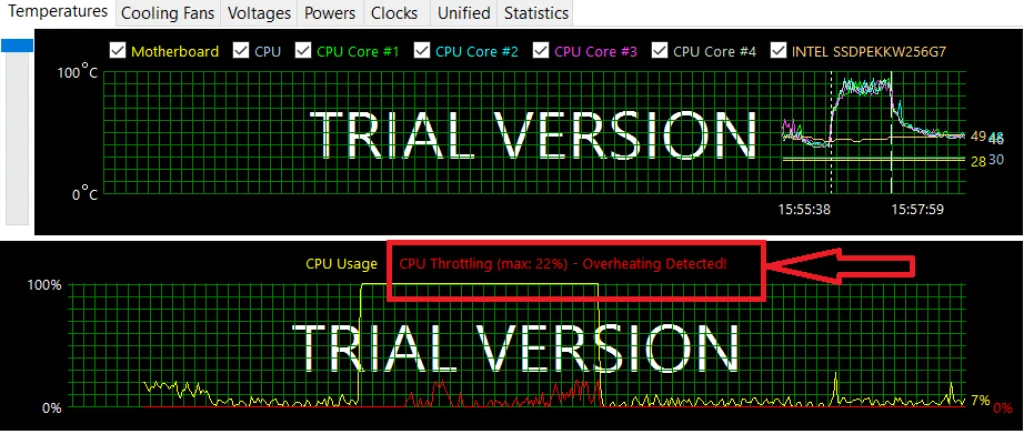
7. Check CPU and GPU Temperatures
This step isn’t really a direct CS2 stuttering fix, but rather a diagnostic. Download and run MSI Afterburner, HWiNFO, HWMonitor, or any other monitoring application. Then play CS2 for 15-30 minutes and observe what happens to the CPU and GPU during stuttering. If the temperature is always above 85-90°C, throttling is likely occurring. This will manifest as sharp FPS drops.
Another way to check is to run the AIDA64 stress test. It puts an even higher load on the device than the game itself and allows you to accurately see temperature-related throttling on a graph. If this is indeed the case, it’s time to address cooling issues. There are many options, but we’ve listed the main ones below:
- Clean dust from your PC case or laptop. Do this very carefully, using compressed air.
- Check if the fans are working properly. They may not be connected or simply clogged with dust. Improve airflow in your PC case by purchasing additional intake and exhaust fans or choosing a case with better ventilation.
- Replace old thermal paste.
- Use a laptop cooling pad.
- Reduce heavy graphics settings if the GPU is overheating.
8. Update Chipset and Motherboard Drivers
Some forum users reported a less obvious CS2 stutter fix method, which involves updating the chipset and motherboard drivers. This is a rare issue, but theoretically, outdated drivers can cause incorrect power management, CPU instability, and many other problems.
Download such drivers only from the manufacturer’s website:
- For a pre-built PC or laptop, download from the device manufacturer’s website.
- For a custom-built PC, download from your motherboard’s page.
- For AMD systems, you can also check for the latest AMD Chipset Drivers.
- For Intel systems, download drivers from the motherboard manufacturer’s website or from Intel.
9. Move CS2 to an SSD
A possible, but one of the most time-consuming options for a CS2 stuttering fix is to move the game to an SSD. Old HDDs are very slow and can take a long time to load game files. After switching from CS: GO to CS2, drive speed became even more important.
These stutters are most often noticeable at the beginning of a round, when moving to new areas, and when effects appear. The game simply freezes for short periods because the system needs time to read data from the old HDD.
Moving CS2 to an SSD doesn’t require deleting the game or completely reinstalling Windows; you can do it directly through Steam:
- Open Steam.
- Go to the library.
- Right-click Counter-Strike 2.
- Open Properties.
- Go to Installed Files.
- Select the Move install folder.
- Select the Steam library on the SSD.
CS2 Launch Options for Stuttering and Lag
CS2 launch options can help with performance, but it’s important to use them with caution. Many commands you can find online no longer work. At the same time, don’t treat launch options as the main CS2 stuttering fix. Start with the safest option first:
- -novid – disables the startup video and speeds up game launch.
Keep in mind that most guides may recommend the -vulkan parameter. It’s highly controversial, as it works very differently for different users. Some users praise it, while for others it causes an even greater FPS drop, input lag, and an odd mouse feel.
You can add it for testing purposes to compare the experience. However, if you notice a drop in FPS or other negative changes, it’s best to remove it. You can also completely reset launch options; you may have old, conflicting commands entered there:
- Open Steam.
- Go to the library.
- Right-click Counter-Strike 2.
- Open Properties. In the General section, find the Launch Options field.
- Delete all commands from this field.
- Close the window and restart CS2.
How to Fix CS2 Stuttering with High FPS
High FPS is great, but it doesn’t always mean smooth gameplay. When dealing with CS2 stuttering with high FPS, you need to look not only at the average FPS, but also at the frame time. It’s possible that your framerate fluctuates constantly between 140 and 250 FPS, which can feel worse than a stable 140 FPS.
It’s recommended to set the limit slightly lower than your stable value. If you usually get 240 FPS, try setting the cap to 200-220. This can help you achieve a smooth frametime rather than the maximum.
Many guides also recommend enabling/disabling Hardware Accelerated GPU Scheduling. Sometimes this helps, but sometimes it does the opposite and causes instability and CS2 micro stutters. To test, try disabling/enabling it using these instructions:
- Open Windows Settings.
- Go to System.
- Open Display.
- Go to Graphics.
- Open the default graphics settings.
- Enable/disable Hardware-accelerated GPU scheduling.
- Restart your PC.
It’s also worth testing G-Sync, FreeSync, and VSync for conflicts. For competitive gaming, it’s common to start by disabling VSync and testing G-Sync or FreeSync separately. If you notice positive changes, save the changes; if things get worse, revert to your previous settings.
How to Fix Network Stuttering in CS2
Not all stuttering CS2 is related to FPS, graphics card, or graphics settings. However, there are symptoms that clearly indicate network issues:
- Enemies move jerkily or “teleport.”
- Shots are registered with a delay.
- Damage takes longer than expected.
- You are knocked back when moving.
- Ping spikes sharply during a match.
- Packet loss and jitter appear.
- Lag intensifies in the evening, when the network is more congested.
- The problem only occurs on certain servers or in certain regions.
- Discord voice chat also starts lagging during gameplay.
First and foremost, if you’re using Wi-Fi, it’s recommended to switch to an Ethernet cable. Yes, it’s not that convenient, you’ll probably have to sit somewhere in one place; however, it may be necessary for a CS2 stuttering fix. Even with a good average ping, short dips, latency spikes, and packet loss CS2 can still occur. If a cable connection isn’t possible, try playing closer to your router. Also, if it supports 5 GHz Wi-Fi, consider connecting through that network.
Also, remember to close anything that might be using the internet in the background. Any downloads, updates, cloud syncs, etc., can cause ping spikes even on a fast internet connection.
Final Thoughts on Fixing CS2 Stuttering
CS2 stuttering with high FPS is a frustrating experience. You might think you have a powerful PC, amazing graphics, and high FPS, so why is everything lagging? It happens; stuttering can be caused by a myriad of factors, and finding the exact cause can be difficult.
We hope the methods for fixing CS2 stuttering in this article will help you resolve the issue as quickly and easily as possible, allowing you to continue enjoying the game. Also, keep in mind that stuttering can appear unexpectedly after an update. Bookmark this article just in case, but we hope you avoid stuttering for as long as possible!
FAQ
Most often, CS2 stuttering appears after an update due to changes to shaders, maps, and animations. It’s also worth considering that the first matches after an update may experience micro-freezes due to shader cache compilation. However, if the issue remains after hours of play and a restart, old launch options, configs, or GPU drivers may need updating or removal.
The average FPS may be high, but the frametime may remain unstable. To quickly resolve the issue, try setting the FPS cap slightly below the stable value, disabling overlays, and closing background applications. Remember that stable FPS is much better than maximum but uneven FPS.
Stuttering while shooting is incredibly common, and it’s often caused by sharp frametime spikes due to increased CPU load. This can be caused by simultaneously running overlays or background processes. First, try closing all background programs and monitoring CPU load while playing through the Task Manager.
Yes, an FPS cap can help if stuttering is caused by poor frame pacing. Reducing the frame rate reduces frametime variance, which makes frame delivery smoother. However, you don’t necessarily need to lower the cap to 60-80. Setting the cap slightly lower than the value your PC consistently maintains during a match is sufficient.
Read also: