mn
mn  ru
ru 
Best CS2 Launch Options Guide & List 2026
Counter-Strike 2, compared to the previous version – CS:GO, has become quite demanding on PC hardware. But, it is not necessary to immediately proceed to upgrading the GPU/CPU. We recommend trying the right CS2 launch options first. With our exclusive guide for MelBet Pick’em, you’ll learn how to increase FPS, reduce input lag, and speed up map loading times – all without upgrading components! In this best CS2 launch options 2026 guide, we’ve compiled settings for a wide range of users. Ready to improve stability, enhance responsiveness, and unlock the full potential of your hardware? Then read carefully and to the end!
What Are CS2 Launch Options and Why They Matter
CS2 launch options are pre-load parameters for the Counter-Strike client, configured through Steam before launching the game. Essentially, they are special CS2 startup commands that instruct the Source 2 engine how the game should launch and run.
Launch options differ from the settings found in the game menu in that they are applied before the engine initializes. This allows them to influence deep aspects of performance. CPU thread distribution, video memory, frame rate limit, and network latency are all configured through CS2 launch options.
Considering the high CS2 system requirements in 2026, launch options for CS2 have become quite popular. Many people search for CS2 launch options for fps, as just a couple of minutes can significantly improve gameplay smoothness. Moreover, it’s free, unlike purchasing computer components.
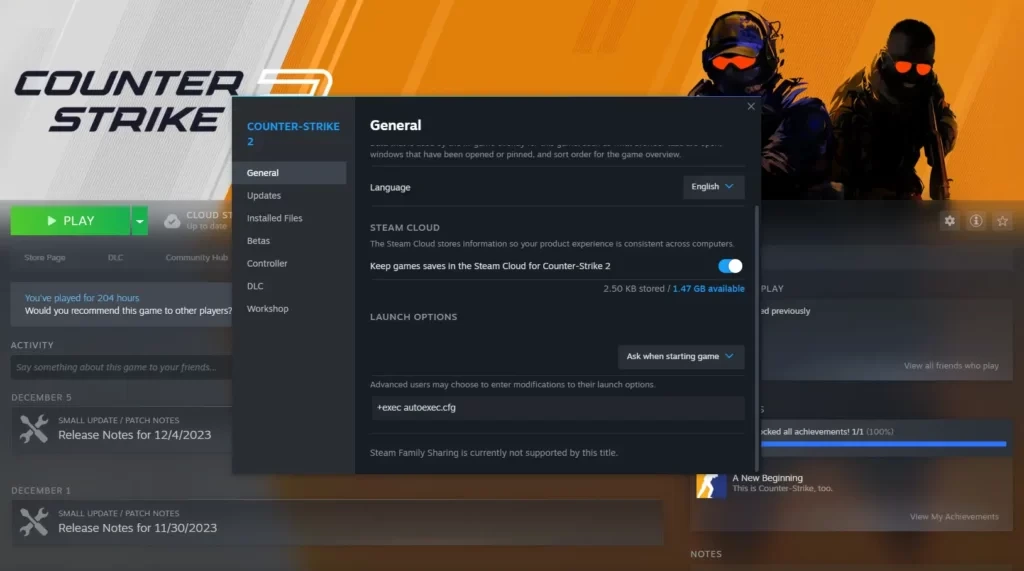
How to Set Launch Options in CS2
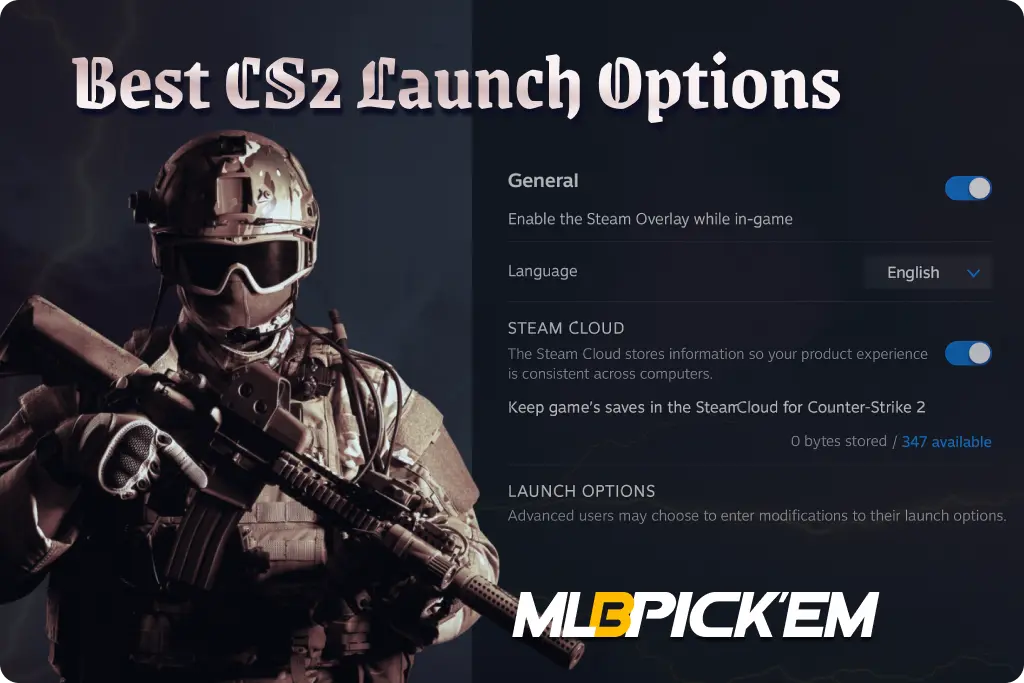
Some people think that setting CS2 launch options is very difficult and prefer to ignore them without even googling how to set CS2 launch options. This is a mistake, and a big mistake at that. They can be set in just a few minutes through Steam properties; the main thing is to want to figure it out. If you’d like to, we’ve prepared step-by-step instructions for setting CS2 startup commands:
- Open the Steam Client and go to the Library section.
- Find Counter-Strike 2 in the list of installed games.
- Right-click the game name and select Properties.
- In the window that appears, go to the General tab.
- At the bottom of the window, find the Launch Options field.
- Enter the desired CS2 launch options, separated by spaces.
- Close the window and restart CS2 (if you had the game open).
Common Mistakes to Avoid When Setting CS2 Launch Options
Before we move on to tables of all CS2 launch options, we’d like to discuss some common mistakes. Every second gamer makes at least one of them when setting up the options. Read them twice. This will prevent you from having problems launching the game and save you time troubleshooting the issue:
- Using quotation marks (” “): Quotation marks are not allowed in parameters. All commands must be entered without them.
- No spaces between commands: Each CS2 launch command must be separated by a space.
- Incorrect prefixes (- or +): System parameters always begin with “-“, while game (console) parameters always begin with “+”.
- Conflicting parameters: Do not use commands that affect the same thing at the same time, such as -fullscreen and -windowed.
- Deprecated commands: Some parameters are no longer supported by the Source 2 engine (e.g., -d3d9ex, -novid in the old format).
- Missing values: Commands that require a numeric parameter (-refresh, +fps_max) must contain a valid value.
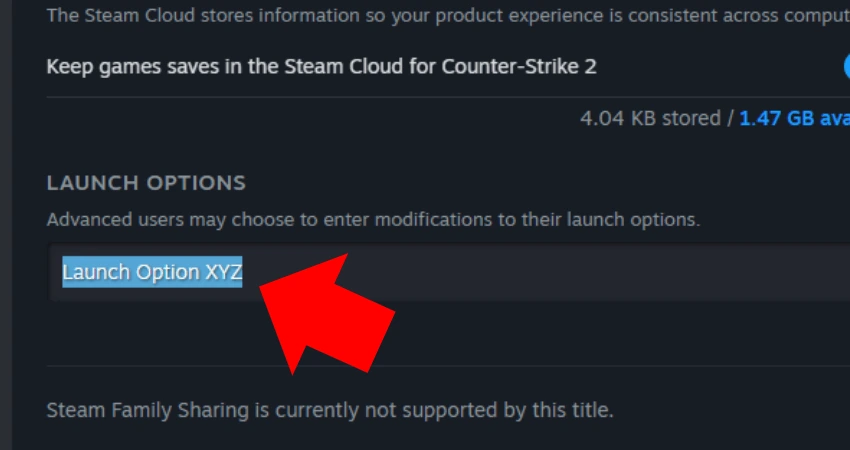
All CS2 Launch Options 2026
There are dozens of different launch options in CS2. To save you the trouble of searching for a long time, we have divided all the parameters into main categories. Simply select the category you’re interested in, scroll down to the setup instructions, and enjoy smoother gameplay!
Best CS2 Launch Options for FPS Boost
The first and most popular category is CS2 launch options for FPS. Over 73% of players use these:
| Command | Function / Description | Recommended For |
|---|---|---|
| +fps_max 0 | Removes the FPS limit | All systems |
| -high | Sets CS2 to high process priority | Mid and low-end PCs |
| +mat_queue_mode 2 | Enables multithreaded material processing | CPUs with 4+ threads |
| +cl_forcepreload 1 | Preloads models and textures | All setups |
| -forcenovsync | Disables VSync | 120Hz+ monitors |
| +engine_low_latency_sleep_after_client_tick true | Reduces post-tick latency | High-end CPUs |
| -refresh [Hz] | Sets monitor refresh rate | 144–360Hz displays |
| -softparticlesdefaultoff | Disables soft particles | Low-end GPUs |
| +r_dynamic 0 | Disables dynamic lighting | Weak GPUs / laptops |
| +mat_disable_fancy_blending 1 | Simplifies texture blending | Low-end GPUs |
| -limitvsconst | Limits vertex shaders to 256 | Older GPUs |
| +r_drawparticles 0 | Disables particle effects | Very low-end PCs |
| +mat_hdr_level 0 | Disables HDR | Low-end GPUs |
| -nojoy | Removes joystick support | All users |
| +cl_threaded_bone_setup 1 | Multithreaded bone setup | High-end CPUs |
| +cl_threaded_client_leaf_system 1 | Multithreaded map processing | CPUs with 8+ threads |
| +mat_motion_blur_enabled 0 | Disables motion blur | All systems |
Display, Resolution & Refresh Rate Launch Options
The next category we highlight is display-related options, including CS2 resolution launch options. This is also a very important category. If you think they only affect aesthetics, you’re seriously mistaken. Carefully selected commands allow you to achieve minimal input lag and maximum frame rate stability. We’ve compiled all available CS2 display launch options in this table:
| Command | Function / Description | Recommended For |
|---|---|---|
| -w 1920 -h 1080 | Sets standard Full HD resolution (16:9). | Universal option, 1080p monitors |
| -w 1280 -h 960 | Sets stretched 4:3 resolution. | Esports players preferring 4:3 ratio |
| -w 2560 -h 1440 | Sets Quad HD (2K) resolution. | Modern GPUs and 1440p monitors |
| -w 3840 -h 2160 | Sets 4K (Ultra HD) resolution. | RTX 4070+, RX 7900+, high-end systems |
| -refresh 60 | Forces 60Hz refresh rate. | Office or standard 60Hz monitors |
| -refresh 120 | Forces 120Hz refresh rate. | Entry-level gaming displays |
| -refresh 144 | Sets 144Hz refresh rate. | Popular competitive gaming monitors |
| -refresh 240 | Sets 240Hz refresh rate. | Professional players, 240Hz+ displays |
| -refresh 360 | Forces 360Hz refresh rate. | Enthusiasts, esports setups |
| -fullscreen | Launches CS2 in exclusive fullscreen mode. | Players aiming for lowest input lag |
| -windowed | Launches CS2 in windowed mode. | Streamers, multi-monitor setups |
| -noborder | Enables borderless windowed mode. | Streamers, content creators |
| -hdr | Enables High Dynamic Range rendering. | HDR10 / OLED gaming monitors |
| +mat_hdr_level 0 | Disables HDR rendering entirely. | Low-end GPUs |
| -monitor [index] | Launches the game on the specified monitor (0, 1, 2…). | Multi-monitor setups |
Advanced CS2 Launch Options for Competitive Players
Counter-Strike 2 is built on a hybrid Source 2 network architecture with a sub-tick system. This architecture has the unique characteristic that any micro-delays and network traffic stability affect hit registration, model smoothness, and shot predictability. To optimize all of this, use special competitive CS2 settings:
| Command | Function / Description | Recommended For |
|---|---|---|
| +cl_cmdrate 128 | Defines how many packets per second the client sends to the server. | All players on 128-tick servers |
| +cl_updaterate 128 | Determines how many packets per second are received from the server. | Online play on FACEIT, ESEA, 128-tick servers |
| rate 786432 | Maximizes the client’s network bandwidth for data transfer. | High-speed connections (≥100 Mbps) |
| +cl_interp 0.031 | Sets minimum interpolation value; reduces model update latency. | Stable ping up to 50 ms |
| +cl_interp_ratio 1 | Interpolation ratio 1:1 for precise, predictable positioning. | Low-latency players (LAN / stable ping) |
| +cl_interp_ratio 2 | Provides smoother interpolation for higher or unstable ping. | Online play with variable latency |
| +cl_predict 1 | Enables client-side movement prediction. | All network types |
| +cl_lagcompensation 1 | Enables server-side lag compensation for accurate hit registration. | Online servers, FACEIT, Premier |
Launch Options for Stability, Loading, and Troubleshooting
In addition to the CS2 fps boost launch options, there are also others that affect stability. These can be useful even for those with high-end PCs. Even with perfect hardware, micro-freezes, delays when joining a server, and sudden crashes can be caused by incorrect launch parameters or conflicting configurations.
We’ve compiled a list of CS2 startup commands that can be used to diagnose and restore the client’s performance, and also help isolate errors that occur after updates:
| Command | Function / Description | Recommended for |
|---|---|---|
| +cl_forcepreload 1 | Forcefully loads models, textures, and maps before the match starts, helping reduce freezes and stutters. | All systems, microstutter reduction |
| -autoconfig | Resets all in-game parameters to factory defaults. | Restoring the game after crashes or config issues |
| +exec autoexec.cfg | Loads a user configuration file with custom control, graphics, and network settings. | Advanced users, custom configurations |
| -vulkan | Runs CS2 using the Vulkan API; may increase FPS on some GPUs, but can be unstable. | Performance testing, experienced users |
| -dxlevel [number] | Manually sets the DirectX version (CS2 only supports 110 → DX11). | Compatibility and diagnostics only |
| -allow_third_party_software | Allows third-party software (OBS, overlays, MSI Afterburner). May affect Trust Factor. | Streamers, content creators |
| -safe | Launches CS2 in safe mode with minimal settings. | Fixing startup errors and driver conflicts |
| -verify | Performs a forced integrity check of game files at launch. | Technical diagnostics after crashes |
| -noasync | Disables asynchronous file loading; may reduce stutters on HDD systems. | HDD-based systems, old laptops |
Outdated CS2 Launch Options (Not Working in 2026)
Each CS2 update gradually removes legacy technologies from the Source 2 engine, dating back to the days of CS:GO and DirectX 9. Consequently, many older launch options that previously improved performance or sped up loading times are no longer supported in 2026. They may have no effect at all, or they may even have a negative effect, causing lag, freezes, errors, and so on.
Valve has officially confirmed on the forums and in the documentation that CS2 now fully runs on DirectX 11 and uses the Sub-Tick system. Therefore, we’ve compiled a table of all the outdated CS2 launch options that are inoperative or dangerous to use in 2026:
| Command | Explanation | Status (2026) |
|---|---|---|
| -d3d9ex | Enabled Direct3D 9Ex mode in CS:GO. CS2 uses DirectX 11, so the command has lost relevance. | Not working |
| -disable_d3d9ex | Disabled D3D9Ex, but this mode is no longer supported by Source 2. | Removed |
| -tickrate 128 | Set the server tick rate. Replaced by Sub-Tick, no effect in CS2. | Not used |
| -novid | Skipped intro video. CS2 disables it by default. | Useless |
| -no-browser | Removed Panorama browser. In CS2 it cannot be disabled. | Not working |
| -lv | Enabled “Low Violence” mode. Not present in CS2. | Completely removed |
| -heapsize | Allocated RAM for Source engine. Source 2 manages memory automatically. | Not working |
| -freq | Old analogue of -refresh. Not recognized in CS2. | Not working |
| -r_emulate_g | Enabled OpenGL emulation. Not supported by CS2. | Removed |
| -noaafonts | Disabled font anti-aliasing. Not used in Source 2. | Removed |
| -nod3d9ex1 | Alternative way to disable D3D9Ex. Not supported. | Not working |
| -oldui | Returned old CS:GO UI. Not available in CS2. | Absent |
| -nohltv | Blocked GOTV. CS2 currently has limited HLTV support. | Not required |
| -language | Changed game language. Now controlled through Steam. | Ignored |
| -useforcedmparms | Modified mouse acceleration settings. Not applied in CS2. | Removed |
| -noforcemparms | Alternative mouse behavior override. Not used. | Obsolete |
| -nocrashdialog | Disabled crash popups. CS2 does not recognize it. | Not working |
| -processheap | Affected memory allocation. Unused in Source 2. | Removed |
| +violence_hblood 0 | Disabled blood effects. No effect in CS2. | Useless |
| +mat_queue_mode | Controlled multithreaded rendering. In CS2 enabled automatically. | Ignored |
Combining Launch Options with In-Game Settings
CS2 launch options aren’t all-powerful. The best performance results can be achieved by carefully combining CS2 best launch options for fps and in-game settings.
To figure this all out, use our CS2 configuration recommendations:
- Multicore Rendering – Enable: Uses all CPU threads. Increases FPS by up to 20% and reduces microstuttering.
- VSync – Disable: Eliminates additional input lag (up to 15 ms) and makes response instantaneous.
- NVIDIA Reflex (Enabled + Boost): Enables low latency between clicks and frame rendering. Particularly effective at 144–240 Hz.
- Boost Player Contrast – Enable: Improves enemy visibility on all map types, especially in mixed lighting.
- Shader Detail – Low / Medium: Reduces the load on the GPU without noticeable loss of visual quality.
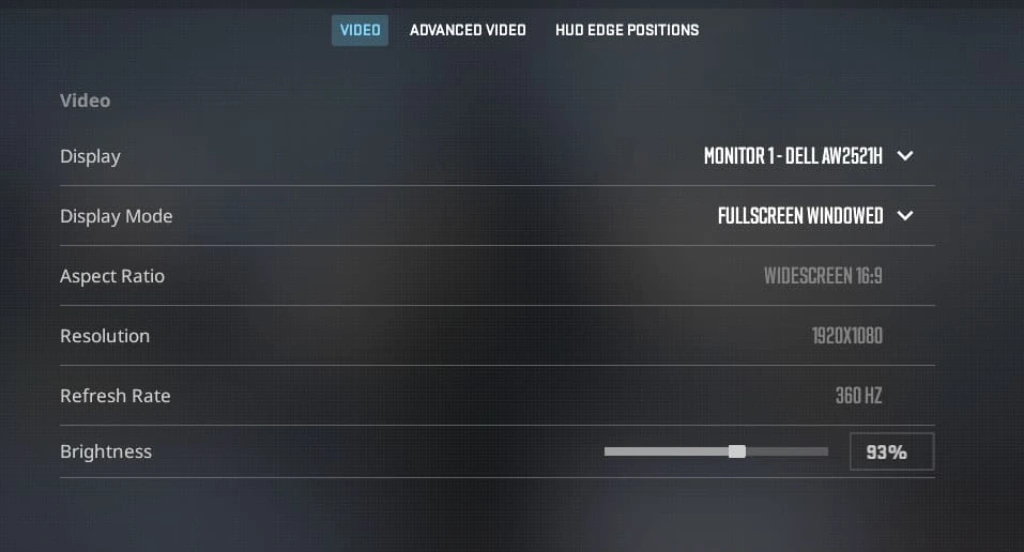
Example of Optimal Launch Option Setups
For those who don’t want to delve into each CS2 launch option, we’ve prepared ready-made configurations. However, keep in mind that manual configuration with individual selection of each parameter will still be better than this.
Balanced Setup (Recommended for Most Players)
According to Steam statistics, the majority of CS2 players in 2026 are using modern PCs with RTX 3060/RX 6700-class graphics cards and 144Hz monitors. Systems with these specs are already capable of delivering high CS2 FPS, but for the best gaming experience, we recommend using these settings:
-high -fullscreen -refresh 144 +fps_max 0 +cl_forcepreload 1 +mat_queue_mode 2 -forcenovsync
Low-End PC Setup
If your PC or laptop is quite old and far from what you’d call “gaming,” there are also preset settings for you. They’re designed to minimize background processing and conserve VRAM, which is often a bottleneck on low-end systems:
-windowed -w 1280 -h 960 -refresh 75 +fps_max 120 -softparticlesdefaultoff +r_dynamic 0 +mat_disable_fancy_blending 1 -nojoy
Final Recommendations – Build Your Perfect CS2 Setup
CS2 launch options aren’t magical. They won’t turn your old PC into a gaming machine with the performance of top-end 2026 systems. However, they can certainly provide a slight FPS boost and reduce lag.
We recommend rereading each CS2 launch command in this guide and creating a customized configuration. This is how you can achieve maximum performance!
FAQ
Launch parameters are quite individual. But if we take the “general average,” the best CS2 launch options for FPS in 2026 include the following commands: -fullscreen -high -forcenovsync +fps_max 0 +cl_forcepreload 1 +mat_queue_mode 2. In practice, hundreds of thousands of CS2 players have already tried these commands and noticed an increase in CS2 FPS.
To reset CS2 settings and remove conflicting commands, you can use -autoconfig or -safe. Entering these commands will restore the default configuration. This will, in most cases, resolve all CS2 crashes.
For low-end systems, the following parameters are best: -w 1280 -h 960 -windowed +fps_max 120 -softparticlesdefaultoff +r_dynamic 0 +mat_disable_fancy_blending 1. They reduce the load on the GPU and CPU and remove unnecessary visual effects.
To reduce input lag in CS2, play in fullscreen mode, disable VSync (-forcenovsync), enable NVIDIA Reflex (Enabled + Boost), and set +fps_max slightly higher than the monitor’s frequency.
The -high command sets a high priority for your device’s performance resources when playing CS2. However, modern operating systems like Windows 10/11 automatically optimize resources. However, on low-end PCs, you might still notice a difference of a few percent, so it’s worth giving it a try.
Create an autoexec.cfg file in the …\Steam\SteamApps\common\Counter-Strike Global Offensive\csgo\cfg folder and add your parameters there. Then specify +exec autoexec.cfg in the launch options.
Read also: