mn
mn  ru
ru 
Best CS Pro Settings for CS2 (CS:GO) in 2025
Settings in CS2 play a significant role, even though most users tend to overlook them. It’s the CS pro settings — like mouse settings, radar settings, and CS video settings for low end PC — that have a direct impact on your accuracy, consistency, and FPS. Many professional players rely on optimized CS2 NVIDIA settings and proper performance configurations to gain an edge. In this article, I’ll walk you through the key settings in CS, share the most commonly used options, and help you boost FPS in CS2!
Where to Find Settings in CS2
Before you can optimize your gameplay with the best CS2 settings, you need to know where to find them. Luckily, the process is quick and easy:
- Launch Counter-Strike 2.
- Once you’re in the main menu — with your character standing proudly in the center — look to the top-left corner of the screen. There, you’ll spot a gear icon. Hover over it and you’ll see the word “Settings” appear. Click on it.
- You’ll now be in the main CS2 settings menu, where four key categories are displayed at the top: Display, Audio, Game, and Keyboard & Mouse. Within the selected category, you’ll see additional tabs, and below them, the individual settings you can manually customize to suit your preferences.
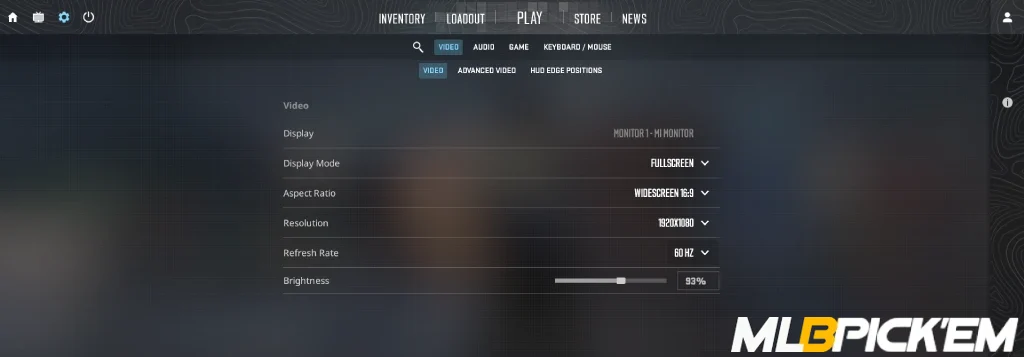
Now that you know where everything is, the next step is choosing what to optimize — whether it’s improving your FPS, tweaking mouse settings, adjusting CS2 audio settings, or changing your crosshair visibility for better aim.
Before we dive into the full guide, here’s something worth checking out: MelBet Pick’em recently launched a CS2 teams section, where you can explore:
- Detailed team statistics.
- Full match history.
- And most importantly, the CS2 pro settings used by every player on the team!
The section is still in beta, but new teams are being added daily. Keep an eye on your favorites and compare your CS2 settings with the pros!
Best Mouse Settings for Aim in CS2: DPI, Sensitivity, Polling Rate
Let’s start with the basics — mouse settings, as they form the foundation of any professional setup. The accuracy of your aim, your reaction speed, and even the overall feel of control in-game all depend on how well your mouse is configured. CS2 mouse settings are the first thing you should optimize if you’re looking to improve your aim and take your gameplay to the next level.
What Are DPI and Sensitivity in CS2?
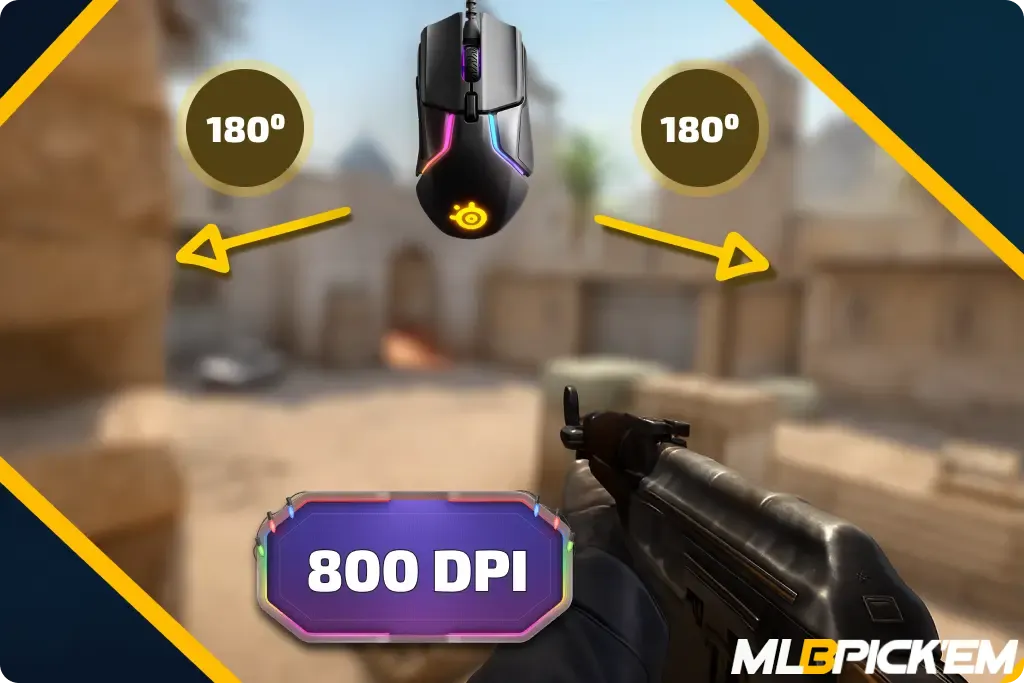
DPI (dots per inch) defines how far your cursor moves on the screen when you move your mouse. The higher the DPI, the faster the movement. However, in CS2 (and previously in CS:GO), most professional players stick to a lower DPI — typically 400 or 800, as it offers better control and stability. This has become the foundation for the best mouse settings for CS2.
Mouse sensitivity is the in-game multiplier applied to your DPI. For example, 400 DPI with 2.0 sensitivity results in slower movement than 800 DPI with 1.0 sensitivity. Among pros, the most common values are 1.7–2.2 with 400 DPI, or about 1.2 with 800 DPI — this balance provides accurate, confident aim without overcorrection or jittery flicks.
What Is Polling Rate and Why Does It Matter?
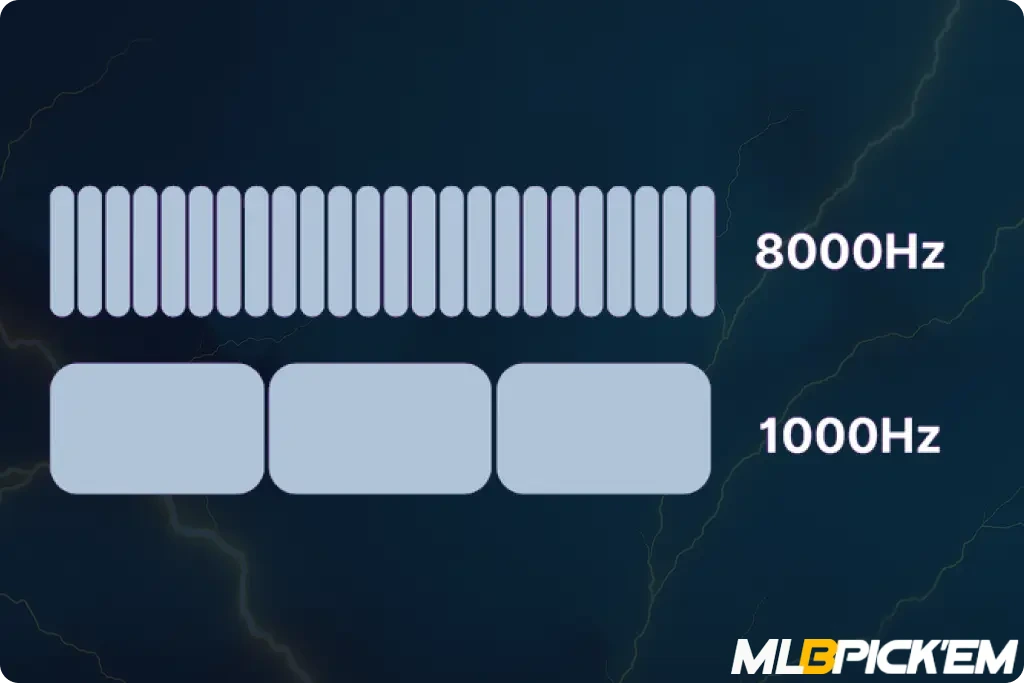
Polling rate is the number of times per second your mouse reports its position to the computer. A polling rate of 1000Hz means it sends updates 1000 times per second. This is the standard for competitive CS and a core part of the best mouse settings for CS2.
Newer gaming mice now support polling rates of 4000Hz, and some pro players are starting to adopt them to further reduce input delay. That said, if you’re playing on a low-end system, 1000Hz is more than enough and will deliver smooth, stable performance without frame drops.
Mouse Settings Used by CS2 Pros in 2025
Just like in CS:GO, pro players in CS2 don’t pick their settings randomly — they’re fine-tuned through testing, experience, and consistency. These are the most common settings used at the highest level in 2025:
- DPI: 400 or 800.
- Sensitivity: 1.7–2.2 (with 400 DPI), around 1.2 (with 800 DPI).
- Zoom Sensitivity: 1.00 (default, used by almost all pros).
- Polling Rate: 1000Hz (with 4000Hz gaining popularity).
- Windows Sensitivity: 6 — the default value, no added acceleration.
Screen Resolution and Aspect Ratio
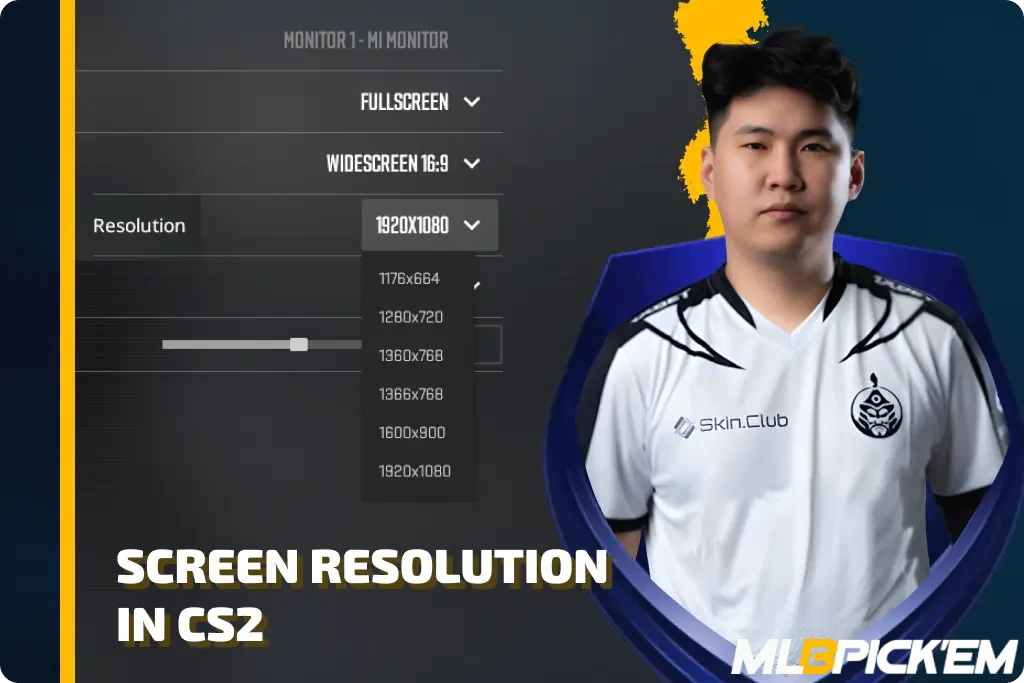
After mouse settings, it’s time to move on to visuals — and the first thing you’ll face is screen resolution and aspect ratio, which define how you actually see the game. Despite the new engine features in CS2, the vast majority of players still stick to 4:3 stretched. Why? Because enemies appear larger, aiming feels easier, and the overall image is easier on the eyes.
Most Popular Settings Among CS2 Pros in 2025
Most pro players rely on the following CS2 display settings:
- Resolution: 1280×960 (4:3 Stretched — the best balance of size and consistency).
- Aspect Ratio: 4:3 (visually increases enemy model size).
- Viewmodel Preset: Classic (presetpos 3 or 2 — brings the weapon closer for a cleaner view).
Viewmodel Settings for Better Visibility
Viewmodel settings in CS2 control how your weapon looks on screen — its size, position, and field of view. It might sound like a small thing, but these settings can drastically affect how much of the game you actually see. That’s why many players adjust their CS2 viewmodel settings to make sure the weapon doesn’t block their line of sight, especially during peeks, trades, or chaotic moments in smokes.
Pro Viewmodel Example: Mzinho from The MongolZ
Mzinho from The MongolZ uses a custom CS2 viewmodel setup to improve visibility and maintain control during high-pressure rounds:
- FOV: 60.
- Offset X: 2.5.
- Offset Y: -2.
- Offset Z: 1.5.
- Presetpos: 0.
Video Settings and Graphics: Max FPS and Visual Clarity
If you don’t have an unlimited budget for PC hardware, graphics in CS2 aren’t just about pretty visuals — they’re about FPS, stability, and how quickly you spot the enemy. That’s why the right CS2 video settings can give you a serious advantage.
NVIDIA and AMD Settings for CS2
For NVIDIA users, the key setting is NVIDIA Reflex Low Latency. Turn it on directly in the CS2 settings to get the lowest possible input lag — especially helpful in clutch situations. As for G-Sync, it’s better to disable it in-game, since it can cause micro-stutters if your FPS doesn’t perfectly match your monitor’s refresh rate.
If you’re using AMD, look for the Anti-Lag setting in the game — it should be enabled, especially on systems with RX GPUs. It works similarly to Reflex and helps reduce input latency. However, if you experience weird stutters or freezes, try turning it off. Overall, AMD CS2 settings are simple, but extremely important — especially for low-end PCs.
Graphics Settings for Low-End PCs
To make CS2 run smoothly, you need to optimize your system by disabling everything unnecessary. Here are the best video settings for low-end systems that actually work:
- Display Mode: Fullscreen
- Resolution: 1280×960 or 1024×768
- Aspect Ratio: 4:3
- Boost Player Contrast: On
- V-Sync: Off
- Multisample Anti-Aliasing Mode: CMAA2
- Global Shadow Quality: Low
- Dynamic Shadows: Off
- Model / Texture Detail: Low
- Texture Filtering Mode: Bilinear
- Shader Detail: Low
- Particle Detail: Low
- Ambient Occlusion: Off
- High Dynamic Range (HDR): Performance
- FidelityFX Super Resolution: Off
- Maximum FPS: Uncapped (or set to 240 for more stability)
- Laptop Power Savings: Disabled
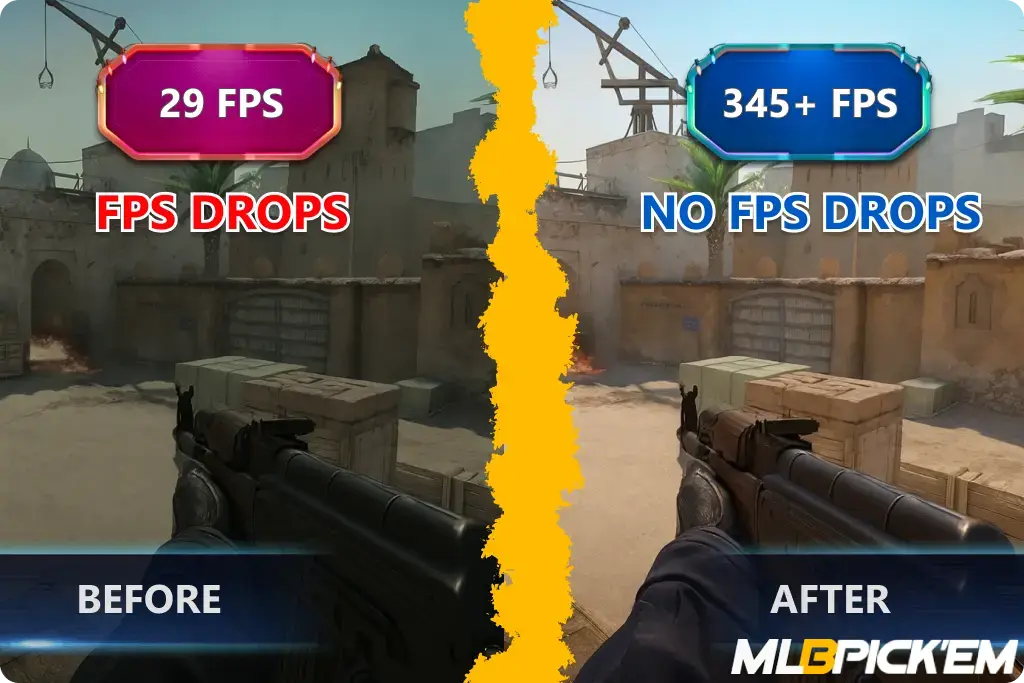
With these CS2 low graphics settings, even an old laptop with an Intel i3 can push 100–150 FPS with no drops — so make the most of what you’ve got!
Console & Launch Settings in CS2: What Do the Pros Still Use?
Back in CS:GO, launch options were a must-have for anyone chasing extra FPS or smoother gameplay. In CS2, things have changed — the new Source 2 engine handles many optimizations automatically, and many old commands have become irrelevant. But that doesn’t mean you should ignore launch settings altogether.
Pro players still manually add essential CS2 launch settings through Steam. These small tweaks can affect things like multicore rendering, CPU priority, and even reduce UI lag in menus — subtle, but powerful differences.
Here’s what a typical 2025 CS2 launch config looks like:
-novid -tickrate 128 -freq 240 -d3d9ex +mat_queue_mode 2 +cl_interp_ratio 1 +cl_interp 0.031 +cl_cmdrate 128 +cl_updaterate 128 +fps_max 0 +cl_forcepreload 1
As for in-game console tweaks, CS2 still offers a few impactful commands that even esports players rely on:
- cl_showfps 1 // shows your FPS on screen
- r_dynamic 0 // disables dynamic lighting for more stable FPS
- mat_disable_fancy_blending 1 // simplifies textures for better performance
- fps_max 300 // caps your FPS to reduce overheating and stutter
These are the CS2 console settings that actually make a difference without overcomplicating things. Beyond that, it’s all about testing what works best for your setup.
CS2 Audio Settings: Hear Footsteps Before They See You
If you think CS2 sound doesn’t need fine-tuning, you’re seriously mistaken. Frags, clutch rounds, and even entire matches can depend on how well you hear footsteps, reloads, and jumps. Pro players disable all Windows audio enhancements, enable HRTF (3D Audio), and set snd_mixahead 0.02 for minimal input delay and tighter sound sync. Playing with headphones? Then snd_surround_speakers 0 is a must. Together, these are the best CS2 audio settings to give you a competitive edge.
Radar Settings in CS2: Full Map Control
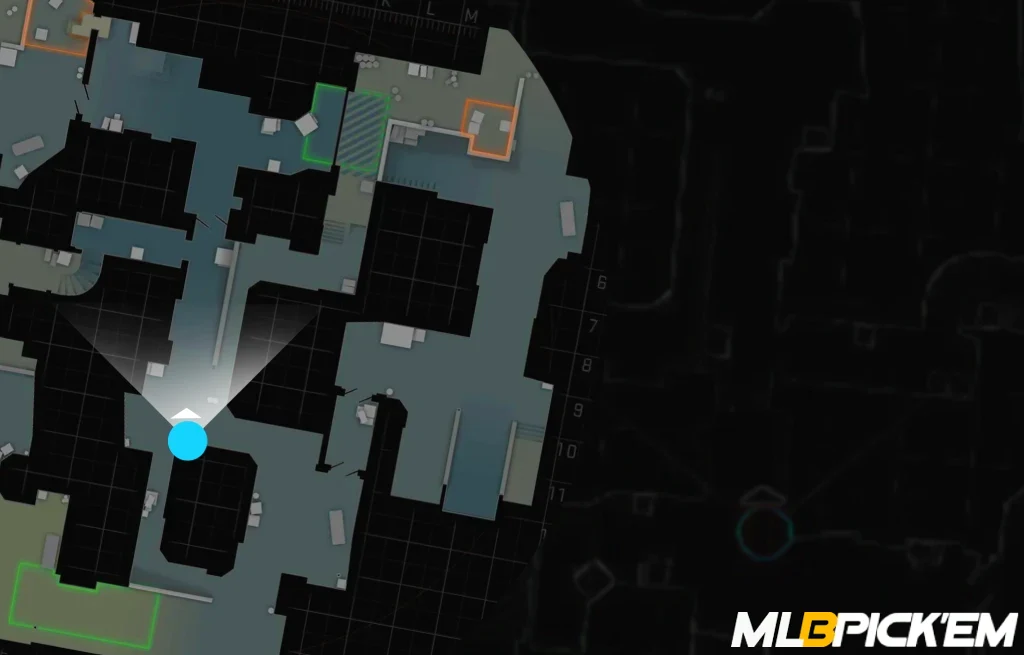
The radar is basically your third eye — and no pro player in CS2 uses default settings. They turn off centering (cl_radar_always_centered 0), increase the radar’s size (cl_hud_radar_scale 1.2), and zoom it out (cl_radar_scale 0.4–0.6) to gain a wider field of view. These CS2 radar settings let you spot enemies faster, track map movements more efficiently, and stay in control even when the action’s not on your screen.
CS2 Configs & Settings Backup: How to Save and Load Your Setup
Tuned your perfect CS2 settings — crosshair, mouse sensitivity, NVIDIA options, audio, and keybinds? Don’t risk losing them after a crash, reinstall, or switching to a new PC. Here’s how to save a CS2 config file and load it whenever needed:
- Set everything the way you want in-game: crosshair, sensitivity, radar, video settings, and more.
- Open the developer console and type: host_writeconfig myconfig (replace myconfig with any name you want).
- Go to the Steam Remote Storage page
- Download the following files: cs2_user_keys.vcfg and cs2_user_convars.vcfg
- Rename and move them to this folder: SteamLibrary\steamapps\common\Counter-Strike Global Offensive\game\csgo\cfg
- To load your config later, use this command in the console: +exec myconfig1.vcfg +exec myconfig2.vcfg
Now your CS2 config settings are always safe and portable — ready to load on a tournament PC or your friend’s laptop in just seconds.
Conclusion: The Best CS2 Settings Are Just the Beginning
If you’ve made it this far — congrats, you now know everything worth knowing about the best settings for CS2. From tuning your mouse sensitivity to tweaking audio and graphics for maximum FPS, we’ve covered it all. However, don’t forget: good settings alone won’t win games — you will. So get out there, practice hard, and dominate your matches. And hey, if this helped, check out my other articles— there’s plenty more to learn!
Read also: