mn
mn  ru
ru 
CS2 Knife Commands Guide 2026
There are thousands of different skins in the tactical shooter CS2. The most interesting of them are, of course, knives. Since 2013, when the first knife skins appeared in CS:GO, interest in them hasn’t waned. As of 2026, CS2 features 20 different knife types. Each knife has a unique shape, animations, and visual appearance in-game.
Because skins for these knives are expensive, the game features special CS2 knife commands. These allow you to test any knife for free in an offline match or practice mode. In this article for MelBet Pick’em, we’ll tell you more about CS2 knife codes. Here you’ll also find absolutely all existing knife commands CS2 and how to use them!
What Are CS2 Knife Commands?
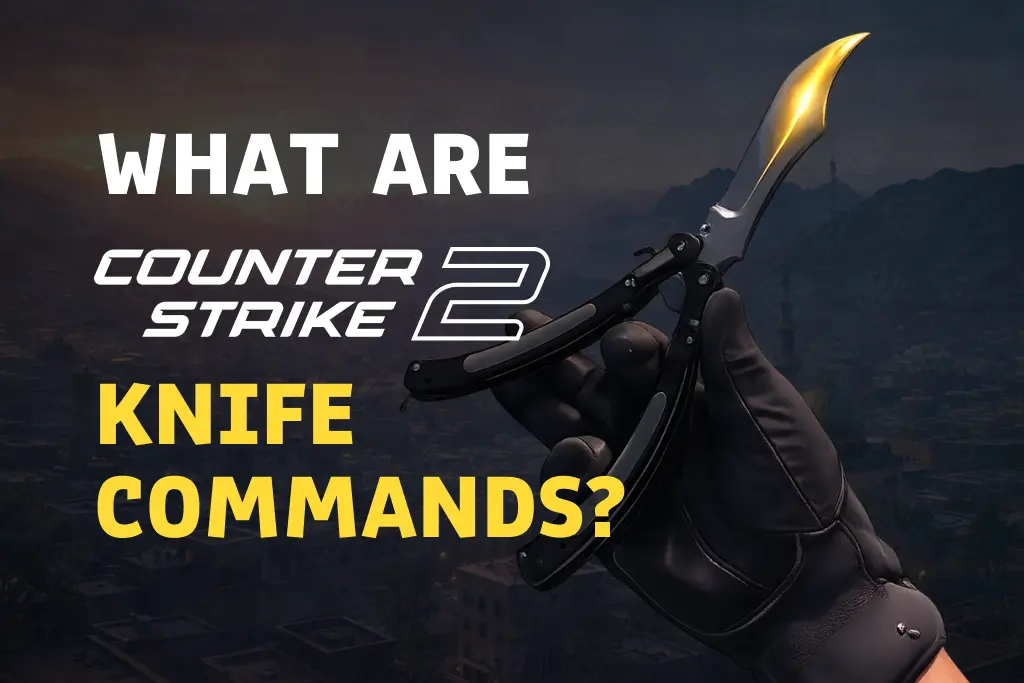
Knife commands CS2 are special console commands that replace the Classic Knife with any other existing knife in the game. They allow access to all types of knives in CS2, including the Karambit, Butterfly, or M9 Bayonet, without purchasing them or adding them to your inventory. An important nuance is that these commands only work in offline matches, training mode, or on custom servers where the use of commands with sv_cheats is allowed.
While both Steam and CS2 allow you to inspect any item directly from the marketplace, this is sometimes not enough. Entering the desired knife command in CS2 allows you to view swing animations, weapon switching, evaluate the knife model in motion, its position in the character’s hands, and the overall visual experience during gameplay.
Are CS2 Knife Commands Legal?
Yes, don’t worry, CS2 knife commands are completely legal. They were added by Valve developers themselves. These are official console commands built into the Source 2 engine. They don’t violate any Valve rules and will under no circumstances result in a VAC ban.
Valve deliberately limited the functionality of these commands to the sv_cheats parameter. This prevents them from being used in competitive matches. Attempting to use them there will simply be ignored by the game.
It’s also interesting to note that the commands themselves were added for debugging, testing, and development. Their primary purpose was to help developers and mappers test models, animations, and object behavior.
How to Enable Developer Console in CS2
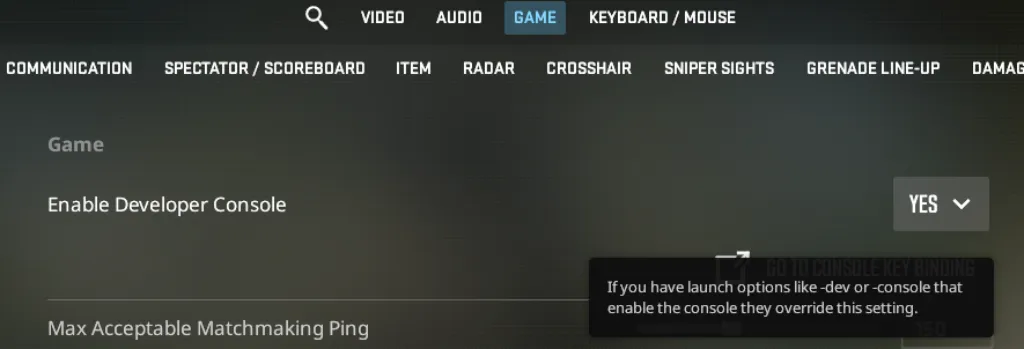
To enter any commands, including CS2 knife commands, you need to enable the developer console. Experienced players usually have it enabled, but if you’re new to CS2, follow these instructions:
- Launch CS2 and open Settings.
- Go to the Game tab.
- Find the Enable Developer Console (~) setting and set it to Yes.
- Save your settings and return to the game.
Now you can open the console by pressing the ~ (tilde) key on your keyboard. You can do this both during matches and in the menu. However, keep in mind that when it comes to knife commands CS2, they are not available in all game modes.
How to Test Knives in CS2
You can’t just jump into any match and immediately start testing any CS2 knife. In practice, things are a bit more complicated. We’ve prepared a step-by-step procedure, but try to follow it as carefully as possible. We also recommend keeping your crosshair on the ground near you to prevent the knife from spawning far away or in an inaccessible location.
Step 1 – Start an Offline or Practice Match
- In the CS2 menu, open Play → Practice (or a local offline match).
- Select a map (preferably a standard one, so there are no restrictions on custom modes).
- Wait for it to load and appear in the round.
Step 2 – Enable Cheats
- Open the console ~.
- Enter the command: sv_cheats 1
Be careful during this step. If sv_cheats is not enabled, all subsequent commands related to spawning/swapping a knife will either not work or will be ignored.
Step 3 – Enable Knife Dropping
- In the same console, enter the drop knife command CS2: mp_drop_knife_enable 1
This is necessary because it’s disabled by default. Entering the special CS2 drop knife command enables you to drop your knife with the drop key, allowing you to later replace it with another one.
Step 4 – Drop Your Knife
- Switch to your knife (usually key 3).
- Press G (drop) to drop the knife.
Do not pick it up again under any circumstances. You need to leave it on the ground as a “target” for replacement/spawning.
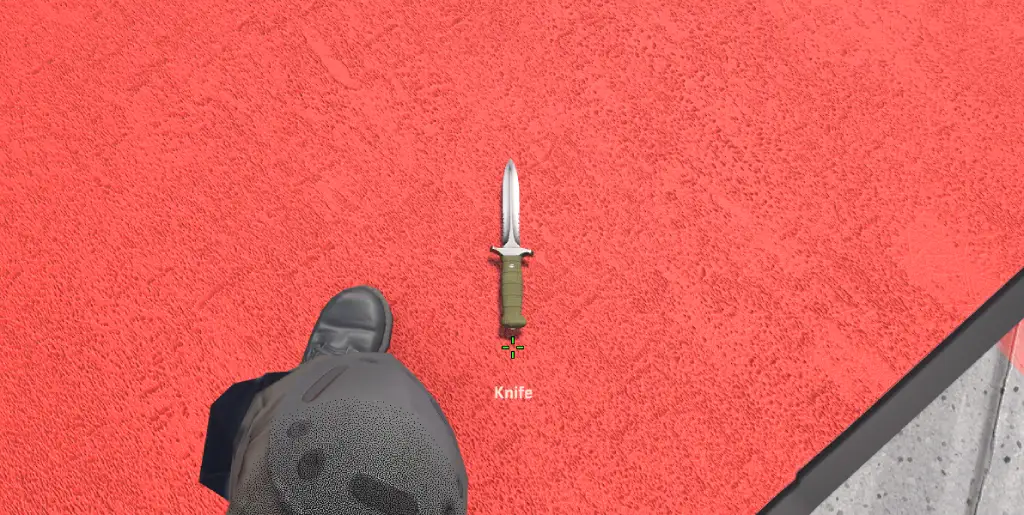
Step 5 – Spawn a New Knife
- Aim your crosshair directly at the floor in front of you.
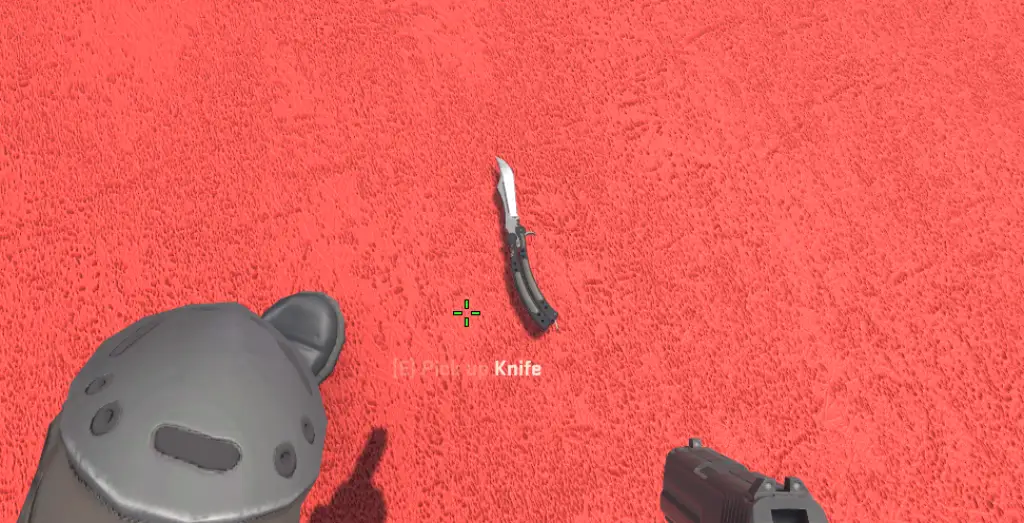
- Open the console and enter the desired CS2 give knife command, for example: subclass_create 515 (Butterfly Knife).
- Close the console and pick up the spawned knife by walking over it.
The most common mistake newbies make when entering the give knife command CS2 is looking ahead or into the distance. In this case, the knife may appear far away in the direction of view. Sometimes, in such cases, the knife may appear outside the reachable area.
All CS2 Knife Commands
We’ve covered the knife testing instructions, now it’s time to discuss all the existing knives. As we mentioned at the very beginning, there are as many as 20 of them. Starting with the basic Classic Knife, which every player started with, and ending with more expensive options like the Butterfly and Karambit Knife.
Each has its own unique numerical identifier (CS2 knife code). It’s used in conjunction with the subclass_create console command. We’ve listed the commands for each knife in the table below. Choose the one you like, return to the instructions, and compare different knife models without rushing.
| Knife Name | Create Command | Change Command |
|---|---|---|
| Bayonet | subclass_create 500 | subclass_change 500 |
| Classic Knife | subclass_create 503 | subclass_change 503 |
| Flip Knife | subclass_create 505 | subclass_change 505 |
| Gut Knife | subclass_create 506 | subclass_change 506 |
| Karambit | subclass_create 507 | subclass_change 507 |
| M9 Bayonet | subclass_create 508 | subclass_change 508 |
| Huntsman Knife | subclass_create 509 | subclass_change 509 |
| Falchion Knife | subclass_create 512 | subclass_change 512 |
| Bowie Knife | subclass_create 514 | subclass_change 514 |
| Butterfly Knife | subclass_create 515 | subclass_change 515 |
| Shadow Daggers | subclass_create 516 | subclass_change 516 |
| Paracord Knife | subclass_create 517 | subclass_change 517 |
| Survival Knife | subclass_create 518 | subclass_change 518 |
| Ursus Knife | subclass_create 519 | subclass_change 519 |
| Navaja Knife | subclass_create 520 | subclass_change 520 |
| Nomad Knife | subclass_create 521 | subclass_change 521 |
| Stiletto Knife | subclass_create 522 | subclass_change 522 |
| Talon Knife | subclass_create 523 | subclass_change 523 |
| Skeleton Knife | subclass_create 525 | subclass_change 525 |
| Kukri Knife | subclass_create 526 | subclass_change 526 |
Difference Between subclass_create and subclass_change
In CS2, there are two different ways to work with knives in the console: subclass_create and subclass_change. These two commands perform different functions, and to help you understand which is best for you when testing the CS2 butterfly knife command and any other commands, we’ve prepared simple explanations.
subclass_create
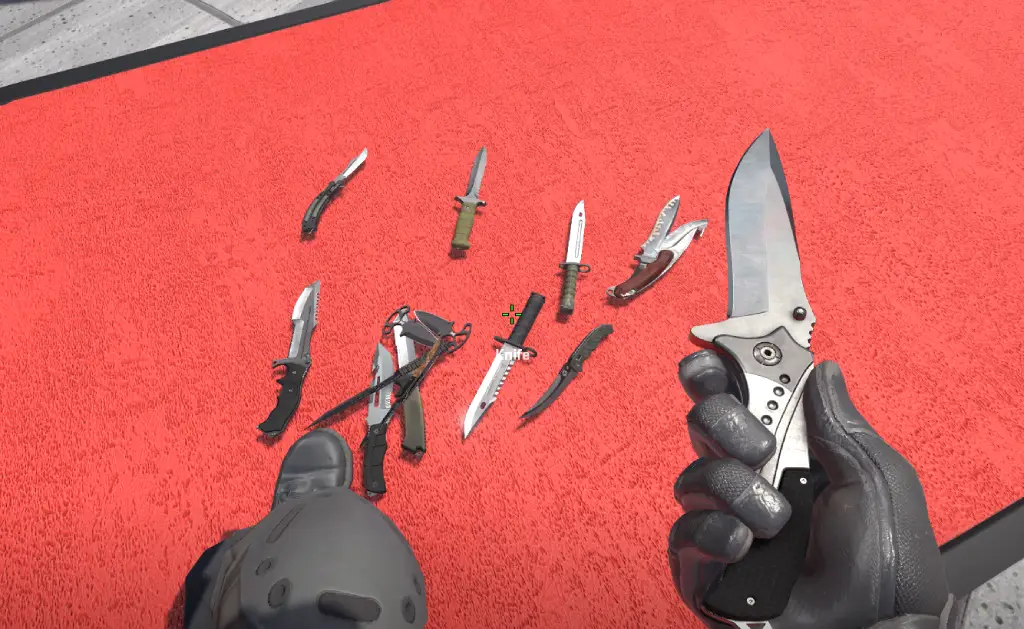
The subclass_create command creates a new knife as a separate item on the map. Entering it in the console will cause the knife to appear on the ground in your direction of view. Therefore, this CS2 give knife command is recommended for use:
- For the first knife spawn.
- For quickly comparing multiple models.
- When you need to see multiple knives at once.
Keep in mind that each use creates a new item. This means you’ll have multiple knives lying around the map, which isn’t always convenient when testing more than five.
subclass_change
The subclass_change command works slightly differently. It replaces the knife you’re currently looking at without creating a new item. Essentially, this is the CS2 change knife command, allowing you to switch knife models without creating visual clutter on the map. Therefore, it’s used:
- For sequential knife testing.
- To avoid spamming the map.
- For quick animation comparison.
Please note that the crosshair must be aimed directly at the dropped knife. Otherwise, the command simply won’t work.
Can You Use CS2 Knife Commands With Skins?
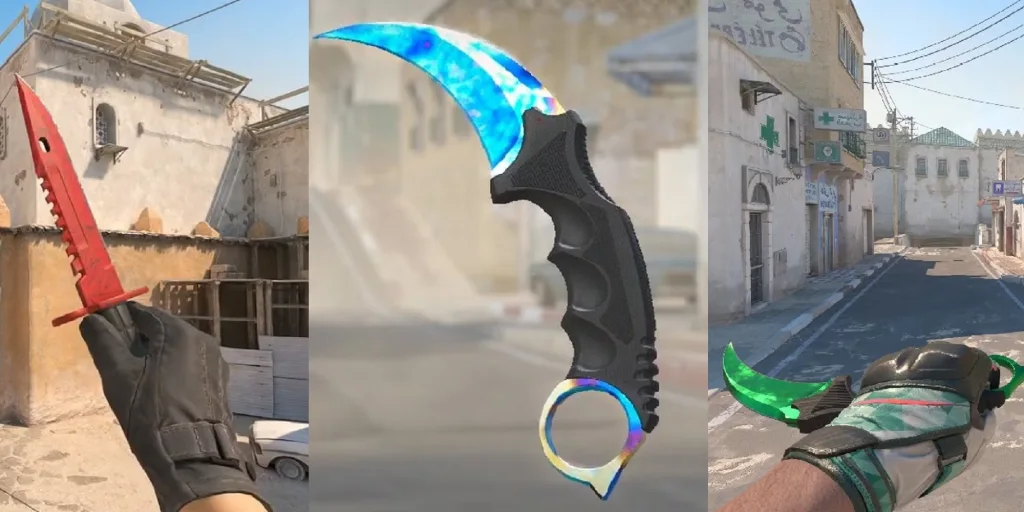
No, unfortunately, you can’t use the CS2 knife command with skin. Any knife command only allows you to test the vanilla model. It works at the item type level, not its cosmetic attributes.
This limitation is due to the way the inventory system in CS2 works. Skins, their patterns, and wear are tied to the Steam server economy and specific items in the player’s inventory. Using CS2 knife commands with skins in offline matches doesn’t provide access to this data, as the game doesn’t query inventory information or emulate market items.
Best Offline Settings for Knife Testing
Simply jumping into Practice and testing knives isn’t particularly convenient. By default, bots will be running around, and rounds are very short, making it difficult to properly examine the knives. To address these issues, we recommend using additional console commands, which also only work when sv_cheats is enabled:
- bot_kick: removes all bots from the map.
- mp_limitteams 0: removes the limit on the number of players per team.
- mp_autoteambalance 0: disables automatic team switching.
- mp_roundtime 60: increases the round duration to 60 minutes.
- mp_restartgame 1: restarts the match with the new settings.
Common Problems and Fixes
Due to the large number of different steps required before entering the CS2 knife command, errors are very common. We recommend double-checking each step and following our step-by-step guide. But if even that doesn’t help avoid problems, take a look at these most common errors and solutions.
1. Knife Does Not Appear
Cause:
- sv_cheats is not enabled.
- The crosshair is pointed too far forward.
Solution:
- Make sure the sv_cheats 1 command is active.
- When spawning the knife, look directly at the floor next to the character.
2. Command Does Nothing
Cause:
- The command was entered in official mode (Premier / Competitive).
- Incorrect syntax is used.
Solution:
- Only use commands in offline matches or Practice.
- Enter commands without unnecessary characters or spaces.
3. Knife Spawns Far Away or in the Air
Cause:
- The knife appears in the direction the player is looking.
Solution:
- Before entering the CS2 give knife command, lower the crosshair directly below your feet, no more than 1 meter away.
4. Cannot Pick Up the Spawned Knife
Cause:
- The drop knife command CS2 is not enabled.
Solution:
- Enter mp_drop_knife_enable 1
- Drop the current knife with the G key, then pick up a new one.
5. Subclass_change Does Not Work
Cause:
- The crosshair is not aimed at the dropped knife.
Solution:
- Aim the crosshair precisely at the knife model (its name should be displayed on the screen) and repeat the command.
Final Thoughts
Using CS2 knife commands is the most reliable, free way to get acquainted with knives in Counter-Strike 2. They allow you to evaluate the shape, animations, and overall feel of a knife in real gameplay, not just by looking at it statically.
Given the high cost, testing knives before buying helps avoid impulse purchases and save real money. Spending a few minutes will give you confidence in your choice and a better understanding of what you’re actually paying for!
FAQ
Yes, CS2 knife commands are completely legal. They are built-in console commands in the Source 2 engine and only work in offline modes and practice modes where sv_cheats are enabled. Using these commands does not violate Valve’s rules and will not result in a VAC ban.
Currently, the newest knife in CS2 is the Kukri Knife. It was added as part of the “A Call To Arms” update on February 6, 2024, and features a unique shape and animations. It can also be tested using the subclass_create 526 console command.
Yes, knife commands can work on community servers, but with some important caveats. This is only possible if the server allows the use of sv_cheats and does not restrict console commands. On most public community servers, such commands are disabled.
Unfortunately, testing knives with skins via console commands is not possible as of 2026. All existing CS2 knife commands only allow the use of vanilla models without patterns or wear. If you absolutely need to preview knife skins, use inspect servers or special maps from the Workshop.
Read also: