mn
mn  ru
ru 
CS2 Skin Inspect Server Guide
Have you ever dreamed of playing with the most expensive skin in CS2? Or perhaps you have a dream skin that you don’t have the money for yet, but you want to feel like you own it today? Well, all this and much more can be accomplished in just a few minutes.
In this MelBet Pick’em guide, we’ll explain how to inspect skins in game CS2. You’ll learn what CS2 skin inspection servers are, how to access them, and what commands to enter. After reading this guide, you’ll even be able to troll your friends with screenshots of their skins in your hands!
What Is a CS2 Inspect Server?
Skin inspect server CS2 is a special server where you can inspect any skin in the game by entering commands. Unlike viewing a Steam preview or images online, here you’ll see the item in real-life conditions. Familiar maps, shadows, the ability to evaluate an object after dropping it, etc. All this can only be appreciated by logging into an inspect skin CS2 server.
As for their history, they appeared over 10 years ago. After the first skin collections were added to CS:GO, players actively began trading them and searching for rare variants. Therefore, enthusiasts created special plugins that allowed for convenient inspection of any item on servers. Over time, this practice became increasingly popular and migrated to CS2.
Why Use a CS2 Skin Inspect Server?
If you have this question, perhaps you really don’t need it. For those who aren’t particularly interested in skins or only buy budget options, testing them on such servers may be unnecessary. However, for more expensive items, inspecting CS2 skins before purchasing is practically mandatory. Marketplace previews don’t show all the details. Patterns, wear, lighting, and so on can all greatly affect appearance. Therefore, the main advantages of viewing skins on inspect CS2 servers are the following:
- Viewing on real maps and in different lighting.
- Ability to use the sticker craft preview to test different combinations.
- Better ability to check CS2 float and wear before purchasing.
- Ability to compare different items.
How to Join a Skin CS2 Inspect Server
For those who want to connect to the CS2 inspect server without delay, we’ve prepared a brief yet easy-to-follow guide, even for beginners. It will allow you to connect to the server and immediately begin using commands to download skins. It will also list the specific CS2 inspect server IP you can use.
Enable the Developer Console in CS2
To connect to such an inspect server CS2 via IP and use commands on it, you need to enable the developer console. If you are sure it is enabled, you can proceed to the next step.
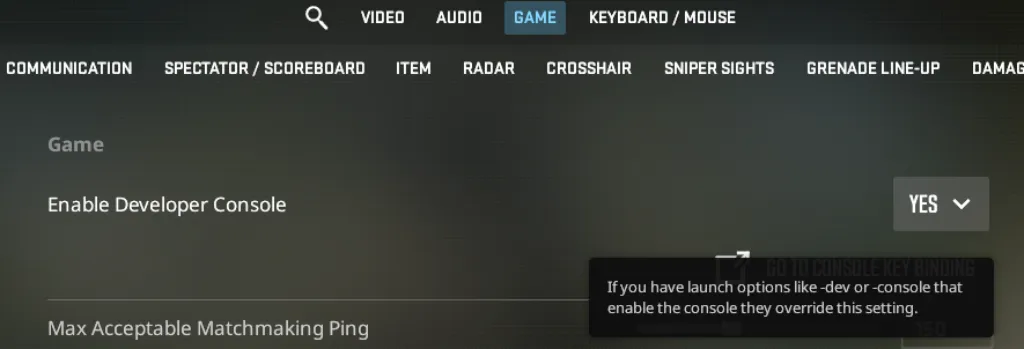
Those who have not used the console before can enable it using these instructions:
- Launch Counter-Strike 2
- Open Settings
- Among the many tabs, find “Game” and navigate to it.
- Find the “Enable Developer Console” setting.
- Set it to “Yes.” If it was already set, leave it as is.
- Press the “~” key to open the console.
If pressing this key doesn’t open the console, go to your keyboard settings and check which key is configured to open the console. By default, this is done by “~” for everyone, but exceptions are possible.
Use the Connect Command to Enter a Inspect Server CS2
Once the developer console is ready for use, you can connect to the inspect servers CS2. To do this, open it and enter the command
- connect [server_IP]
You can find lists of different CS2 skin inspect server IP online, or use these:
- connect inferno.cs2inspects.com
- connect nuke.cs2inspects.com
- connect mirage.cs2inspects.com
- connect dust2.cs2inspects.com
- connect vertigo.cs2inspects.com
- connect overpass.cs2inspects.com
- connect ancient.cs2inspects.com
- connect anubis.cs2inspects.com
- connect office.cs2inspects.com
- connect italy.cs2inspects.com
- connect biome.cs2inspects.com
- connect thera.cs2inspects.com
- connect siege.cs2inspects.com
- connect memento.cs2inspects.com
- connect lostcoast.cs2inspects.com
- connect infernonight.cs2inspects.com
- connect nukenight.cs2inspects.com
- connect trade.cs2inspects.com
- connect event.cs2inspects.com
- connect events.cs2inspects.com
In this case, domain names are used instead of the usual IP address format, which consists of four decimal numbers (from 0 to 255) separated by periods.
If one inspect server is down or overcrowded, simply try another.
Use !g Codes and Inspect Links on Community Servers
After connecting to one of the servers, you can start inspecting skins. To do this, you need to enter commands. There are two different options that suit different needs, depending on your goals.
1. !g code
This is the most flexible method. It can be used in conjunction with dedicated skin generator websites. On these, you can select a skin in your browser, set its float value, pattern, and even add stickers. Afterwards, you’ll receive a code for this item like !g 123456789. Copy it and paste it into the chat (press Y) or console. In a second, your chosen skin will appear in your hands.
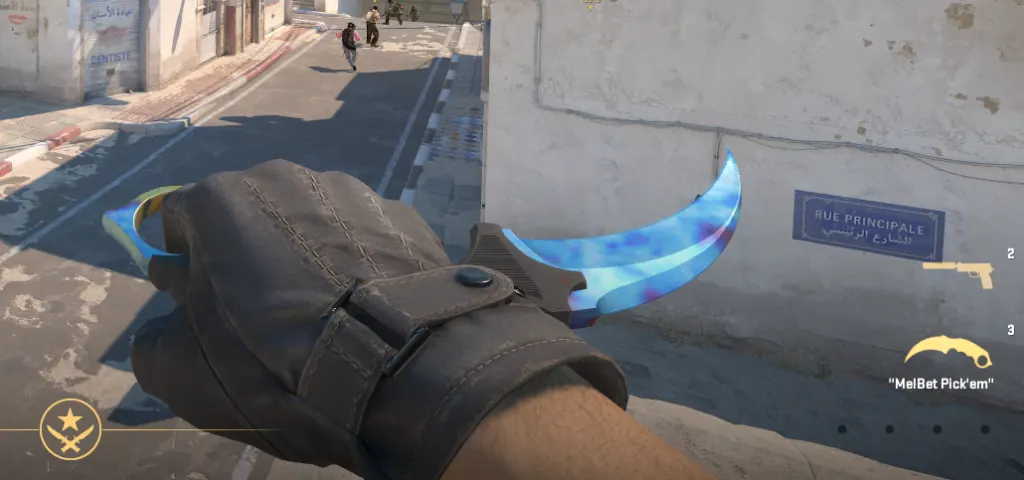
You can experiment with these skins endlessly. Any knife, gloves, or the legendary AWP | Dragon Lore with the most expensive stickers are available. Even the most expensive Blue Gem Karambit, which costs $1.5 million, you can inspect and run with it. To do this, simply enter the following into the chat on any skin inspect CS2 server:
- !g 1749925709 44 387 0 0 0 0 0 0 0 0 0 0 0 0 0 0
This is the code for the FN ★ Karambit | Case Hardened #387.
2. !i link
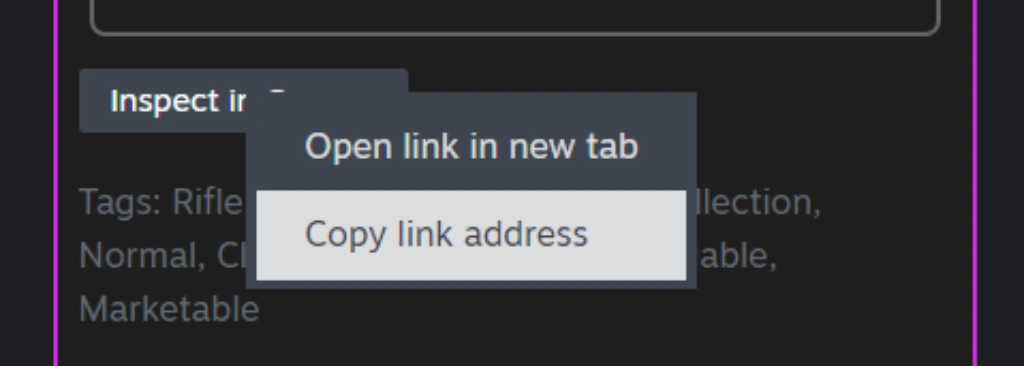
If your goal isn’t to see the most expensive skins or try different sticker placements, but to inspect real skins, this method is better for you. It allows you to inspect a real, existing item. This could be a skin from the marketplace or someone else’s inventory. To do this, you need to:
- Open Steam
- Find the item you want to inspect
- Right-click “Inspect in Game”
- Copy link Address
After this, on the inspect server in CS2, open chat with “Y” and enter:
- !i [link]
Note that console input is not supported with this method. Chat is the only option.
Are Skin CS2 Inspect Servers Safe?
Yes, they are safe, especially if you connect to them via IP commands. These are essentially regular community servers, just with additional functionality. They don’t have direct access to your inventory; they only display skins through special plugins.
However, if you find CS2 inspect servers through third-party programs or client modifications, this can be dangerous. To minimize any risks associated with account theft, VAC bans, and other unpleasant consequences, remember the following:
- Don’t enter your Steam username and password on third-party websites.
- Don’t download unknown files or “inspect tools.”
- Use only in-game commands (chat/console).
- Check links before clicking.
CS2 Inspect Server vs Steam Inspect Link
You can also inspect skins using Steam Inspect Link. For cheaper items or less demanding users, this is a convenient and quick method. However, when compared to CS2 skin inspect servers, they are two different tools. The latter is better suited for experimentation and inspection in real-world situations.
To determine what you need, you can compare these two methods in this table.
| Criteria | Inspect Server | Steam Inspect Link |
|---|---|---|
| Tool Type | In-game server environment | Direct item link |
| Main Purpose | Testing and visualization | Viewing a specific item |
| Float / Pattern / Stickers | Yes | Yes |
| Create New Crafts | Yes | No |
| Check Exact Listing | Yes | Yes |
| Bulk Testing (many skins) | Yes | No |
| Visual Control (lighting, map) | Yes | Limited |
| Dependency | Requires server | No server needed |
| Speed (single item check) | Medium | Fast |
Common Problems When Using a Inspect Servers CS2
Many players are faced with the problem that CS2 inspect in game is not working. Since these are third-party, unofficial servers, there are many possible causes and issues. However, the two most common are:
- The server won’t connect: try another server from our IP list. If the problem persists, check your input. You may have added an extra space or entered the command incorrectly.
- The !g or !i commands don’t work: enter them in chat (Y), not in the console. Make sure the server supports these commands. We recommend using one of the CS2 inspect server IPs listed above in our guide. These servers are known to be secure and stable, supporting the required commands.
Final Thoughts on How to Inspect Skins in CS2
It’s important to check skins before purchasing, as each one’s condition and patterns are different. How you do this depends on your personal preference. Some players only inspect them briefly via the Steam inspect link, while others, even when buying a cheap skin, log into servers to inspect the item on different maps under different lighting conditions.
We’ve outlined the best inspection methods in CS2 and how they work. From there, it’s up to you whether you’re interested in CS2 inspects or whether you’re more concerned about the skin’s appearance and not how it looks.
FAQ
Yes, this is exactly why people love inspect servers. You can view absolutely any skin, even rare patterns with only a few in the entire world. Use your imagination and feel like the owner of Karambit | Case Hardened #387, valued at $1.5 million!
To get an inspect link in CS2, find a specific skin in your or someone else’s Steam inventory or on the marketplace. Select the item and open its page. On the right side, you’ll see all the information about the item and the “Inspect in Game” button. Right-clicking on it allows you to copy the link and later paste it into chat with the !i command on the desired server.
Yes, inspect servers support all types of CS2 items. Knives, gloves, weapons, and sticker crafts with various sticker combinations are available. You can implement almost anything that comes to your mind, and also compare skins with each other.
Yes, all the servers listed in our guide are free. You don’t need to pay or register on any third-party resources. Simply enter the connection command and view any skin for free.
Read also: