mn
mn  ru
ru 
How to Fix Packet Loss CS2 2026
One of the most popular competitive shooters, Counter-Strike 2, is quite demanding when it comes to internet connection quality. The game is sensitive not only to ping levels but also to network route stability, latency under load, and latency fluctuations. One of the most common network issues in CS is packet loss.
In this article for MelBet Pick’em, we’ll take a detailed look at how packet loss CS2 works and why it can occur even with a good internet connection. We’ll also cover how to fix packet loss in CS2 and everything you need to know to ensure a comfortable gaming experience.
What Is Packet Loss in CS2?
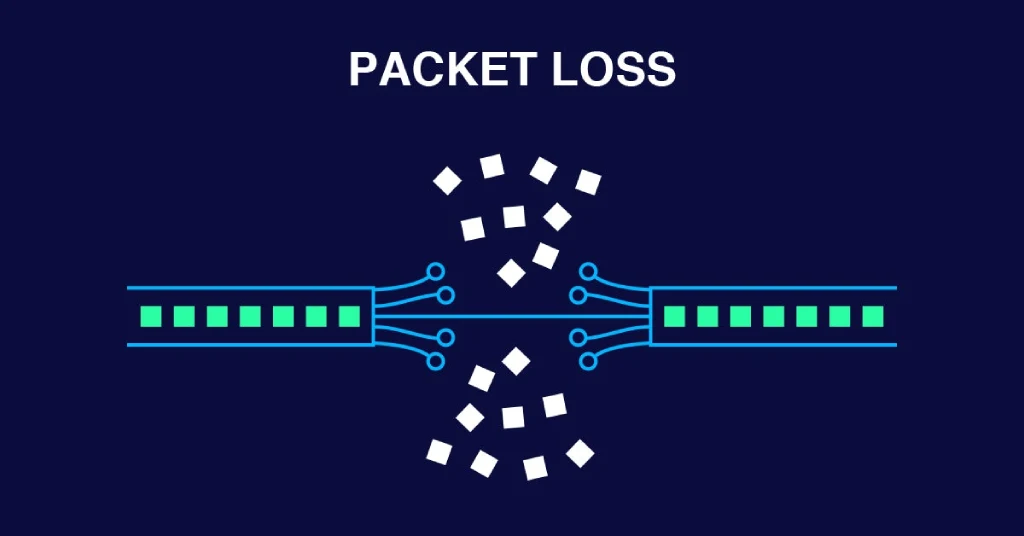
CS2 packet loss is the loss of UDP network packets that transmit data between the player’s client and Valve’s server. This data is very important because it includes information about positions, shots, timings and the state of the game. Even minimal loss levels of 1-2% can cause noticeable problems. Unlike many other shooters, CS2 doesn’t mask network errors with aggressive interpolation. Any interruptions in the packet stream directly impact hit registration and game responsiveness.
The subtick network approach further amplifies the effects of packet loss CS2. Under ideal conditions, the server expects a steady and stable stream of UDP data with accurate timestamps. When jitter or packet loss occurs, these timestamps are not received correctly. This leads to desynchronization between the client and server, delayed action processing, and visual artifacts.
What Packet Loss Percentage Is Acceptable in CS2
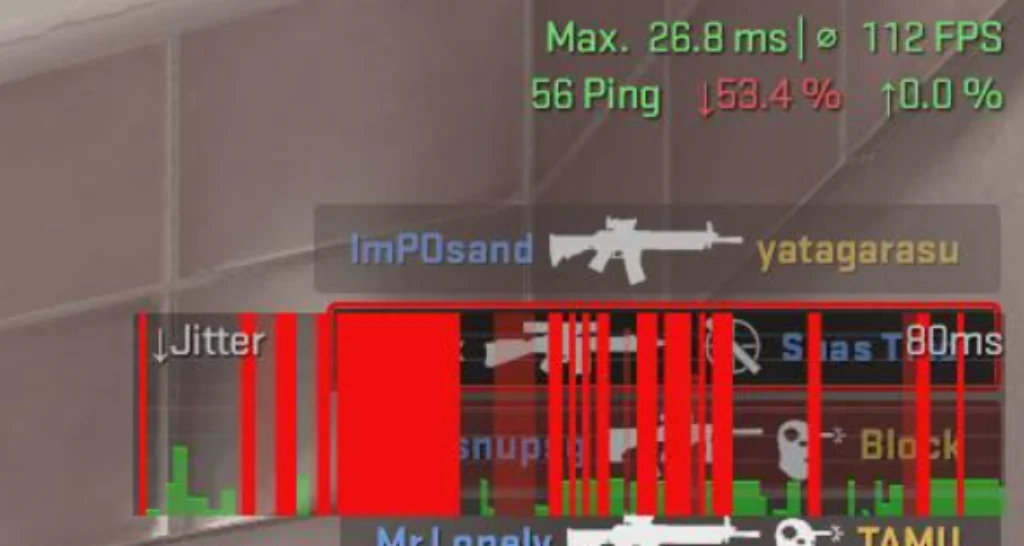
The acceptable level of CS2 packet loss is essentially zero. The problem is that due to the high network refresh rate and the sensitivity of the subtick model, even minimal packet loss makes gameplay uncomfortable. Control responsiveness, hit registration, and the feeling of character control are severely impaired.
Furthermore, packet loss in CS2 does not scale linearly. The difference between 0% and 1-2% is significantly more noticeable than between 5% and 10% in other shooters. As packet loss increases, the game not only lags but becomes completely unplayable. Shots are registered with a delay, models degrade significantly, and so on. We’ve attempted to convey the experience of different levels of CS2 packet loss in the table below:
| % | What you actually feel in game |
|---|---|
| 0% | The game feels normal, shots register properly, movement is smooth and predictable |
| 1–2% | Weird moments start to appear, some shots do not register, fights feel slightly off |
| 5% | It clearly affects gameplay, characters stutter, response feels inconsistent, aiming gets unreliable |
| 20%+ | Everything falls apart, constant rubberbanding and teleports, the game becomes unplayable |
Common Causes of Packet Loss in CS2
Packet loss in CS2 doesn’t occur because you’re “unlucky.” There’s always a reason why you’re experiencing network instability out of the blue.
According to player forum discussions, in most cases the problem is not related to internet speed, but to the quality of data transfer. However, the source of the problem can be both within your network and outside of it.
To know how to fix packet loss CS2, you need to find the cause. There are many possible causes, but the following four issues are the most common:
- Home network issues: Wi-Fi is susceptible to interference and instability. An overloaded router may not be able to handle UDP traffic, leading to delays under load.
- Routing and ISP congestion: Data may be traveling through overloaded or unstable nodes. During peak hours, packet loss occurs even with a good connection. Incidentally, this is especially common on the way to Valve’s servers.
- Server and CS2 Updates: After updates, packet loss becomes more noticeable. Not because it’s increased, but because telemetry has changed. The Telemetry HUD now shows CS2 packet loss that was previously hidden, making it seem like the problem suddenly appeared.
- Background applications and overlays: Game overlays, VPNs, network utilities, and third-party clients sometimes disrupt UDP traffic. It’s always recommended to close unnecessary applications, as they can cause a variety of problems, including CS2 VAC Errors.
How to Check Packet Loss in CS2 2026
Checking packet loss in CS2 requires proper testing. Using standard speedtest sites won’t give you the true picture in most cases. It’s important to see network instability during in-game network traffic.
To accurately diagnose CS2 packet loss, you can use the game’s built-in tools and external network utilities. Each tool serves a specific purpose, and we’ve described how to use them in detail below.
Enable CS2 Network Graph and Telemetry HUD
The built-in CS2 indicators are essential for initial diagnostics. They show whether there’s packet loss directly in a match. This is much more important than any speedtest.
In addition to ping, you should also look at loss, jitter, and choke. These three metrics most often explain strange reg and rubberbanding.
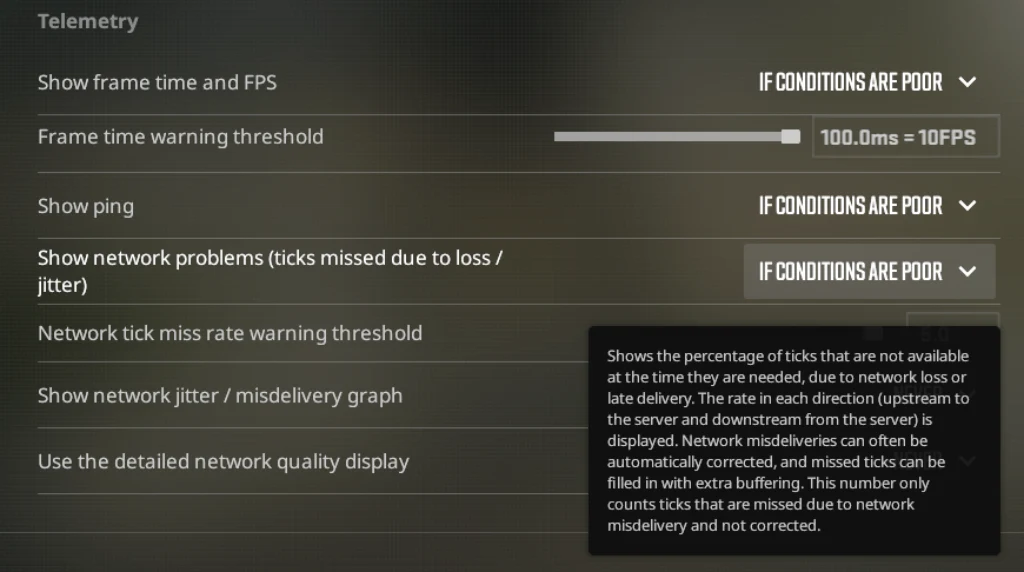
To enable the built-in CS2 indicators, use this step-by-step guide:
- Open the CS2 settings.
- Go to the Game → Telemetry tab.
- Find “Show network problems (ticks missed due to loss / jitter)”.
- Set it to “If conditions are poor” or “Always”.
- Start a match and monitor the network problem warnings and jitter / misdelivery indicators.
Using PingPlotter to Identify Where Packet Loss Happens
PingPlotter lets you identify where packet loss occurs. With it, you can view the hops between your PC and the server, which allows you to see where the loss begins (within your network, at the provider, or further along the route).
It is important to look at the first hop with a loss and whether the loss is repeated at subsequent nodes. This distinguishes real packet loss from “hop not responding.”
You can use PingPlotter to identify the cause of CS2 packet loss step by step:
- Install PingPlotter and set the polling interval to about one second.
- Launch CS2 and open the developer console to obtain the server IP.
- Connect to the match and copy the IP of the server you’re connecting to.
- Paste the IP into PingPlotter and start collecting data.
- Run the test and monitor the first and intermediate nodes.

Bufferbloat Testing and Loaded Latency Explained
A standard speedtest only shows speed. Bufferbloat, however, isn’t about speed, but about queue management. Under load, the router begins to delay packets. This is when packet loss and jitter appear, which aren’t visible in a standard speedtest.
So, in simple terms, ping can be perfect during idle, but in a battle, everything looks dismal. Most often, the upload queue is to blame. It’s the upload queue that disrupts the experience in CS2. To confirm this, use this guide:
- Open the Waveform or Cloudflare bufferbloat test in a browser.
- Run the test under normal network load.
- Pay attention to the underload latency.
- Compare the upload and download rates.
- If latency increases sharply, the problem is in the router queues.
Quick Fixes That Actually Work for CS2 Packet Loss
If you’ve determined that you’re indeed experiencing CS2 packet loss, you can start with quick fixes. We warn you right away that if in the previous step you determined that the problem is with your ISP, these quick CS2 packet loss fix methods will not help you.
They also won’t help if the packet loss issue is related to overloaded Valve servers. In this case, only waiting will help.
In all other cases, you should start fixing CS2 packet loss with the three fixes we’ll describe below.
Best CS2 Network Settings
The fastest way to reduce the impact of packet loss in CS2 is to adjust the game’s network settings. We want to warn you upfront that these settings don’t eliminate the source of the problem or fix the network. But no, don’t skip this step! These settings can slightly mitigate packet loss during matches.
This is a very reasonable first step if packet loss is minor and occurs irregularly. Of course, these settings won’t save you from serious network instability, but they can make the game significantly more comfortable. Our recommendations for network settings are as follows:
- Buffering to smooth over packet loss CS2: Use a value of 1 packet if the network is unstable. This smooths out losses without noticeably increasing latency. A value of 2 packets increases input lag and is only useful if packet loss is significant.
- Max acceptable ping: Set a value appropriate for your region. Setting it too high will result in connections to remote and less stable servers.
- Network bandwidth: Leave it at Unrestricted or High. Artificially limiting bandwidth can cause choke and worsen packet loss.
Switch to Wired Ethernet and Kill Background Traffic
Wi-Fi is modern and convenient. If you play CS2, you probably have a router. However, unfortunately, even in 2026, micro-packet loss can still occur when playing over Wi-Fi.
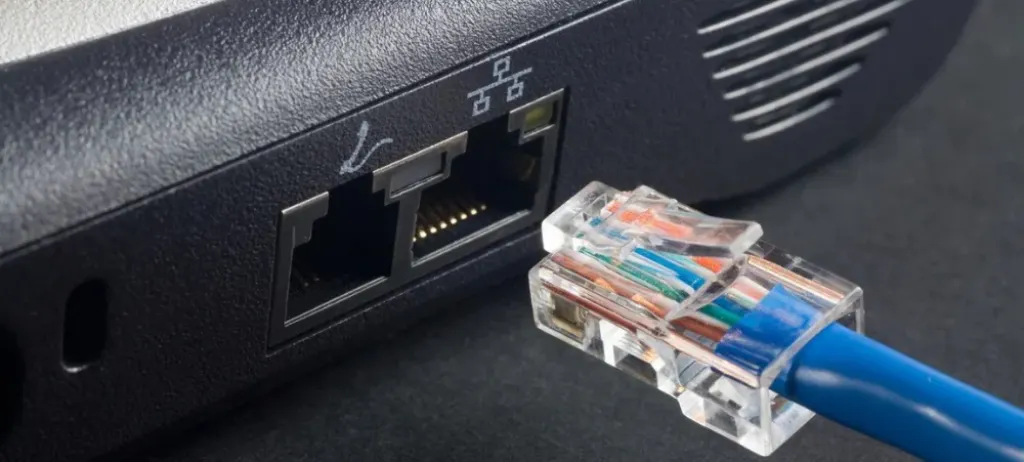
Therefore, if you’re playing on a PC or a laptop with an Ethernet port, use a cable connection. Simply connect the cable once, and your gaming experience will likely improve.
We also recommend stopping any downloads, streaming, cloud syncing, and similar activities before playing. It’s also best to close applications that use the network in the background.
Restarting and Updating Network Equipment
The third method for fixing packet loss CS2 is the simplest and fastest. This is the simplest router reboot. Yes, it doesn’t always help, but it is useful if the problem is related to overflowing queues or a frozen process.
If packet loss is permanent, rebooting will most likely not change anything. However, it definitely makes sense when:
- The router has been running for weeks without a reboot.
- Packet loss appears after prolonged use.
- There are many devices on the network.
Advanced Fixes for Persistent Packet Loss in CS2
If the previous three methods haven’t helped and you’re still experiencing CS2 high packet loss, it’s time to move on to more complex solutions. These involve queue management, routing, and interactions with your ISP.
These methods are more complex. You’ll need to spend some time figuring things out. But they’re the ones that provide real results when dealing with persistent packet loss in CS2.
Fixing Bufferbloat with SQM (CAKE, OpenWRT)
If network instability occurs when someone at home is watching videos, downloading files, or simply actively using the internet, the problem is often not speed, but how the router handles the load. And yes, this method is relevant even for those who use an Ethernet cable. After all, your entire internet connection still goes through the router, and it’s the router that manages packet queues. Not Wi-Fi, not a cable, but the router.
Smart Queue Management (SQM) allows you to train your router to avoid queue clogging so that game packets get through immediately, rather than waiting for their turn during downloads and streams. This doesn’t speed up the internet, but it prioritizes packets, which is very important for CS2.
CAKE is simply the most successful version of SQM. It works smarter than standard QoS, which is often useless or even hinders. CAKE really reduces lag under load, and to configure it, you need:
- The router must support OpenWRT or similar firmware.
- In the SQM settings, specify your actual download and upload speeds. We recommend setting the speed 5-10% lower than the maximum for your data plan.
- Select the CAKE scheduler.
- Don’t use additional QoS or priorities.
This will likely help if CS2 packet loss issues only occur when the network is under load. However, if packet loss is constant, SQM, unfortunately, will not solve the problem.
When and When NOT to Use Gaming VPNs
Gaming VPNs are considered a common way to combat packet loss in CS2. Even in 2026, they continue to be advertised as a universal solution. In practice, things aren’t as smooth as advertised.
To understand how it works, you need to know that a VPN doesn’t fix the internet or eliminate packet loss directly. It simply reroutes traffic to the game servers.
If your internet traffic’s normal route goes through an overloaded or unstable node, a VPN can help. He will direct traffic along a different route. If the route is initially normal, a VPN often makes things worse, adding unnecessary latency and jitter.
We won’t promote specific services; there are many of them online. However, we have prepared short lists to help you decide whether or not to use a gaming VPN.
When a VPN Can Help
- Packet loss only occurs in CS2.
- The problem is more severe in the evening or during peak hours.
- PingPlotter shows losses at intermediate nodes.
- A VPN provides a route with more consistent latency.
When Shouldn’t You Use a VPN
- Losses begin on your home network.
- Bufferbloat isn’t fixed.
- A VPN increases jitter or input lag.

ISP Escalation and Routing Change Requests
If CS2 packet loss occurs outside your home network, you can’t fix it yourself. In this case, nothing can be resolved without the provider. At the same time, from the bitter experience of thousands of players, when a provider says “everything is fine with us,” it usually only checks the fact of connection. They’re not interested in the quality of the route until you can prove the problem.
Therefore, we will say right away that complaints like “the game lags” do not work. You need to speak in a factual manner, provide as many screenshots, graphs, and figures as possible, as well as details on how often the problem occurs. The more accurate and plentiful the information, the higher the chance that your request will be forwarded to engineers rather than dismissed with a generic response.
What Should You Provide to Your ISP
- PingPlotter graphs indicating the node where the loss originates.
- The exact time the packet loss occurs.
- IP addresses of the CS2 servers experiencing the problem.
- Comparison of the route during the day and evening, if the behavior differs.
What Can and Should Be Requested
- Verification of the route to a specific server or subnet.
- The ability to change the route or exit through another node.
- Switching to an alternative uplink, if available.
- Confirmation of equipment overload on the ISP side.
Final Thoughts
CS2 packet loss is a common issue faced by many players, and it can and should be addressed. Playing with high CS2 packet loss values is pointless, as it will clearly reduce the enjoyment of matches and will constantly hinder your gameplay.
We recommend first addressing the issue using the methods described in this guide to fully enjoy the game. Believe me, even an hour spent fixing packet loss is worth it. We hope you’ll spend significantly less time and never encounter packet loss in CS2 again. We wish you good luck, a stable connection, and as many victories as possible.
FAQ
In most cases, packet loss in CS2 is related to the quality of the network connection. The game itself is sensitive to network instability and shows players things that are hidden in other games. Also, sometimes significant updates change the way packet loss is displayed, creating the perception of a “new problem”.
The CS2 buffering to smooth packet loss option can indeed slightly increase input lag, as the game waits for additional packets before processing data. With a value of 1 packet, latency is minimal and often unnoticeable. With 2 packets, latency is more noticeable and is only suitable for significant packet loss.
Yes, this is possible and, according to player forum posts, is quite common. In such cases, the problem is not directly related to packet loss, but to jitter, bufferbloat, or latency spikes under load. These may not show up as packet loss, but they significantly affect response and action registration.
During peak hours (usually evenings and weekends), the number of active users on the network increases significantly. This creates an increased load on provider equipment and intermediate nodes along the route, leading to jitter and packet loss in CS2.
Read also: