mn
mn  ru
ru 
“VAC Was Unable to Verify Your Game Session CS2” Error Fix Guide
Sooner or later, every Counter-Strike 2 player encounters the “VAC was unable to verify your game session” error. It usually occurs at the most inopportune moment. This issue isn’t related to a ban or violations, but completely blocks access to matchmaking.
In this guide from MelBet Pick’em, we’ll explore real-world solutions for the VAC CS2 error. Here you will see a variety of ways to fix it, one of which will definitely help you. We’ll also explain how to prevent the CS2 VAC error in the future, so be sure to read to the end!
What Does “VAC Was Unable to Verify Your Game Session” Mean?
The message “VAC was unable to verify your game session” means that Valve’s anti-cheat system, VAC (Valve Anti-Cheat), was unable to correctly verify the integrity of your game session. Sounds complicated, right? In reality, the VAC system simply couldn’t verify that your CS2 client, its files, environment, and connection to Steam met the system’s security expectations. This isn’t a VAC ban or an accusation of cheating, but simply a technical verification failure.
To better understand the CS2 VAC error, you need to understand how this anti-cheat works. Its main principle is monitoring changes to game files, third-party software interference in the gameplay, and the correctness of the Steam client → SteamService → CS2 connection.
When a desynchronization occurs somewhere in this chain (we’ll discuss the causes below), the anti-cheat returns a validation VAC error instead of allowing you into matchmaking. This is where players see the Matchmaking failed window with the message “VAC was unable to verify your game session.”
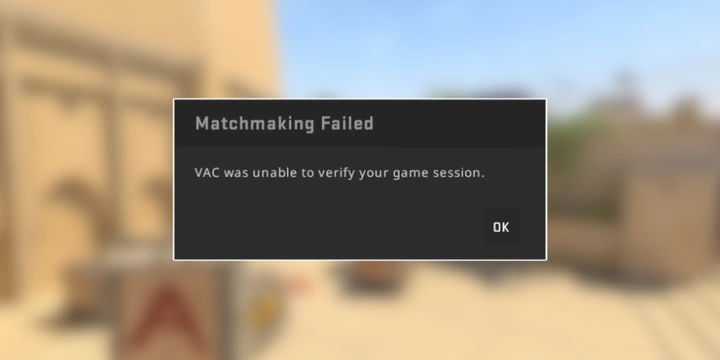
Common Causes of the VAC Verification Error in CS2
An anti-cheat validation error (VAC was unable to verify your game session CS2) means that the VAC anti-cheat was unable to complete its integrity checks of the client environment.
In general, as of early 2026, all causes of the VAC CS2 error are well understood. The hardest part is to determine why this error is appearing for you. Knowing the exact cause makes solving it quite simple.
We’ve prepared a list of the most common causes of VAC verification failure. These were identified based on SteamService logs, player reports, and official Valve documentation:
- Corrupted or desynchronized CS2 files: Hash mismatch, broken resources, outdated cs2.exe after updates.
- SteamService.exe crash: Incorrect access rights, corrupted service, incorrect startup. All of these factors prevent VAC from completing the secure handshake.
- Conflicts with overlays and injectors: VAC CS2 may interpret programs such as Discord Overlay, GeForce Experience, Xbox Game Bar, and MSI Afterburner as interference with the game.
- Antiviruses and firewalls: The problem is that they can block VAC system calls. Bitdefender, Avast, AVG, ESET, and aggressive Windows Defender are particularly prone to conflicts.
- Unstable network, DNS errors, VPN/Proxy: All of these can cause packet loss. As a result, VAC does not receive confirmation of the integrity of the session.
- Driver conflicts (GPU, network, chipset): Incorrect or corrupted drivers create abnormal process behavior, which VAC detects as a risk.
- Windows errors or corruption: Broken Winsock, incorrect security policies, and SFC/DISM errors disrupt Steam and VAC.
- Rare ISP issues (DS-Lite, IPv6 NAT): CS2 VAC loses network identity due to a non-standard route or IPv6 transit.
Quick Fixes for the CS2 VAC Error
You likely don’t know which of the above VAC CS2 errors you have. Therefore, you should start with the quickest ways to fix “VAC unable to verify”. According to an analysis of hundreds of comments on the Steam forum and Reddit, these methods help fix the CS2 VAC error in 60-70% of cases:
- Completely restart the Steam client: Close Steam completely, including the system tray. This is best done through the Windows Task Manager. This resets the session token that VAC uses to verify access to secure servers.
- Logout → Login in Steam: Logging out and then logging back in forces Steam to regenerate the authorization token. This can help if the issue was that CS2 VAC couldn’t verify your session with the SteamAPI.
- Restart your PC: A complete reboot clears system caches and closes any stuck SteamService processes. It’s no wonder some IT specialists recommend rebooting your Windows PC at least every 2-3 days.
- Changing your Steam avatar or nickname: We know, this method is incredibly strange. However, there are dozens of reports on Reddit and SteamFix confirming that it works. Changing your profile initiates an update of your profile tokens and uploads fresh data to the Steam Cloud. This automatically triggers a rebuild of the VAC session hash.
- Quick Match with Bots: When starting a single-player game with bots, the handshake is updated without going online. There have been numerous cases where VAC was correctly confirmed by the game client after leaving the match.
Methods to Fix VAC Was Unable to Verify Your Game Session CS2
Well, if you’ve read this far, you’re probably one of those lucky ones who didn’t get the quick fixes for the CS2 VAC error. We’ve prepared some more complex, but not yet radical, methods that should work. We recommend using these methods to fix the VAC CS2 error in the order we’ve listed them.
Verify Integrity of CS2 Game Files
VAC checks the hashes (checksums) of important CS2 files against reference values on Valve servers. If a file is corrupted, incompletely downloaded, modified by software, or an older version, verification fails. In such cases, the player receives a message stating “VAC was unable to verify your game session”
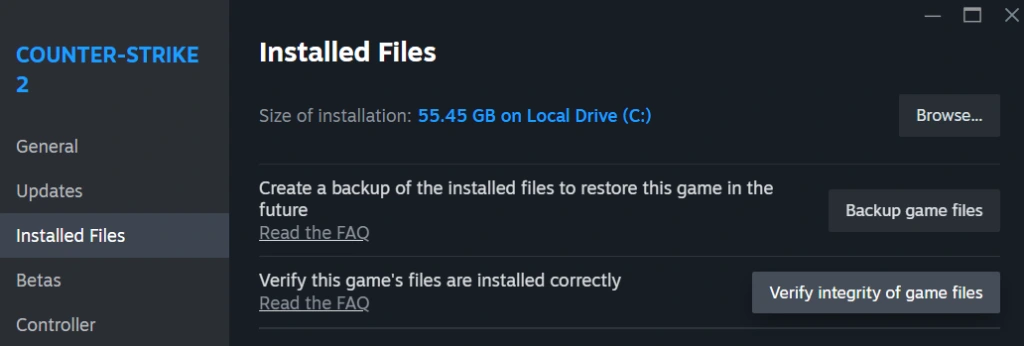
To fix this, run an integrity check. This scans all CS2 files in your Steam library. If there are any size or hash mismatches, it automatically replaces the problematic files. To launch, follow these instructions:
- Open Steam.
- Go to the Library tab.
- Find Counter-Strike 2 in the list of games.
- Right-click → Properties.
- On the left, select Installed Files.
- Click “Verify integrity of game files”.
- Wait for the verification to complete (don’t minimize Steam or interrupt the process).
- Once complete, restart Steam and then Counter-Strike 2.
Restart Steam as Administrator
The next method is quite simple, but very effective. The point is that VAC and SteamService must have access to system resources, drivers, and files in protected directories. This is necessary to reduce the number of cheaters in the game; no one likes them, right?
So, if Steam is launched without administrator rights, Windows may block some operations. This interferes with CS2 VAC.
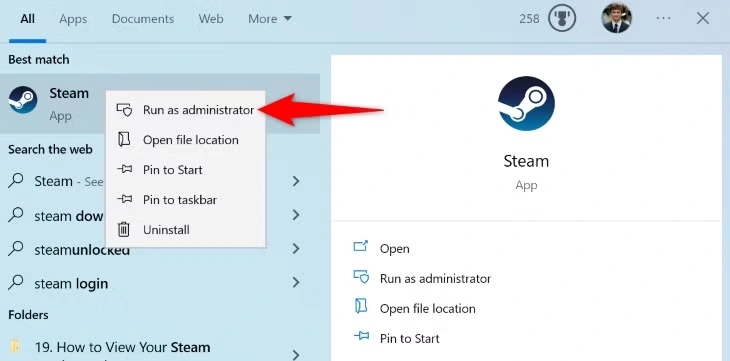
To launch Steam as administrator, you need to:
- Close Steam completely: find the Steam icon in the upper left corner and right-click it. In the window that appears, click Exit. You can also close Steam through the Windows Task Manager.
- Find the Steam shortcut on your desktop or in the Start menu.
- Right-click the shortcut → Run as administrator.
- Confirm the UAC prompt (if prompted).
- Launch CS2 and check if the VAC error persists.
If the “VAC was unable to verify your game session” window doesn’t appear after these steps, we recommend permanently launching Steam with administrator rights. To do this, right-click the shortcut, go to Properties → Compatibility tab → check “Run this program as an administrator” → Apply.
Repair Steam Service (SteamService.exe /repair)
Before proceeding with the next method, it’s best to understand what SteamService is. It’s a system service responsible for “silent” secure operations. This can include updates, access rights, and, of course, VAC checks.
If this system service is incorrectly installed for some reason or is broken after a Windows update, VAC CS2 will not work until you complete the following steps:
- Completely close Steam (including the system tray).
- Press Win + R → the Run window will open.
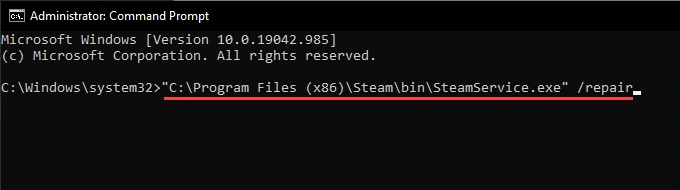
- Enter the command (the path may differ if you have a different installation directory): “C:\Program Files (x86)\Steam\bin\SteamService.exe” /repair
- Press Enter.
- A console window will open (it may close quickly). Wait for it to complete.
- After that, launch Steam again (preferably as administrator).
- Launch CS2 and check VAC.
Clear Steam Download Cache
Anyone who’s ever dealt with the cache knows how much trouble it can cause. However, on the other hand, it is incredibly useful and the benefits from it significantly outweigh the harm.
Steam stores cached update files, metadata, and temporary tokens in the download cache. If old files remain there after an unsuccessful update, CS2 VAC may detect a version conflict or incorrect client state data. Fixing this by clearing the download cache is easy:
- Open Steam.
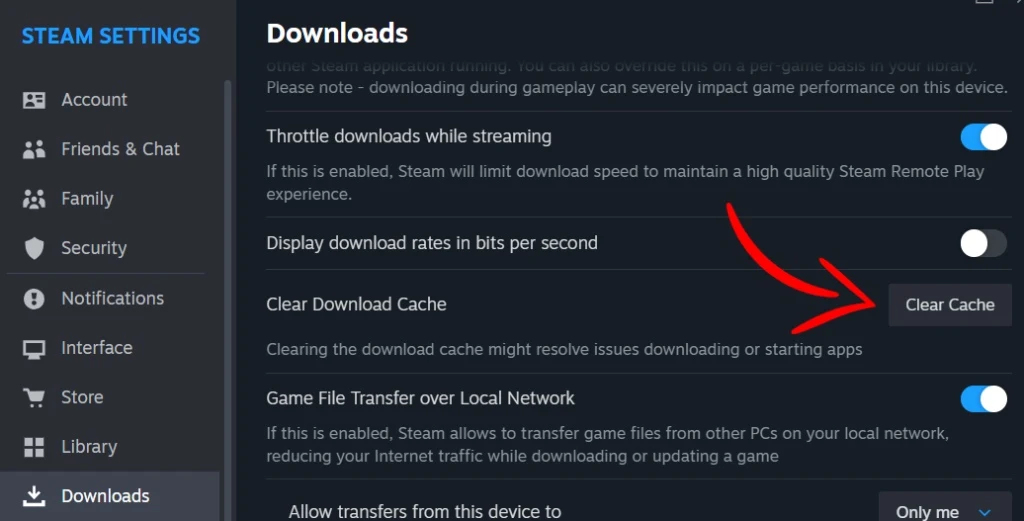
- In the upper left corner, click Steam → Settings.
- Go to the Downloads section.
- Click the “Clear Download Cache” button.
- Confirm the action.
- Steam will restart and ask you to sign in again.
- Sign in, launch CS2, and check VAC.
Update Windows and GPU Drivers
The next method for fixing the CS2 VAC error may take a little longer than the previous ones. It involves updating your drivers. This is necessary not only for CS2 to run correctly with high FPS, but VAC is especially sensitive to drivers. It relies on the correct operation of system libraries, the network stack, and video drivers. Old or broken drivers can:
- Crash the network;
- Cause strange behavior in game processes;
- Prevent the VAC module from accessing the hardware correctly.
First, we recommend checking for updates in Windows:
- Press Win + I → Settings will open.
- Go to the Update & Security section.
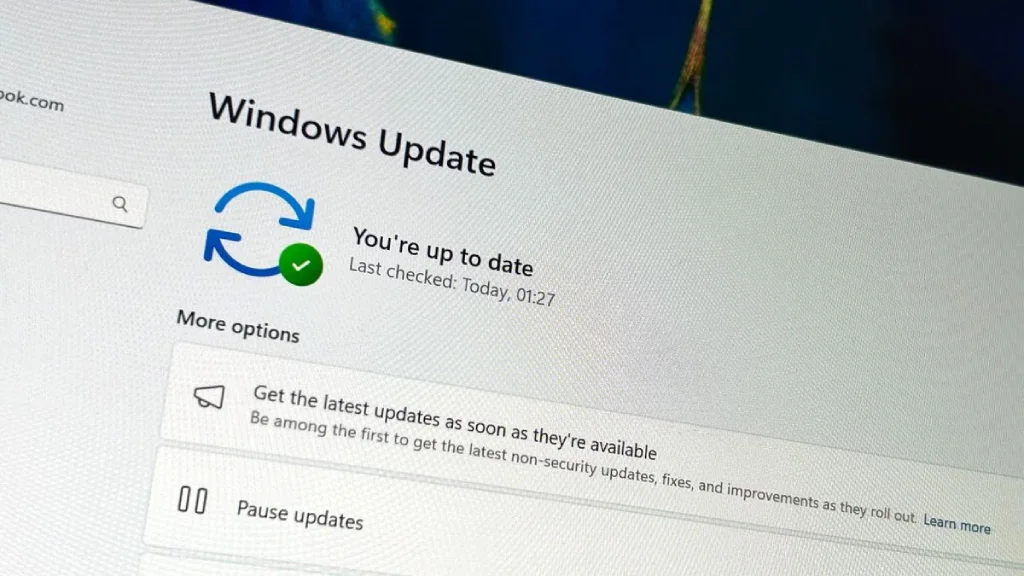
- Click “Check for updates.”
- Install all important updates, especially Quality and Security updates.
- Restart your PC.
This will update most drivers. However, some of the most important drivers are those related to the GPU. They are updated most frequently, and therefore it is recommended to do this through special applications from video card manufacturers. We’ll use NVIDIA as an example, as according to Steam statistics, 73.93% of users use graphics cards from this manufacturer. The driver update process is as follows:
- Open the NVIDIA App / GeForce Experience (depending on the version).
- Go to the Drivers section.
- Check for new drivers → Download / Install.
- After installation, restart your PC.
If you have an AMD/Intel graphics card, the update process is similar. The only differences are the application (AMD Adrenalin or Intel Arc/Graphics Command Center) and its interface.
Disable Conflicting Software (Overlays, Antivirus, VPN)
In 2026, almost everyone uses some kind of overlay or VPN. In some regions this is simply necessary. However, unfortunately, using such software can lead to VAC problems in CS2.
Any software that injects itself into the gameplay (hook, overlay, injection) falls into a “gray area” for anti-cheat software. Unfortunately, in 2026, CS2 VAC still doesn’t distinguish between a “good” overlay and a cheat injector. It simply detects the interference.
To ensure that the “VAC was unable to verify your game session CS2” window is not caused by one of these programs, we recommend temporarily disabling them:
- Overlays: Discord Overlay, NVIDIA Overlay (GeForce Experience), Xbox Game Bar, and others.
- Monitoring/Overclocking: MSI Afterburner, RivaTuner Statistics Server. Be sure to close them through Task Manager (Ctrl+Shift+Esc).
- Antivirus/Firewall: You shouldn’t uninstall it, but you can temporarily disable real-time scanning. Also, if you have a little more time, you can add the Steam and CS2 paths to the exceptions.
- VPN/Proxy: Simply disable your VPN client.
After disabling, be sure to restart Steam and CS2 and check if the VAC verify issue has resolved.

Repair Steam Library Folder
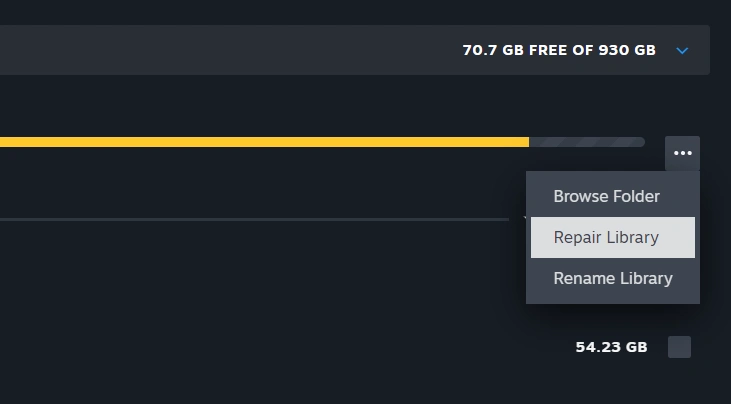
Sometimes a problem with VAC CS2 can be caused by something as simple as a Steam library folder. If this folder (where CS2 is located) has corrupted permissions, an incorrect path, or was moved incorrectly, VAC/SteamService may not be able to directly access the necessary files. As a result, the scan fails. To repair the Steam Library Folder, follow these steps:
- Open Steam.
- Click Steam → Settings.
- Go to Storage / Downloads (depending on your client version).
- Find the drive/folder where CS2 is installed.
- To the right of it, click the three dots → “Repair Library”.
- Wait for the scan/repair to complete.
- Restart Steam and CS2.
Delete CS2.exe Before Verifying Files
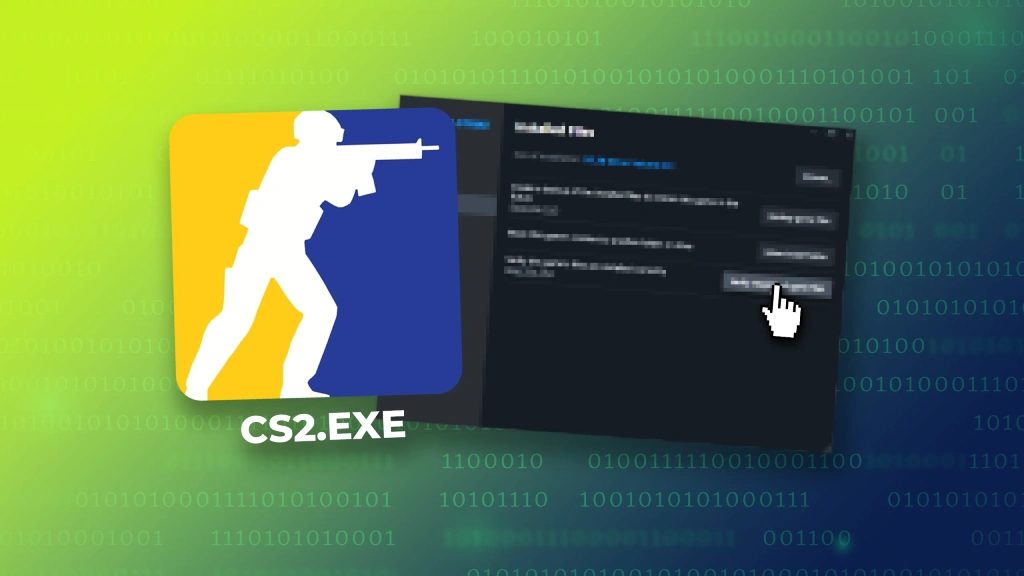
The last method to fix the CS2 VAR error is quite radical, but if other methods fail, it’s worth trying. It’s based on the fact that sometimes after updates, the main executable file, cs2.exe, remains in a conflicting version—for example, a partially updated one. VAC detects a signature mismatch and refuses to verify the session.
To resolve this, delete cs2.exe and recreate it:
- Completely close CS2 and Steam.
- Open Steam → Library.
- Right-click Counter-Strike 2 → Properties.
- Installed Files / Local Files tab → “Browse…” button.
- File Explorer will open in the game folder. Next, go to the game folder → bin → win64. Find the cs2.exe file and delete it (move it to the trash or press Shift+Delete).
- Return to Steam, still in Properties → Installed Files.
- Click “Verify integrity of game files”.
- Steam will download the new cs2.exe and sync the build.
- Once complete, restart Steam and launch CS2.
Advanced Fixes (For Persistent VAC Errors)
Now it’s time to move on to more radical methods. If all the above steps didn’t solve the problem and VAC was unable to verify your CS2 game session, it means the issue is a bit more serious than most users experience.
For such cases, we’ve prepared advanced VAC fixes for CS2. They work at the client, DNS, and Steam infrastructure levels. They should only be used after completing all the previous methods.
Flush Steam Config (steam://flushconfig)
The steam://flushconfig command resets the local Steam configuration. The entire settings cache, saved client settings, some tokens, outdated library data, etc. will all be reset to the default settings. This doesn’t delete games or files themselves, but rather “refreshes” the client.
This can help if VAC validation fails due to a corrupted config or similar issues. Step by step, this method looks like this:
- Close Steam completely (including the tray icon).
- Press Win + R → the Run window will open.
- Enter the command: steam://flushconfig
- Press Enter.
- A Steam window will appear with a warning about resetting your settings → confirm.
- Once complete, launch Steam again via Steam.exe in the installation folder.
- Re-enter your username and password (the data will be reset).
- Launch CS2 and check if the VAC error has disappeared.
Flush DNS Cache (ipconfig /flushdns)
VAC relies on stable and correct network resolvers. Simply put, it depends on how your PC “finds” the Steam and Valve servers via DNS. If the DNS cache is corrupted, contains outdated records, or your ISP/router is creating strange routes, the VAC handshake may fail at the network level. To flush the DNS cache in Windows, follow these steps:
- Press Win + R → enter cmd → Ctrl + Shift + Enter (run as administrator).
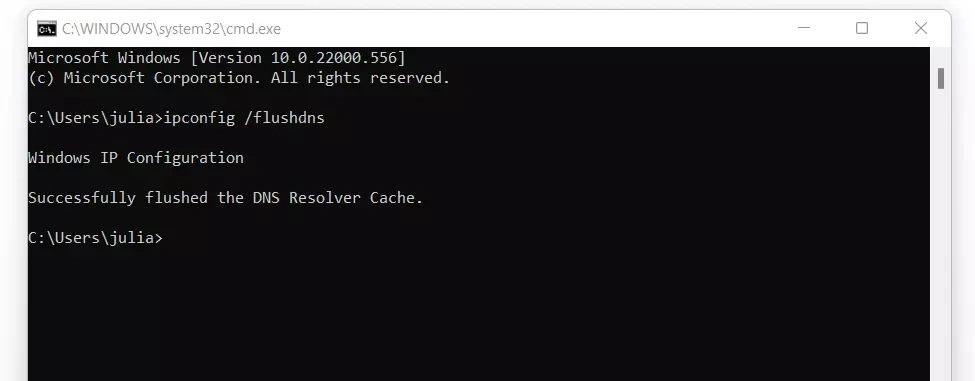
- In the console that opens, enter: ipconfig /flushdns
- Press Enter.
- A message should appear indicating the DNS cache has been successfully flushed.
- To be on the safe side, you can also enter two additional commands: ipconfig /release and ipconfig /renew
- Restart your PC and try running CS2 again.
Refresh Steam Installation Without Deleting Games
Sometimes the VAC issue isn’t with CS2, but with the Steam client itself. A complete reinstallation of Steam while preserving libraries can “refresh” the client without redownloading all games.
However, you don’t need to delete the Steamapps and Userdata folders unless you want to lose your games and settings. Here’s how to do it step by step:
- Close Steam completely.
- Open the Steam installation folder, usually: C:\Program Files (x86)\Steam
- Keep only the following folders: steamapps (games), userdata (user data), and optionally, steam.exe.
- Delete all other files and folders in the Steam root directory.
- Run steam.exe (if you deleted it, download the Steam installer from the website and specify the same folder).
- Steam will redownload all the necessary service files, but the games will remain.
- After updating the client, you can safely launch the game and hope that the “VAC was unable to verify the game session CS2” window has disappeared.
Full Reinstall of CS2
The last method is the most time-consuming. It involves deleting the game along with all its files. This almost always solves the CS2 VAC error problem, as a full reinstall removes:
- Hidden corruption of files, logs, and caches.
- Old builds and leftovers from previous updates.
- Local module conflicts that Verify Integrity doesn’t catch.
To properly reinstall CS2, follow these steps:
- Open Steam → Library.
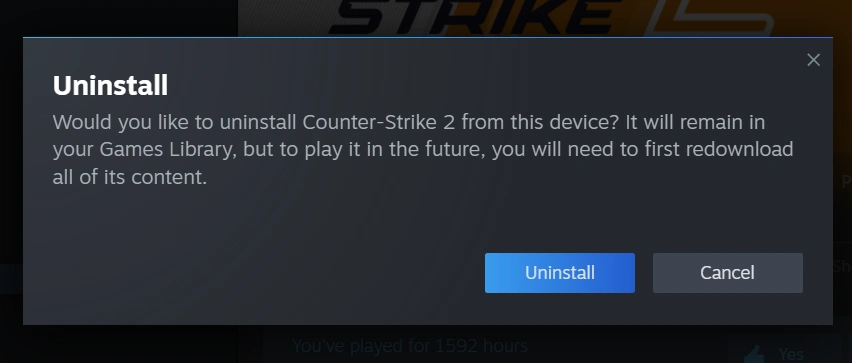
- Right-click Counter-Strike 2 → Manage → Uninstall.
- After uninstalling, go to your Steam library folder and verify that the game folder has been deleted. If not, delete it manually. It’s usually located at: C:\Program Files (x86)\Steam\steamapps\common\
- Restart Steam.
- Find Counter-Strike 2 in Library again → Install.
- After installation, BE SURE to Verify Integrity of Game Files (the step-by-step process is described near the beginning of the article).
- Restart your PC, launch Steam, launch CS2, and check for VAC errors.
You can use this method when you’re certain the problem isn’t with your system, internet connection, or antivirus software. In 90% of cases, after a clean installation and file verification, VAC was unable to verify your game session no longer appears. The only drawback is that downloading CS2 can take several hours, but, alas, sometimes there is no choice.
Preventing VAC Errors in the Future
Completely preventing VAC errors in CS2 is likely unrealistic. Something can always go wrong. However, minimizing the chances of these errors occurring is possible and even necessary. To do this, follow these recommendations:
- Regular updates: CS2 is updated automatically in 2026, and you simply won’t be able to launch the game if a new version is released. However, don’t forget to update Windows and, most importantly, your GPU/network adapter drivers.
- Minimize overlays: Disable Discord Overlay, NVIDIA Overlay, Xbox Game Bar, and other utilities.
- Proper Steam Launch: It is always recommended to run Steam as administrator. It is also preferable to have Steam installed on the same drive as Windows.
- A stable network: It is better to use a cable instead of Wi-Fi. Also, remember to turn off your VPN before playing CS2.
When Should You Contact Steam Support?
Anything can happen in life, and the CS2 VAR error can also be unpredictable. In approximately 5% of cases, it can’t be resolved using any of the known methods. In these cases, the problem isn’t with the game client, CS2, or even the system. The only solution is to contact Steam Support.
This should be done if all the above methods haven’t helped and the following issues are observed:
- The error appears on different systems: Try using a different PC or laptop. It’s advisable to do this, for example, on a friend’s computer, so that the internet provider is also different. If the VAC error appears on two different PCs but only on one Steam account, there’s likely a problem with the account’s Steam Cloud tokens.
- VAC doesn’t work for several days in a row: If all methods have been tried, but even after 48-72 hours, VAC doesn’t work, the problem is most likely on Valve’s end.
- Mass player reports: If VAC verification support is seeing mass crashes, the issue may be related to a CS2 patch, a Steam update, or a VAC CS2 server bug.

Final Thoughts
We hope our methods for fixing the “CS2 VAC was unable to verify” message have helped you, and you can continue enjoying your favorite competitive mode. If this issue occurs more than once a month, we recommend following the tips in the section on preventing CS2 VAC errors in the future. It will take a little time, but you’ll likely never encounter this error again at the most inopportune moment. We wish you good luck in your matches and never encounter any CS2 errors again!
FAQ
There are many ways to fix the VAC error in CS2. The most popular are automatically checking CS2 files, running Steam as administrator, repairing SteamService.exe (/repair), clearing the Steam cache, disabling overlays and antiviruses, and updating drivers.
Yes, it has long been known that antivirus software often causes VAC errors. Their protective drivers inject themselves into game and Steam processes, intercepting system calls and network traffic. VAC, in turn, interprets this as suspicious activity.
Yes, a VPN significantly increases the risk of a VAC verification issue. Valve’s anti-cheat software waits for session confirmation within a preset timeout, and a VPN often creates an unstable path. This is especially common when using slow free VPNs/proxy services.
No, don’t worry, the “VAC was unable to verify your game session” error has nothing to do with any account sanctions. If there was a ban, it would appear on your Steam profile as “VAC Banned”.
Read also: