mn
mn  ru
ru 
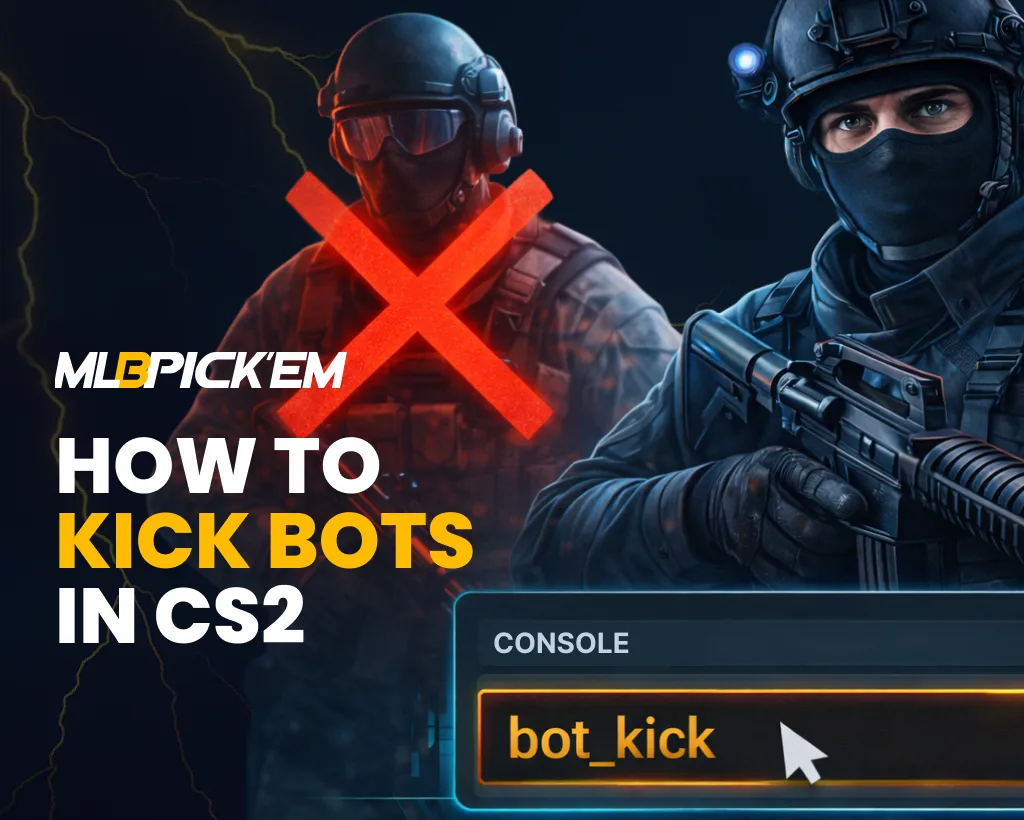
How to Kick Bots in CS2
Sometimes you just want to practice in CS2 without distractions. This could be practicing smokes, aim training, playing 1v1 with friends, or simply exploring the map. In these situations, bots can interfere with your gameplay, but it’s easy to fix.
In this MelBet Pick’em guide, we’ll explain how to remove bots in CS2. We’ll also cover other bot-related commands, including how to add bots CS2.
What Are Bots in CS2?
Bots in CS2 are AI-controlled game characters. Their main function is to fill teams if there aren’t enough real players in a match. They can shoot, patrol positions, react to footsteps, use grenades, and even attempt to coordinate their actions with other AI players. However, their performance is far from perfect, as the behavior of CS2 bots is highly predictable and determined by algorithms and preset behavior patterns.
Unlike real players, bots can also be controlled by the user. They can be completely removed or added, removed only from a specific team (T or CT), or even kicked by name. You can also adjust their behavior and change CS2 bots difficulty. We’ll discuss all of this below.
CS2 Remove Bots Command: Which Game Modes Support It?
Before moving on to specific commands, it’s important to note that the CS2 remove bots command and all other codes for controlling these AI players do not work in all CS2 game modes. The problem is that Valve restricts certain commands in official matches. This is done to maintain fair gameplay.
Therefore, the list of modes where you can use the remove bots command CS2 will look like this:
- Practice Mode: The most common option. Here, you can freely use all available bot control commands.
- Private Matches: Private games with friends where you create your own server.
- Custom Servers / Community Servers: Community servers where the administrator or host has access to console commands.
- Offline Matches: Local games against bots, where you can also fully customize AI behavior.
These commands will not work in all other modes. Also, keep in mind that bots replacing players who leave matches in competitive mode were removed from CS:GO back in January 2021. Since then, teams that lose a player must continue playing with fewer teammates but receive $1,000 in additional compensation per round.
How to Remove Bots in CS2 Quickly
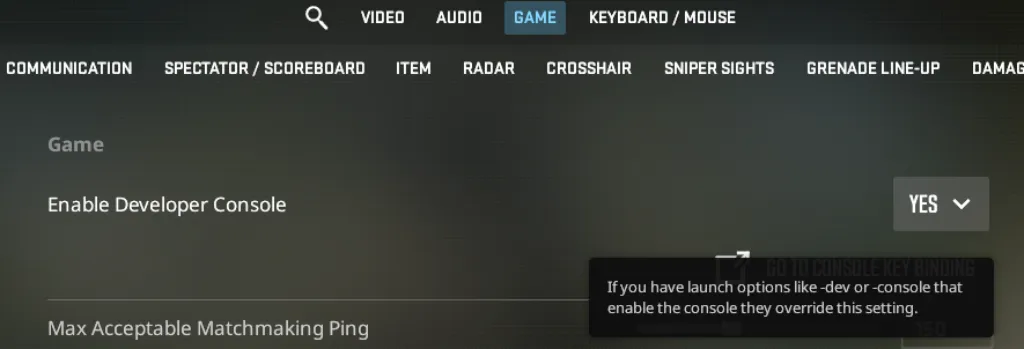
If you need to enter the CS2 no bots command, you will definitely need the Developer Console for this. Without it, managing bots and entering commands is simply impossible. To enable it, follow these steps:
- Open Counter-Strike 2.
- Click Settings (the gear icon in the main menu).
- Go to the Game tab.
- Find the “Enable Developer Console (~)” option.
- Set it to “Yes.”
- Press the ~ (tilde) key to open the console during gameplay or in the menu.
CS2 Bot Kick Command
The most famous command that many players remember is bot_kick. It’s easy to remember and completely removes all bots from the current match.
- bot_kick
How to Kick T or CT Bots CS2
If you need to remove bots from a specific team for training purposes, you can use these commands:
- bot_kick t
- bot_kick ct
The first CS2 kick bots command removes all Terrorist AI-controlled characters, and the second removes all Counter-Terrorist characters. They can be used separately or together.
How to Kick a Specific Bot CS2 by Name
Rarely, but sometimes, a command to delete a specific bot can be useful. To do this, add a nickname to the regular kick bots command CS2:
- bot_kick [bot_name]
This will delete the AI player with that nickname. The rest will not be affected, and there will be 1 less bot left in the team.
How to Stop Bots from Rejoining in CS2
On servers, simply entering bot_kick may sometimes be insufficient. Bots may appear in the next round, or after a team has a different number of real players.
This may be due to server settings that automatically add AI players to maintain balance. In such cases, it is necessary to use special CS2 bot commands.
Use bot_quota 0 to Disable Bots in CS2
The bot_quota command is designed to control the number of bots on the server. If set to 0, the server will no longer automatically add bots, even if players leave the match.
- bot_quota 0
Use mp_limitteams 0 or mp_limitteams 1 for Custom Team Control in CS2
The mp_limitteams command controls the maximum player difference between teams. It is rarely used, but can be found on custom servers. It is used to prevent automatic AI player additions.
- mp_limitteams 0
- mp_limitteams 1
mp_limitteams 0 completely removes the limit between teams, and mp_limitteams 1 limits the difference to one player.
Use mp_autoteambalance 0 to Prevent Team Auto-Balance Issues
The mp_autoteambalance command controls automatic team balancing. If disabled, the server will not automatically move players or add bots to balance the teams.
- mp_autoteambalance 0
How to Add Bots in CS2
You removed the bots, practiced, and suddenly realized you want to add them back? This is a common situation. There are special CS2 add bot commands for this, so don’t rush to restart your practice session. Simply select one of the commands below and play the match without stopping:
- bot_add: One bot will be added to one of the teams (usually the team with the fewest players).
- bot_add t: The team will add one AI player to the Terrorists team.
- bot_add ct: One AI player will be added to the Counter-Terrorists team.
How to Add Bots with Difficulty or Name in CS2
When adding a character, you can also specify additional parameters (team, difficulty level, name). We’ve prepared examples of how to use these commands:
- bot_add t hard
- bot_add ct easy
- bot_add t expert Alex
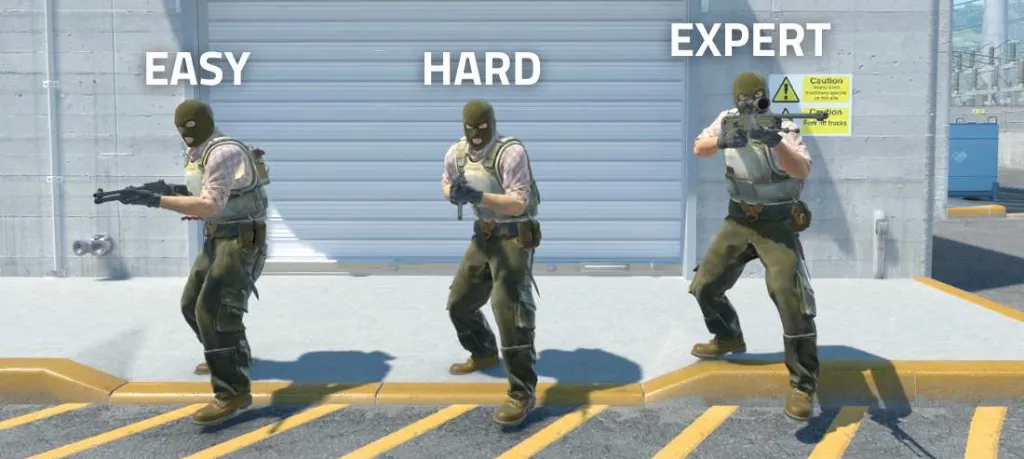
There are four difficulty levels (easy, normal, hard, expert), and the CS2 hardest bot difficulty is expert. Keep in mind that when using multiple parameters, you must first specify the side (t/ct), then the difficulty, and finally the name.
Best CS2 Bot Commands for Practice and Private Matches
In addition to the commands listed above, there are many more related to AI characters. We’ve compiled them into a single table, which also includes the commands described above for convenience. Simply select the ones you like and enter them through the Developer Console.
| Command | What it Does |
|---|---|
| bot_difficulty 0-3 | Changes CS2 bot difficulty (0 – easy, 3 – expert) |
| bot_quota X | Sets the total number of AI-controlled characters on the server |
| bot_quota_mode fill | Automatically fills empty slots up to the defined quota |
| bot_quota_mode normal | AI appears only when human slots are missing |
| bot_stop 1 | Freezes movement and actions completely |
| bot_stop 0 | Restores normal movement and behavior |
| bot_zombie 1 | Disables attacks and makes AI passive |
| bot_zombie 0 | Restores normal combat behavior |
| bot_dont_shoot 1 | Disables weapon firing |
| bot_dont_shoot 0 | Allows weapon use again |
| bot_knives_only 1 | Restricts weapons to knives only |
| bot_knives_only 0 | Restores normal weapon usage |
| bot_mimic 1 | Copies the movement of the controlling character |
| bot_mimic 0 | Disables movement copying |
| bot_place | Spawns an AI character at the crosshair position |
| bot_crouch 1 | Forces constant crouching |
| bot_crouch 0 | Restores normal standing movement |
| bot_kill | Instantly eliminates all AI characters in the round |
| bot_kill ct | Eliminates only CT side characters |
| bot_kill t | Eliminates only T side characters |
| bot_kick | Removes all bots from the server |
| bot_add | Adds a random AI-controlled character |
| bot_add t | Adds one character to the Terrorist side |
| bot_add ct | Adds one character to the Counter-Terrorist side |
Why CS2 Bot Commands May Not Work
Inexperienced players may encounter minor issues with Developer Console commands. They may not work or work incorrectly. In most, if not all, cases of entering CS2 bot commands are caused by the typical reasons we’ve described in the list:
- The match was started in the wrong mode: This is the most common issue. Players simply forget that all bots CS2 commands work only in practice mode, private matches, offline games, or private servers. Bot-related commands do not work in all official modes.
- AI players reappear after the bot_kick command: This is due to server settings. The server attempts to automatically maintain team balance. To resolve this, disable automatic AI-controlled character additions with the bot_quota 0 command.
- Insufficient rights to change server settings: Some commands listed in our table only work when the player is the server host or has administrative rights. On public servers or matches created by other players, some commands may be ignored.
Conclusion
We hope the next time you find yourself wondering “how to kick bots CS2”, you’ll remember at least a few basic commands from this guide. You don’t even need to learn any codes like the legendary AEZAKMI. Just remember to put an underscore between the words “bot” and “kick” to get the command “bot_kick“.
Other commands related to these AI-controlled characters are mostly just as logical. Create associations, practice entering them a couple of times, and you’re unlikely to ever forget them!
FAQ
The most commonly used command for removing bots in CS2 is bot_kick. It instantly removes all AI players from both teams. If you only need to remove a specific AI player, you can follow the command with its nickname, separated by a space. This can also be done with an entire team (t / ct).
To add, use the bot_add command. This creates only one random participant. If desired, you can immediately specify the side, difficulty level, or name, separated by a space. This way, you can create several AI players with different difficulty levels, which can be useful for training matches.
No, all commands related to bots do not work in official modes. However, since the beginning of 2021, there have been no AI players on official servers. They cannot be added or removed.
The difficulty level can be adjusted using a separate command bot_difficulty X, where X is a level parameter from 0 to 3. The easiest is 0, and 3 is the maximum difficulty. Keep in mind that this command changes the difficulty level of all AI players on both teams simultaneously.
Read also: