mn
mn  ru
ru 
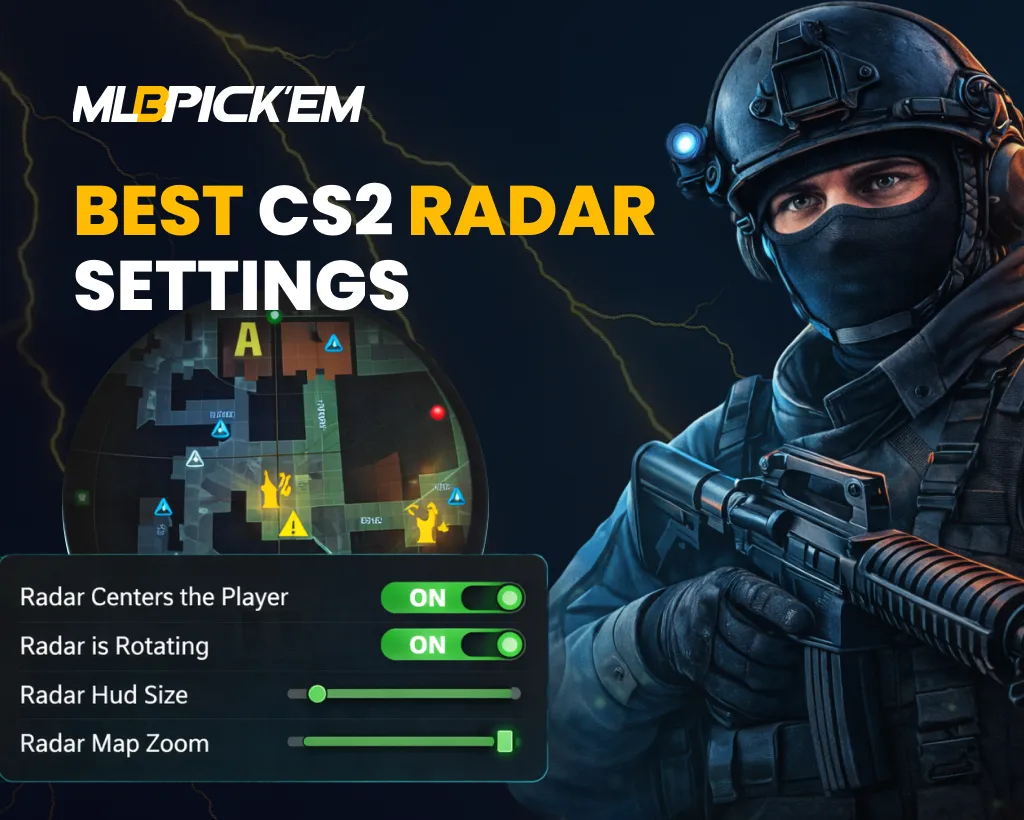
Best CS2 Radar Settings Guide
Anyone who’s played at least a couple of rounds in CS2 has noticed the circular minimap. It’s usually located in the upper left corner of the screen and is called the “radar.” However, even experienced players don’t always know how functional it is and that it can be customized.
Therefore, in this MelBet Pick’em guide, we’ll cover the best radar settings CS2. Also, here will be all the radar commands CS2. This guide is also useful for beginners, as we’ll explain everything, including how and what information you can get from the minimap to win more often!
What Is Radar in CS2?
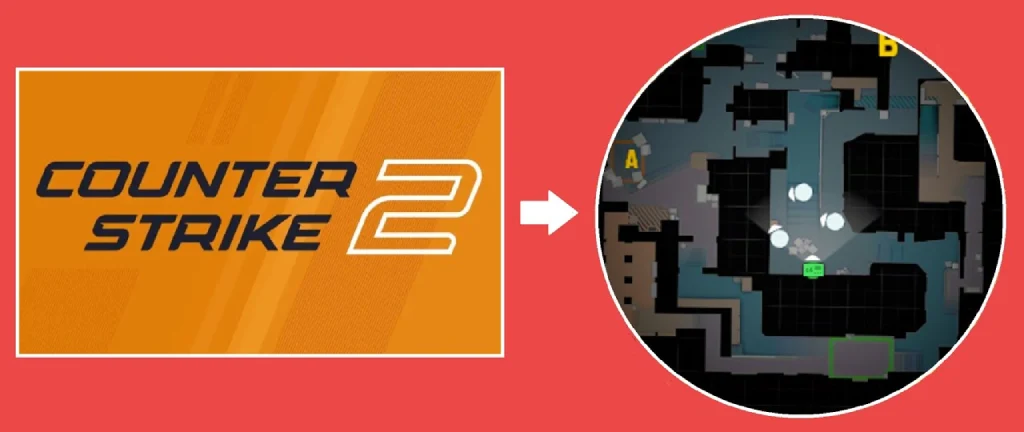
The radar CS2 is a minimap that displays information about what’s happening on the map during a round. This helps you quickly navigate the situation, track your teammates’ movements, and even get small clues about enemy actions.
So, in addition to the map itself with its paths, bomb sites, and zones, the minimap also displays:
- Allied positions: where they are and in what direction they’re moving.
- Last seen enemy positions: if you or a teammate sees an enemy, their location temporarily appears on the minimap. After losing visual contact, the blip on the CS2 radar changes to a red question mark, indicating their last known position.
- Bomb position: who has the bomb or where it was dropped.
All of the above helps you quickly and effectively analyze the situation and make the right tactical decisions. Without the ability to read the minimap, it’s simply impossible to play effectively in CS2.
Why CS2 Radar Settings Matter
Many players use the default minimap settings in CS2 without even trying to figure out what can be changed. We don’t recommend playing this way. Default settings rarely provide an optimal map view. This results in players receiving less information or simply spending more time reading it. With the best CS2 radar settings, you can:
- Track teammates faster: The convenient minimap scale and size help you immediately see your teammates’ positions. This allows you to better understand which areas of the map are under control.
- Notice enemy spawns more easily: The adjusted minimap makes enemy blips more visible, allowing you to react more quickly to contact.
- Better track the enemy’s last position: Last spot blips become more visible, helping you predict enemy movements.
- Find the bomb faster: This is especially important for the T-side. You can instantly see who has it or where it was dropped.
Situations where every second can decide a round in CS2 occur constantly. With CS2 best radar settings you can make decisions faster.
How to Change CS2 Radar Settings
There are three ways to change radar CS2 settings. They differ in terms of convenience and how precise you want the parameters to be:
- Through in-game settings: the easiest way. You can change the minimap scale, size, and some other parameters.
- Through console commands: allows for more precise control of minimap settings. To enter any CS2 radar command, you must enable the Developer Console.
- Through the autoexec CS2 file: the most convenient and precise option. It allows you to save your selected settings so they don’t reset after updates and are automatically applied each time you launch the game.
We’ll cover the first and third options in more detail. The second method is self-explanatory. Simply enable the developer console: Open Settings → go to the Game tab → find Enable Developer Console (~) → set it to Yes. Then, in a match or in any menu, press ~ (tilde) to open the console.
All CS2 radar commands for input will be described later in this article. You can enter them one at a time or several at a time, separating the commands with a semicolon “;”.
How to Change Radar Settings in the CS2 Menu
In-game settings allow you to quickly change key parameters through a user-friendly interface. To do this:
- Open Settings.
- Go to the Game tab.
- Find the Radar section.
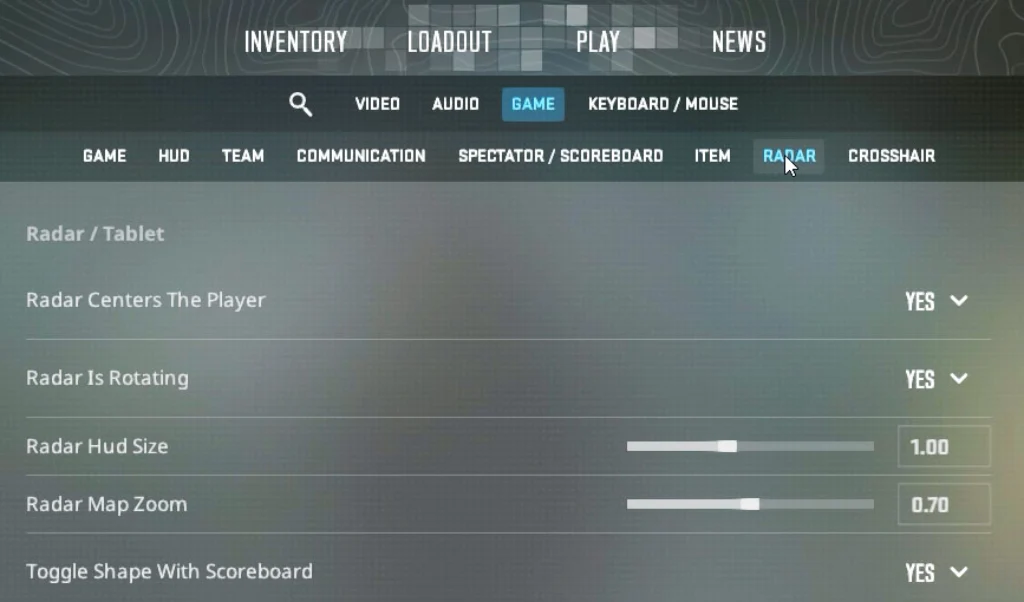
In this section, you can change the following parameters:
| Radar Centers The Player | No | Yes | Keeps your icon centered. |
| Radar Is Rotating | No | Yes | Rotates with your view direction. |
| Radar HUD Map Blends With Background | No | Yes | Blends map display with the HUD. |
| Blur Background | No | Yes | Adds blur behind the map display. |
| Radar HUD Background Opacity | 0.00 | 1.00 | Controls background transparency. |
| Radar HUD Size | 0.80 | 1.30 | Adjusts map size on screen. |
| Radar Map Zoom | 0.40 | 1.00 | Controls map zoom level. |
| Radar Map Alternate Zoom | 0.40 | 1.00 | Alternate zoom for toggle key. |
| Toggle Square Shape With Scoreboard | No | Yes | Changes shape to square with scoreboard. |
| Force Square Shape | No | Yes | Keeps square shape always. |
| Radar Is Zooming Dynamically | No | Yes | Automatically adjusts zoom. |
For beginners, this is a great way to customize the minimap. However, if you want to make more precise CS2 pro radar settings, you’ll still need to use console commands or autoexec.
How to Save CS2 Radar Settings in Autoexec
Autoexec is a configuration file that automatically loads your commands each time CS2 starts. Essentially, it helps you avoid manually entering all your radar CS2 commands each time. To do this:
- Create the autoexec.cfg file in the …\Steam\steamapps\common\Counter-Strike Global Offensive\game\csgo\cfg folder.
- Open it with any text editor.
- Add the desired minimap commands to the file. Enter each command on a new line.
After saving the file, all CS2 minimap commands will be automatically executed upon game launch. To avoid common errors and ensure the most convenient setup, we recommend reading our Autoexec CS2 guide.
All CS2 Radar Commands
The best way to customize is to use special console commands. These allow you to set precise values and quickly apply them in-game. We have collected all CS2 radar commands for setting up the minimap in one table. You can use them all at once, selectively, or one command at a time.
| Setting | Value Range | Description |
|---|---|---|
| cl_radar_scale | 0.25 – 1.0 | Controls map zoom level. Lower values show a larger portion of the map. |
| cl_hud_radar_scale | 0.8 – 1.3 | Adjusts the map display size on the HUD. |
| cl_radar_rotate | 0 / 1 | Enables or disables rotation based on the player’s view direction. |
| cl_radar_always_centered | 0 / 1 | Keeps the player icon centered on the map display. |
| cl_radar_icon_scale_min | 0.4 – 1.0 | Changes the size of player and bomb icons. |
| cl_radar_square_with_scoreboard | 0 / 1 | Changes the map shape to a square when the scoreboard is open. |
| cl_drawhud_force_radar | 0 / 1 | Forces the map display to always be visible on the HUD. |
| cl_radar_scale_alternate | 0.25 – 1.0 | Sets an alternate zoom level used with the zoom toggle. |
| cl_radar_square | 0 / 1 | Forces the map display shape to stay square. |
| cl_radar_always_show | 0 / 1 | Ensures the map display remains visible during gameplay. |
Best CS2 Radar Config Setups
CS2 minimap settings are a highly individual matter. It’s best to consider your personal preferences and playstyle. Some prefer a wide map view, while others prefer more detail around their position. Therefore, there’s no one-size-fits-all setup.
However, we’ve prepared several popular CS2 radar configuration options for different situations. They differ in map scale, minimap size, and icon display. You can try them all out and choose the one you like best.
Best CS2 Radar Settings for Full Map Visibility
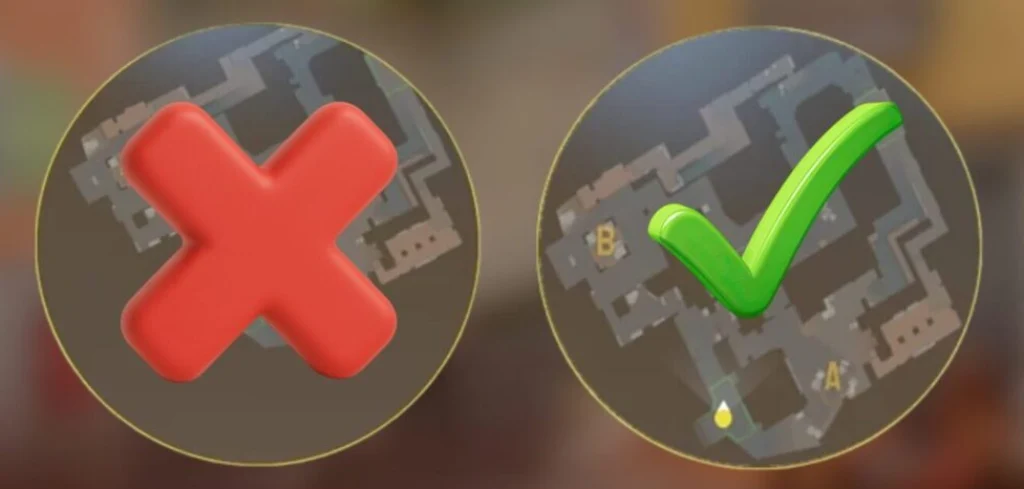
For those who prefer to see as much of the map as possible, there’s a special CS2 radar full map configuration. It allows for clear tracking of teammates’ positions and an understanding of which areas of the map a team controls:
- cl_radar_scale 0.35
- cl_hud_radar_scale 1.2
- cl_radar_rotate 1
- cl_radar_always_centered 0
- cl_radar_icon_scale_min 0.6
- cl_radar_square_with_scoreboard 1
Best CS2 Radar Settings for Competitive Play
The most popular CS2 game modes are Premier and Competitive. Playing in these modes requires balanced minimap settings:
- cl_radar_scale 0.4
- cl_hud_radar_scale 1.15
- cl_radar_rotate 0
- cl_radar_always_centered 0
- cl_radar_icon_scale_min 0.6
- cl_radar_square_with_scoreboard 1
Best CS2 Radar Settings for Beginners
Beginners often find standard solutions insufficient. For the minimap, they need the simple radar CS2, which can be accessed by entering these commands:
- cl_radar_scale 0.5
- cl_hud_radar_scale 1.25
- cl_radar_rotate 1
- cl_radar_always_centered 1
- cl_radar_icon_scale_min 0.8
- cl_radar_square_with_scoreboard 1
This rotating minimap helps you quickly understand your direction of travel. It also has slightly larger icons. As you gain experience, we recommend zooming out and disabling the centering feature.
Best CS2 Radar Settings Used by Pro Players
If you like to target players from professional CS2 teams, it’s worth looking at what radars they use. Let’s say right away that these settings are not suitable for everyone.
As for specifics, after analysis, several trends emerge. These players typically use a reduced CS2 radar zoom. This setting allows them to see more of the map at once. They also often choose a medium-sized HUD minimap to ensure it’s easy to read but doesn’t take up too much screen space.
| Player | Team | Radar Centers The Player | Radar Is Rotating | Toggle Shape With Scoreboard | Radar HUD Size | Radar Map Zoom |
|---|---|---|---|---|---|---|
| FalleN | FURIA | Yes | Yes | Yes | 1.00 | 0.35 |
| ZywOo | Vitality | No | Yes | Yes | 1.00 | 0.7 |
| NiKo | Falcons | Yes | Yes | Yes | 1.00 | 0.35 |
| EliGE | Team Liquid | Yes | Yes | Yes | 1.15 | 0.7 |
| Twistzz | FaZe Clan | Yes | Yes | Yes | 1.15 | 0.4 |
| 910 | The MongolZ | Yes | Yes | Yes | 1.00 | 0.45 |
| Aleksib | NaVi | Yes | Yes | Yes | 1.00 | 0.45 |
| Brollan | MOUZ | Yes | Yes | Yes | 1.00 | 0.40 |
| XANTARES | Aurora | Yes | Yes | Yes | 0.984098 | 0.35 |
| huNter- | G2 Esports | Yes | Yes | Yes | 1 | 0.7 |
Default vs Custom CS2 Radar Settings
Are you wondering if it’s worth changing the default settings? We definitely think so. They don’t provide an optimal map overview and can limit the amount of information you receive during a round.
We’ve prepared a brief comparison of each adjustable parameter. Finally, if you don’t like your customized radar CS2 settings, you can always revert to the default ones. If you don’t try, you’ll never know!
| Setting | Default Value | Optimized Value |
|---|---|---|
| Scale | 0.7 | 0.35 – 0.45 |
| HUD Size | 1.0 | 1.1 – 1.2 |
| Centers The Player | Yes | No |
| Rotating | Yes | 0 or 1 |
| Icon Scale | 0.6 | 0.6 – 0.7 |
| Shape with Scoreboard | Yes | Yes |
How to Create a CS2 Radar Zoom Bind
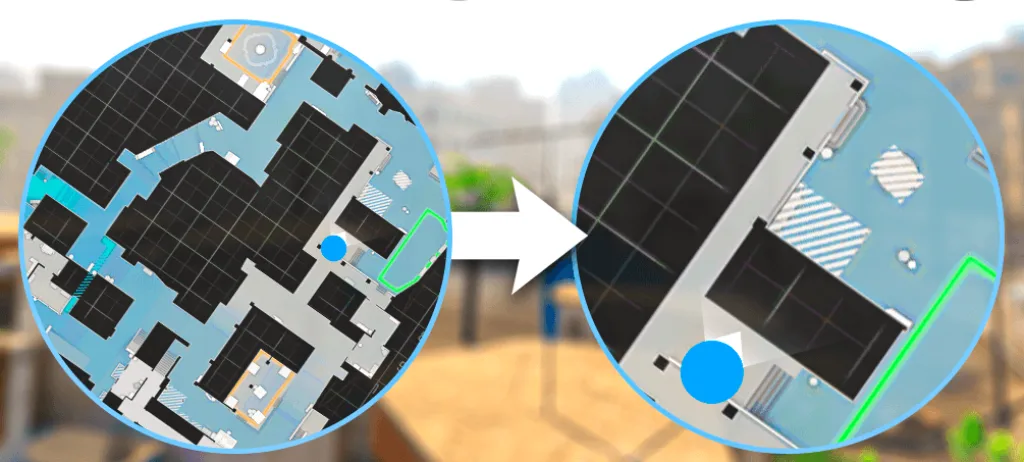
Have you seen streamers or pro players at tournaments quickly change the minimap zoom during a game? There’s a special radar zoom bind CS2 for that. It’s convenient because it allows you to temporarily zoom in or out on the map. This allows you to simultaneously get more information and focus on the immediate area.
CS2 Radar Zoom Toggle Bind
Toggle radar zoom CS2 bind switches the minimap zoom between two values with each key press. Example command:
- bind “x” “toggle cl_radar_scale 0.3 0.8”
In this example, pressing the X key will toggle the map zoom between 0.3 and 0.8. The smaller value shows more of the map, while the larger value zooms in.
CS2 Radar Zoom Hold Bind
Another option is the hold bind. It temporarily changes the minimap zoom only while a specific key is held down. After releasing the key, the settings return to their original values. Example commands:
- alias +radarzoom “cl_radar_scale 0.3”
- alias -radarzoom “cl_radar_scale 0.7”
- bind “v” +radarzoom
With these CS2 radar zoom commands, as long as you hold down the V key, the radar zoom will decrease to 0.3. Once you release the key, the value will return to 0.7.
How to Fix Radar Not Showing in CS2
Although rare, it can happen that the minimap in CS2 suddenly disappears or displays incorrectly. In such cases, we recommend checking the HUD and radar settings in the game menu: Open Settings → Game → Radar and ensure that the minimap options are enabled and that its size isn’t set too small.
If the settings appear normal, you can try resetting the minimap settings to default values. Enter the following commands in the console:
- cl_radar_always_centered 1
- cl_radar_rotate 1
- cl_radar_scale 0.7
- cl_hud_radar_scale 1
- cl_radar_icon_scale_min 0.6
- cl_radar_square_with_scoreboard 1
After entering these CS2 radar console commands, the minimap will return to default settings.
Final Thoughts on the Best CS2 Radar Settings
Minimap settings may seem pointless at first glance, but they’re not. Tactical shooters, like CS2, require incredibly fast decision-making. Every second can decide a round. And these minor adjustments to the minimap can be life-saving in various situations.
That’s why all professional players take CS2 radar settings very seriously. Experiment and test to see what suits your playstyle. Finding the balance between visibility and readability will help you improve your gameplay and perhaps even reach the next rank!
FAQ
It usually depends on your habits. We recommend trying both options. Static radar (cl_radar_rotate 0) is more commonly used by experienced players because the uniformly oriented map makes it easier to pinpoint positions. Rotating radar (cl_radar_rotate 1) may be more intuitive for beginners.
To do this, you need to reduce the minimap scale. You can use the cl_radar_scale command (to approximately 0.35–0.4). Also, to increase the space in front of the character on the minimap, we recommend disabling centering (cl_radar_always_centered 0).
If you see a red question mark on the minimap, it means an enemy has been spotted in that location. After they’ve moved out of sight, this “?” sign indicates their last known position. It’s definitely not worth ignoring, as it can help you predict their next movements.
Following pro players from top teams, you’ll find that they check their minimap every few seconds. It’s most often worth checking after engaging on the map or using grenades. However, don’t overdo it, as checking the minimap too often can distract you from the action.
Read also: