mn
mn  ru
ru 
CS2 Autoexec Config Guide 2026
If you use custom settings in CS2, you’re probably tired of constantly reconfiguring them after updates. Would you like not to have to do this? This is possible thanks to the CS2 autoexec.cfg. This file can save all your settings without losing them after updates.
In this MelBet Pick’em guide, we’ll explain in detail what CS2 autoexec binds are. You’ll learn where this magical file is located, how to work with it, and what you can enter into it. Be sure to read our guide to the end to ensure your game configuration always runs smoothly!
What Is an Autoexec File in CS2?
Autoexec.cfg in CS2 is a special configuration file in which the player pre-sets their commands and settings. This can be almost anything, but most often they specify crosshair settings, binds, mouse sensitivity, radar parameters, sound, and performance.
This is done because the game automatically applies the settings from the CS2 autoexec file each time it launches. This eliminates the need to manually configure settings through the menu every time the game updates. Also, if you frequently use different computers, you can simply copy the settings from this file on one PC and paste them into the file on another. This way, you avoid having to remember commands and waste time manually configuring them.
Autoexec Safety — Is It Allowed or Banned?
There was once a myth circulating online that creating an autoexec.cfg file in CS2 could lead to a VAC ban. However, this is a complete lie. CS2 autoexec is completely permitted because it uses only the game’s official console commands. It’s a standard configuration tool, and Valve has supported it since CS 1.6.
This file doesn’t interfere with game files and isn’t a third-party program. VAC bans only apply to cheats, injectors, and prohibited automations. Legal autoexec bindings pose no risks.
Autoexec.cfg vs Config.cfg — What’s the Difference?
Many beginners, instead of autoexec.cfg, first notice another file called config.cfg. In general, both files are regular text files, and technically, the same settings can be entered in both. Counter-Strike 2 reads commands in both files identically, line by line.
However, there is a significant difference:
- config.cfg is a working file that the game constantly updates itself. Any changes to settings in the game menu will be reflected in this file. This file can also be reset periodically after patches, taking your settings with it.
- autoexec.cfg is your personal file, which the game never edits. It can only execute the commands specified in it (if you connected it correctly). No updates can affect this file, so it’s best to enter all your settings there.
Therefore, if you have ever tried to configure commands in a file and they disappeared during an update, it was most likely the CS2 config.cfg file.
CS2 Autoexec Location (Correct Folder Path in 2026)
For your CS2 autoexec.cfg file to work correctly, you need to create it in a specific folder. If you create it in the wrong folder for the game, or even just place it on the desktop, it won’t work. CS2 only reads user configs from a specific cfg directory.
The current path in 2026 looks like this:
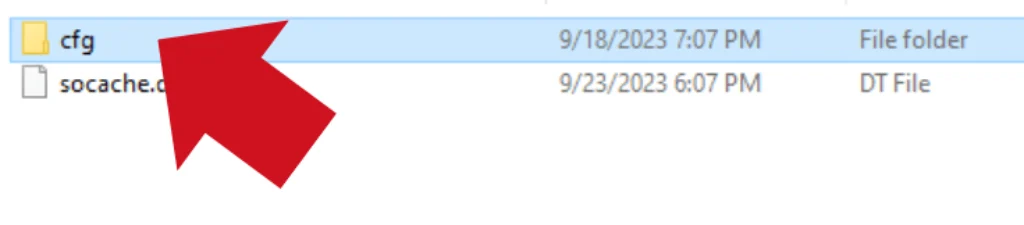
- Steam\steamapps\common\Counter-Strike Global Offensive\game\csgo\cfg
In this folder, you’ll see more than 20 cfg/vcfg files. You’ll need to create another file named “autoexec.cfg” (without the brackets) in the same folder. We’ll discuss this in more detail later.
How to Create Autoexec.cfg in CS2
Once you’ve found the correct folder, it’s time to create the file. This is a very simple yet incredibly important process. This is the step where mistakes are most often made. To avoid making an unnoticeable mistake and not knowing why the config isn’t working, we recommend following our guide carefully.
Step 1 — Create a New CFG File
Open regular Notepad or Notepad++ and create a new document. Then select:
- File → Save As
It’s very important to select All Files in the Save as type field. Otherwise, Windows will automatically save the file as .txt, and CS2 won’t be able to read it. Also, make sure the folder where you save the file is exactly as described above. The name must be exactly “autoexec.cfg” (without brackets). No other characters or spaces are allowed.
Step 2 — Add Commands Line by Line
After creating the file, double-check its path. If everything is correct and it is indeed in the correct folder, open it and add commands. Keep the following points in mind:
- Each command must be on a new line.
- You can’t paste everything in one paragraph.
- The syntax must be precise (quotes, spaces).
Step 3 — Enable Autoexec in CS2 (Launch Options)
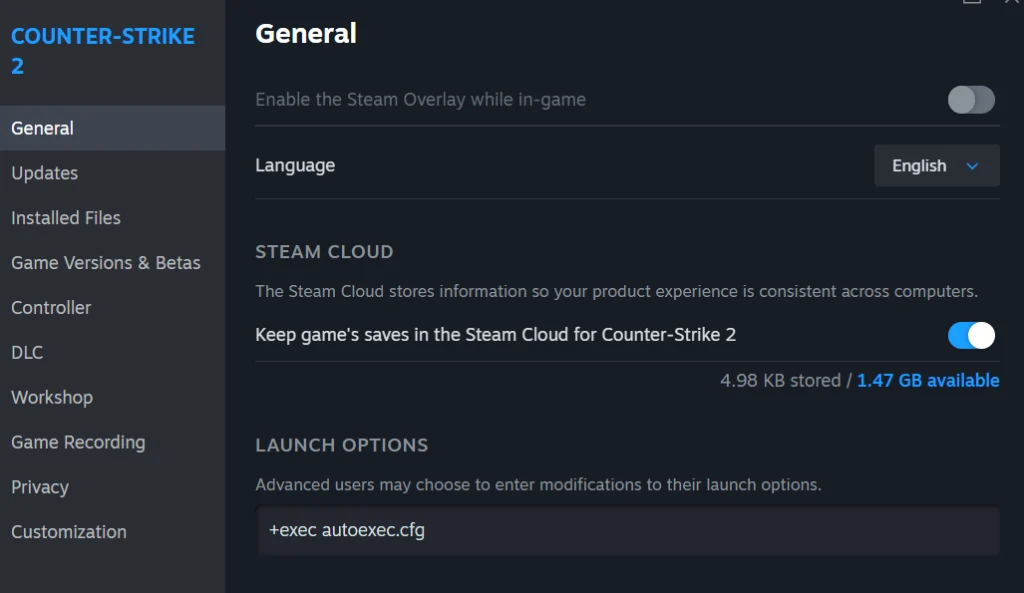
After creating the file and entering the commands, you need to enable it. You can do this through the CS2 launch options in Steam. This way you can be sure that the game will always load your config after updates or changes in the file system.
To enable CS2 autoexec, you need to:
- Open Steam Library
- Find Counter-Strike 2
- Right-click → Properties
- Go to the Launch Options field
- Paste the command +exec autoexec.cfg
After closing the command entry window, Steam will save the settings automatically.
How to Check If CS2 Autoexec Loaded Successfully
After creating the file and enabling it through Steam’s launch options, it’s best to check whether it actually loads when CS2 starts. Beginners may enter commands right away, but they may not always understand whether the configuration is working. This is especially true for unnoticeable commands that do not significantly affect gameplay.
To be 100% sure everything is working, you can use the echo CS2 command. It displays a message directly in the console when autoexec is executed. This means that if the message appears when the game starts, the file is correctly enabled and working.
You need to open the autoexec.cfg CS2 file and at the very end, enter the command
- echo “AUTOEXEC LOADED!”
Then save the file and close it. The next time you launch the game, open the console with the ~ (tilde) key and check if the message “AUTOEXEC LOADED!” appears. If you see it, autoexec is enabled correctly and all commands within the file are applied automatically.
Best CS2 Autoexec Commands for Competitive Play
Besides configuring CS2 autoexec.cfg, you need to know what to enter and how. Configuring everything in the menu is much easier, as you simply select from available parameters. However, you need to know specific commands.
Therefore, we’ve prepared a complete list of the most frequently used commands by various players on top CS2 teams. They are divided into several categories to make navigation easier, and each line has a brief description.
Mouse & Sensitivity Settings
- sensitivity “1.4” // Your main mouse sensitivity value
- zoom_sensitivity_ratio_mouse “0.818933” // Sensitivity while scoped (AWP, AUG, etc.)
- m_rawinput “1” // Enables raw mouse input (ignores Windows filtering)
- m_customaccel “0” // Completely disables mouse acceleration
Crosshair Commands (Pro Crosshair Setup)
- cl_crosshairstyle “4” // Static crosshair style (most consistent)
- cl_crosshairsize “2.5” // Length of the crosshair lines
- cl_crosshairthickness “0.5” // Thickness of crosshair lines
- cl_crosshairgap “-1” // Gap size in the center
- cl_crosshairdot “1” // Enables a center dot for precise aiming
- cl_crosshairalpha “255” // Crosshair opacity (255 = fully visible)
- cl_crosshaircolor “4” // Crosshair color preset (4 = cyan)
Viewmodel Settings (Max Visibility)
- viewmodel_fov “68” // Maximum weapon model field of view
- viewmodel_offset_x “2.5” // Moves the weapon further to the right
- viewmodel_offset_y “-2” // Pulls the weapon back for more visibility
- viewmodel_offset_z “-1.5” // Lowers the weapon model on screen
- viewmodel_presetpos “1” // Uses the default desktop preset base
Radar Settings for Better Map Awareness
- cl_radar_scale “0.35” // Radar zoom level (lower = more map visible)
- cl_radar_always_centered “0” // Disables player-centered radar for wider view
- cl_radar_icon_scale_min “0.7” // Controls the size of player icons
- cl_radar_rotate “1” // Radar rotates with your view direction
- cl_hud_radar_scale “1.15” // Makes radar slightly larger in the HUD
Grenade & Utility Binds
- bind “f” “use weapon_flashbang” // Equip flashbang instantly
- bind “c” “use weapon_smokegrenade” // Equip smoke grenade instantly
- bind “x” “use weapon_hegrenade” // Equip HE grenade instantly
- bind “z” “use weapon_molotov; use weapon_incgrenade” // Equip molotov/incendiary with one key
- bind “v” “use weapon_decoy” // Equip decoy grenade (optional)
FPS & Performance Optimization Commands
- fps_max “300” // Caps FPS for smoother and more stable performance
- snd_mixahead “0.025” // Reduces sound buffering delay
- engine_low_latency_sleep_after_client_tick “true” // Enables Source 2 low-latency engine mode
- mat_queue_mode “-1” // Lets the game optimize CPU rendering threads automatically
Network Settings (Low Ping + Smooth Hitreg)
- rate “786432” // Maximum data the game can receive per second
- cl_updaterate “128” // Server update rate (competitive standard)
- cl_cmdrate “128” // Client command rate sent to the server
- cl_interp “0.031” // Interpolation value for smooth netcode
- cl_interp_ratio “2” // Balances responsiveness and stability
CS2 Autoexec Not Working? Fix Common Problems
Did you configure everything correctly, check the file’s functionality with the echo command when creating it, and then enter other commands and the file stops working?
Yes, unfortunately, this is also a common problem. Most often, it occurs due to conflicting binds or outdated commands after Valve updates.
From time to time, developers can change the binding system and available commands. A good example is the control settings, which recently require scancode format instead of regular keys.
First, try finding the outdated CS2 exec command. You can copy the entire contents of the file and insert it in GPT Chat with a request to find the outdated command. If this doesn’t work, start testing the config section by section, dividing it into several parts and deleting one at a time, checking the function with the echo command.
Conflicting binds can also be the problem. The most common mistake is assigning one key to multiple actions at once. The game can only apply the last command with this key, while the others won’t work.
Best Practices (Backups & Multiple Config Profiles)
In addition to creating a single autoexec, you can create multiple CS2 configs. Each can be customized for different purposes (matchmaking/training/backup). This allows you to switch between them as needed.
1. Create Files in the Same Folder
Go to the location of the main autoexec.cfg and create several more identical files in the same folder. There’s no limit to the number of files you can create. For example:
- autoexec.cfg (main, runs at startup)
- autoexec_main.cfg (your main config)
- autoexec_practice.cfg (practice config)
2. Fill out the Main autoexec.cfg File
You need to open the very first CS2 autoexec.cfg file and create bindings there to run all the other files. To do this, you need to enter there:
- exec autoexec_main.cfg
- bind “X” “exec autoexec_main.cfg” // X is the key you want to save to launch this cfg.
- bind “Y” “exec autoexec_practice.cfg” // Y is the key you want to save to launch this cfg.
When the game starts, the first file you specified in exec will always be automatically loaded. At any time, you can press the key you bound the second config to, and it will be applied immediately.
You can create a huge number of different configs there. However, be sure to fill out these files correctly.
Final Thoughts: Autoexec.cfg as Your Competitive Advantage
The ability to save your settings without fear of losing them is invaluable, and you should definitely take advantage of it. Don’t miss the chance to create the best autoexec for CS2 in just 10 minutes, one that won’t be lost in the next update.
Be careful to avoid common mistakes and keep your configuration file at hand!
FAQ
The autoexec.cfg file must be created in the game’s config folder: Steam\steamapps\common\Counter-Strike Global Offensive\game\csgo\cfg. If the file is created elsewhere, the game simply won’t load it.
If you don’t like using autoexec via Steam’s launch options, you can run it manually. To do this, simply open the in-game console with the ~ key and enter exec autoexec.cfg. After pressing Enter, the game will immediately apply all the commands in this file. A restart is not required.
No, you can manually enter exec autoexec.cfg in the CS2 developer console. The automatic launch option via launch options is simply considered more convenient.
Yes, almost all professional Counter-Strike 2 players use autoexec.cfg. At each tournament, players on professional teams play on different computers. To ensure that all their crosshair, sensitivity, radar, and other settings remain consistent, they use their own CS2 autoexec configs.
Read also: