mn
mn  ru
ru 
Scroll Jump CS2 Guide 2026
Have you ever seen a player in CS2 seemingly glide across the map? Smooth, gliding jumps, with no loss of speed even when turning? It looks almost magical, but in reality, this movement is driven by proper jump settings. The scroll jump CS2 allows you to perform bhopping, and in our MelBet Pick’em guide, we’ll explore how exactly. You’ll learn what bhop is and how to bind jump to scroll wheel CS2 in 2026.
What Is Scroll Jump in CS2?
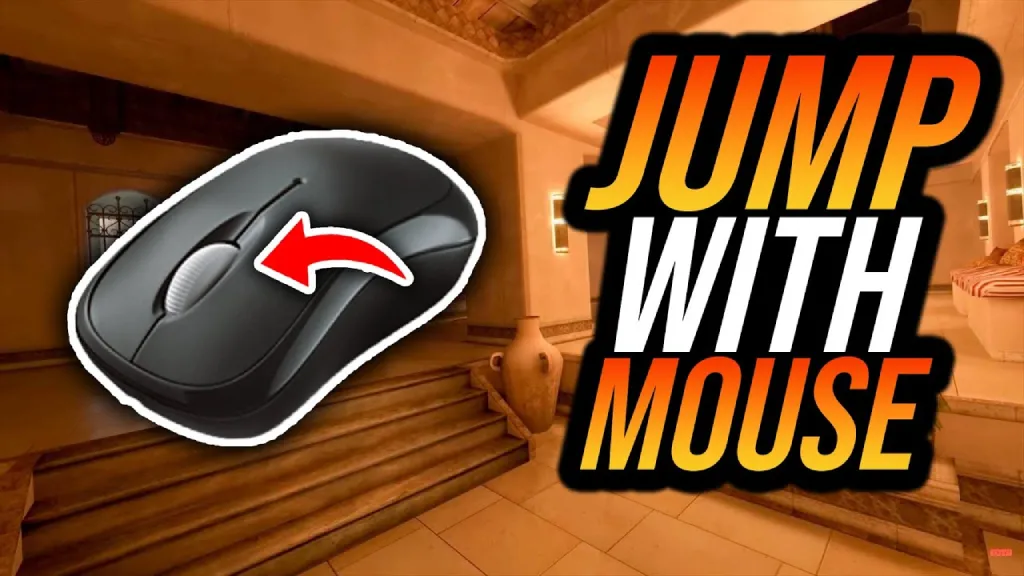
Scroll jump CS2 is a very popular way to perform a jump, where the +jump command is bound to the mouse scroll wheel instead of the standard Space key. The essence of the action doesn’t change much; it’s still the same jump. However, comparing a single press of the spacebar and CS2 bind scroll jump, the latter sends several consecutive jump commands to the game in a very short period of time. This increases the chance that the game engine will register the jump at the right moment.
Why Use Scroll Jump in CS2?
Inexperienced players think that changing the jump key is a matter of convenience. However, this is completely false.
Scroll jumping in CS2 became popular due to the way jumps are registered in Source 2. Although visually, jumping using the spacebar occurs instantly, the engine handles it differently.
Source 2 only processes jumps when the player is officially considered to be on the ground. If you want to jump using the spacebar, the engine’s delayed jump registration results in the loss of the jump and/or speed. This is not a good outcome for bunny hopping, and when using jump on scroll CS2, this unpleasant outcome happens much less often.
How Jump Registration Works in Source 2
To make the game mechanics clear to everyone, we’ve compiled the jump command registration conditions in CS2:
- The character must be on the ground.
- The +jump command must arrive on a valid tick.
- Input is processed asynchronously relative to render frames.
This means that:
- Early input is ignored.
- Late input cuts speed.
- A single press of Space requires perfect timing.
Why CS2 Scroll Wheel Is More Reliable Than Spacebar
Now that we’ve covered the jump bar mechanics, it’s time to understand the difference between Spacebar and scroll wheel jump in CS2. And it’s truly significant:
- Space → a single discrete signal.
- Scroll wheel → a series of pulsed signals.
Accordingly, CS2 scrolling the wheel sends several +jump commands in a row to the engine. This allows:
- Overlay the entire landing window.
- Compensate for the desynchronization between input and tick.
- Do not depend on the player’s reaction.
How to Bind Scroll Wheel to Jump CS2
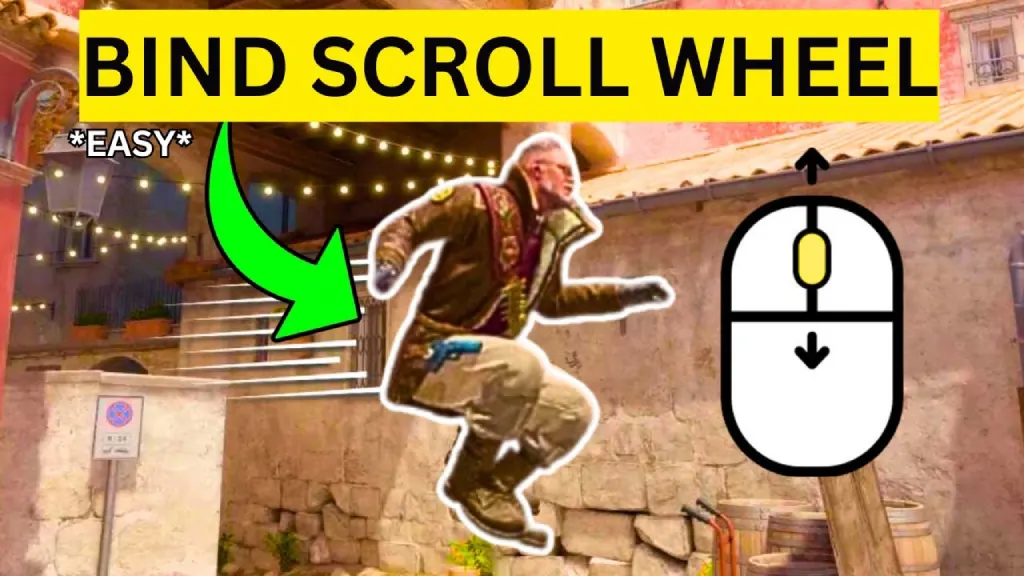
There are multiple options to bind mouse wheel jump CS2. They differ not only in the complexity of the binding but also in the effectiveness and flexibility of in-game controls. Therefore, we recommend reading all the options rather than rushing to bind scroll jump CS2 using the simplest method.
1. Bind CS2 Scroll Jump via In-Game Settings
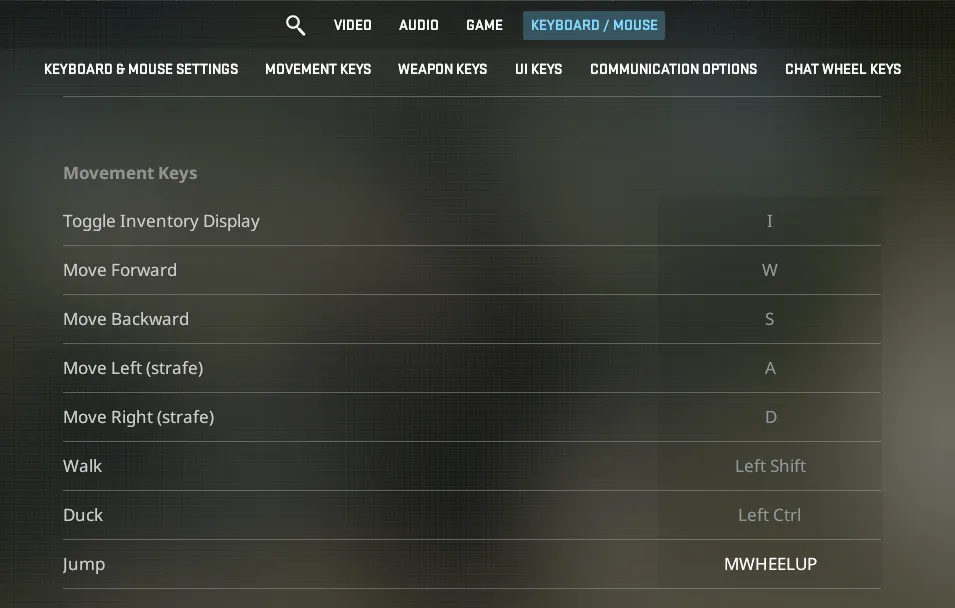
This method for configuring scroll jump CS2 is suitable for beginners and those who don’t want to work with the console. The bind is configured directly through the Counter-Strike 2 menu, without entering commands:
- Open Settings in CS2.
- Go to the Keyboard / Mouse section.
- Find the Movement Keys block.
- Click the Jump action.
- Scroll the mouse wheel up or down to assign it.
Despite the simplicity of this method, there are important limitations that are important to consider:
- You can only assign one action.
- You can’t combine scroll jump with Space.
- The scroll wheel no longer switches weapons.
Based on all of the above, this simple bind mouse wheel jump CS2 option is perfectly usable. However, we don’t recommend it for those who want to retain the jump on Space or use different control scenarios.
2. CS2 Jump Bind via Console Commands
The second option for binding jump to scroll CS2 is considered more technically correct. It’s done via the console, gives full control over the binds, and allows for multiple key combinations. This is why most experienced players configure CS2 scroll jump bind via the console, which can be activated in 30 seconds:
- Open Settings in CS2;
- Go to the Game section;
- Find Enable Developer Console;
- Set it to Yes;
- Open the console in the game by pressing the “~” (tilde) key.
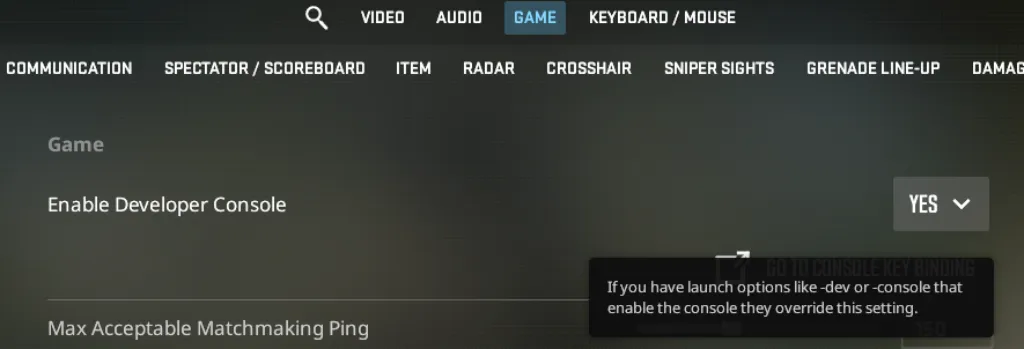
Now, to enter any command, including those needed to configure CS2 scroll jump, simply press “~”.
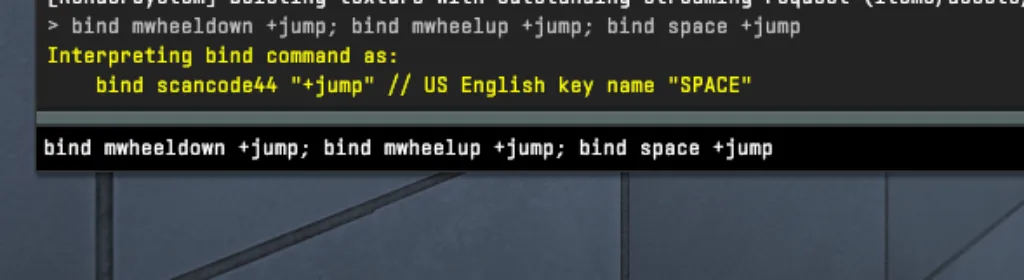
Scroll Down Only (Recommended)
- bind mwheeldown +jump
The bind mwheeldown jump CS2 command is considered the optimal option for most players, especially if the goal is confident movement and comfortable bunny hopping. According to player comments on the Steam forum, the CS2 mwheeldown jump command is the most reliable for the following reasons:
- The mouse wheel is less likely to be hit while shooting.
- It’s easier to control the direction and timing of scrolling.
- The likelihood of unintentional jumps is reduced.
Scroll Up Only
- bind mwheelup +jump
The bind mwheelup jump CS2 is used less frequently, but it’s not worth overlooking. There are situations in which it can be more convenient and predictable.
For some players, CS2 mwheelup jump feels more natural, which can be characterized by the following points:
- A soft or stiff mouse wheel, where upward scrolling is more clearly felt.
- A persistent habit of scrolling the wheel up instead of down.
- A non-standard mouse grip, which makes upward movement easier to control.
From the perspective of the CS2 engine and input registration, there is no difference between scroll up and scroll down. The jump command is handled identically in both options. The choice depends solely on ergonomics and personal preference.
CS2 Scroll Jump + Spacebar
- bind mwheeldown +jump; bind mwheelup +jump; bind space +jump
The combined scroll jump and spacebar bind is the most versatile jump control scheme in CS2. It allows for adapting input to different gameplay situations. Instead of abruptly abandoning the traditional “jump” method, by using CS2 bind jump to scroll wheel and space, the player can choose their jumping method based on context, without changing their habits or losing control.
There are specific reasons to use both methods simultaneously:
- The scroll wheel is used for bhopping, abrupt movements, and situations where input density is important.
- The spacebar is convenient for single jumps, positional play, and precise movements.
Furthermore, this setup is well suited for players gradually transitioning to scroll jumping. This isn’t a compromise due to uncertainty, but a conscious way to utilize the advantages of both methods without their weaknesses.
How to Save CS2 Scroll Jump Permanently
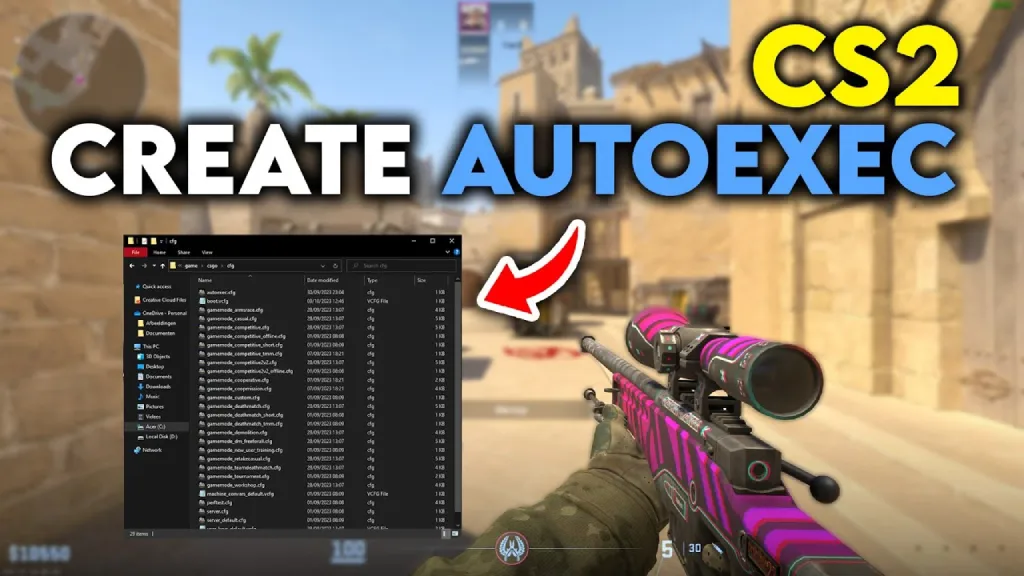
Commands entered manually into the console often disappear after restarting the game. In order for bind jump scroll CS2 to load automatically, you need to save it in a special file autoexec.cfg.
All console commands entered in this file will be executed each time the game starts. These can include binds, sensitivity, movement settings, and anything else that should be permanent. This is the only way to configure any working CS2 bhop cfg.
Step-by-Step: How to Create Autoexec.cfg in CS2
Even if you’ve never worked with configs before, this won’t take much time. But this will save you on entering commands after each restart. The step-by-step instructions are as follows:
- Open the Counter-Strike 2 game folder in Steam.
- Go to: …/Counter-Strike 2/game/csgo/cfg/
- Create a new text file.
- Rename it to autoexec.cfg.
- Open the file with Notepad or any text editor.
- Add scroll jump CS2 commands to autoexec.cfg, for example:
- bind mwheeldown +jump
- bind mwheelup +jump
- bind space +jump
This is the basic bind jump CS2 option. It’s suitable for most players and works for both regular movement and bhop.
After saving the file:
- Launch CS2
- Open the console
- Enter the command: exec autoexec
If the binds are applied, everything is configured correctly.
Advantages and Disadvantages of CS2 Scroll Jump
Scroll jump in CS2 offers significant movement advantages, but it’s not universal. If it were, players who jump using the spacebar would simply not exist.
The key strength of the CS2 scroll wheel jump is its increased jump registration reliability and reduced reliance on manual timing. For those who care, binding is a must. However, keep in mind that if improperly configured or used carelessly, scroll jump can have side effects that negatively impact shooting and weapon control.
We’ve prepared a table of the advantages and disadvantages of the jump scroll bind CS2. We hope it will help you more informedly decide whether this setting is right for you.
| Advantages | Disadvantages |
|---|---|
| Easier to hit the jump right when you land | You might jump by accident if you touch the wheel |
| Bunny hopping feels easier with fewer speed drops | The scroll wheel no longer switches weapons by default |
| Less dependent on perfect jump timing | Very sensitive wheels can interfere with aiming |
| – | Takes time to get used to after jumping with Space |
CS2 Scroll Jump vs. Spacebar Jump
Still unsure whether to switch from the familiar Spacebar to Scroll Jump CS2? We’ve prepared a comparison table of these two options, which we hope will help you make your decision more quickly:
| What’s Compared | Scroll Jump | Spacebar Jump |
|---|---|---|
| How the jump triggers | Multiple jump inputs in a row, easier to hit the right moment | One key press — it either works or it doesn’t |
| Bunny hopping | Easier to keep your speed | Speed is often lost due to timing |
| Reaction timing | Small mistakes are forgiven | Requires very precise timing |
| Single jumps | Can feel a bit less controlled | Feels more precise and intentional |
| Getting used to it | Takes some adjustment | Feels natural right away |
| Best use cases | Fast movement, bhop, momentum plays | Positioning, careful movement |
Final Thoughts: Should You Use Scroll Jump in CS2?
Whether to use the bind jump scroll CS2 or stick with the familiar Spacebar isn’t a question of “better or worse,” but rather a question of how you approach the movement. If you actively use bunny hops, often play at speed, and want to reduce your dependence on perfect jump timing, scroll jump offers a significant advantage.
Moreover, you don’t necessarily have to completely remove the Spacebar jump. You can use both simultaneously for different scenarios.
So, if you’re still wondering whether you should use scroll jump in CS2, the answer is simple: try it! Give yourself time to get used to it and see how your movement control changes. Practice, not theory, will tell you whether scroll jump is right for you!
FAQ
Yes, scroll jump is fully allowed in CS2 and is not considered a cheat. It uses standard game commands and does not automate actions.
It all depends on your personal preference. From a game perspective, there is no difference; both options are handled identically. Statistically, the scroll down key is used more often because it’s harder to accidentally hit it while shooting.
To bind jump on scroll in CS2, use the console command bind mwheeldown +jump or bind mwheelup +jump. Also, to avoid entering commands after each restart, we recommend saving them in autoexec.cfg.
Bunny hopping in CS2 requires jumping on the first tick after landing, otherwise the speed is cut off. Scroll jump simplifies this by sending multiple jump commands in a row and reducing reliance on manual timing.
Yes, you can use scroll jump and spacebar simultaneously by binding them to the same command. It allows you to use scroll jump for bhops and movements, and spacebar for single and positional jumps.
Read also: