mn
mn  ru
ru 
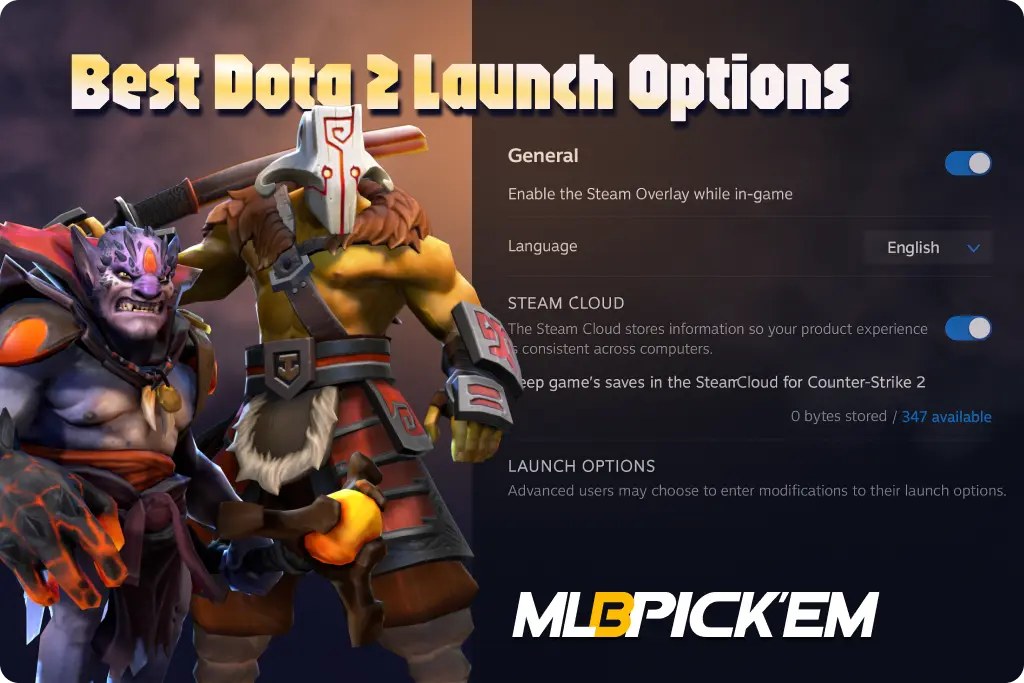
Best Dota 2 Launch Options for Better Performance
Modern competitive games, including Dota 2, are very demanding on your gaming system (PC or laptop). Any lag or FPS drop can impact the outcome of a match, and certainly not for the better. To ensure smooth Dota 2 performance even on average gaming PCs, you can use special launch options. In this article for MelBet Pick’em, we’ll explain what these options are and how you can increase your FPS, reduce lag, and speed up Dota 2 loading times. We’ll cover the best Dota 2 launch options for 2026, suitable for both high-end and low-end PCs.
What Are Dota 2 Launch Options?
Dota 2 launch options are system commands sent to the game client before launching. Launch options essentially control how Steam and the Source 2 engine initialize the game. They also allocate system resources and apply configuration settings even before the main interface loads.
Technically, each parameter entered in the Launch Options field in Steam represents a separate command. When the game launches, the Steam Loader reads them and passes them to the Dota 2 engine as priority values. Launch options override the default settings from configuration files and allow you to define your own client operating conditions. You can change almost everything: from the startup method to optimizing CPU, GPU, and memory usage.
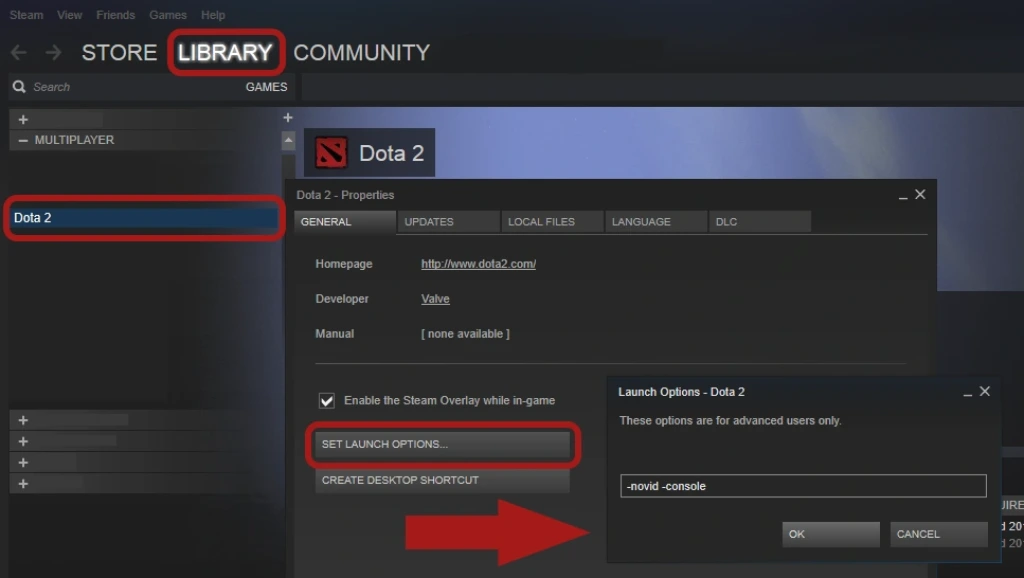
How to Set Dota 2 Launch Options in Steam
The theoretical part about launch options can seem a bit complicated. Some obscure parameters, the engine, initialization… it can confuse the average Dota 2 player. But in practice, setting up Steam launch options is extremely simple. If you simply copy the ready-made commands from this guide, the entire process will take just over a minute:
- Open Steam and go to the Library section.
- Find Dota 2 and right-click it. In the window that opens, select Properties.
- In the window that opens, go to the General tab.
- At the bottom of the tab, you’ll see the Launch Options field. This is where you should enter your commands.
- Copy the commands from the tables below and separate them with spaces, for example: -novid -high +fps_max 120. Then close the window.
Steam will automatically apply the specified Dota 2 launch options the next time you launch the game. These commands can be edited, deleted, or replaced at any time. The client saves them locally, and they do not affect the game files in any way.
All Dota 2 Launch Options 2026
There are dozens of different launch options. Some are useful for absolutely all players. Others are more suitable for those with lower-end PCs. There are also parameters for advanced users that the average Dota 2 player won’t need.
To describe them all, we’ve divided the existing Dota 2 launch options into several categories.
Performance & FPS Optimization
These parameters are responsible for the speed and stability of the game. They regulate process priority, CPU core usage, and GPU load. We recommend focusing on these parameters for those looking to increase FPS and reduce lag. These launch options Dota 2 are also a must-have for those with low-end PCs.
| -high | Launches the game with high system priority, improving responsiveness. |
| +fps_max X | Sets an FPS limit (for example, +fps_max 120) for stability. |
| -nod3d9ex | Disables DirectX 9Ex (Windows Aero), which can increase FPS on low-end PCs. |
| -nojoy | Disables joystick support, slightly reducing RAM usage. |
| -threads X | Forces the game to use a specific number of CPU cores (no longer relevant in newer versions). |
| -heapsize X | Allocates a specific amount of RAM (e.g., -heapsize 1048576 = 1 GB). |
| -map dota | Preloads the Dota 2 map, speeding up match entry. |
| -novr | Disables VR modules, lowering overall system load. |
| -nohltv | Disables HLTV support, slightly reducing system overhead. |
| -nomicsettings | Prevents microphone settings from being modified on startup. |
| -safe_mode | Launches the game in safe mode with minimal graphic settings. |
Lightweight Configuration Example
A weak PC shouldn’t be a barrier to playing Dota 2, at least unless you have a Pentium 4. If you don’t want to manually select the parameters from the table above, we’ve prepared two ready-made Dota 2 launch options configuration examples.
For Low-End PCs
-novid -dx9 -nojoy -nod3d9ex -map dota +fps_max 90
This is the minimum working Dota launch options configuration for low-end PCs. It reduces the load on the CPU and GPU, disables unnecessary modules, and removes the intro video. DirectX 9 and disabling Aero increase FPS and eliminate stuttering. The Dota 2 map is preloaded, and limiting the FPS makes the game smoother.
For Medium PCs
-novid -high -dx11 -nojoy +fps_max 120 -map dota
This configuration is balanced for mid-range systems. DirectX 11 improves performance and compatibility with newer GPUs. At the same time, a high process priority increases the client’s responsiveness.
Display & Graphics Settings
The commands in this category control the graphics and display mode of Dota 2. They can be useful for absolutely everyone. They can be used to adjust the resolution, render type, and support for DirectX or Vulkan.
| -fullscreen | Launches the game in full-screen mode. |
| -windowed | Launches the game in windowed mode. |
| -noborder | Runs the game in borderless windowed mode. |
| -w | Sets screen width (for example, -w 1920). |
| -h | Sets screen height (for example, -h 1080). |
| -x / -y | Defines the position of the game window on the screen. |
| -dx9, -dx11, -gl, -vulkan | Selects the graphics API (DirectX 9, DirectX 11, OpenGL, Vulkan). |
| -nogammaramp | Uses the desktop color profile instead of forcing in-game gamma. |
| -perfectworld | Enables Chinese servers (for the CN region only). |
| -nexon | Activates Korean Nexon servers (deprecated). |
Input & Mouse Parameters
These Dota parameters control the operation of input devices. They are most often used by professional players who care about every little detail. Disabling mouse acceleration, adjusting sensitivity, and improving control responsiveness are all things the launch options in this category can help with.
| -useforcedmparms | Enables the use of Windows system mouse settings. |
| -noforcemaccel | Disables forced mouse acceleration. |
| -noforcemspd | Disables Windows pointer speed scaling. |
| -nomousegrab | Allows Alt+Tab functionality in Linux environments. |
| -noffscreenconbuffer | Reduces input latency on certain hardware configurations. |
Interface & Startup Behavior
These commands affect the client’s behavior when launching Dota 2. They can be used to remove unnecessary elements, speed up loading times, and enable features like the console or add-ons.
| -novid | Skips the intro video, reducing startup time. |
| -console | Enables the developer console on startup. |
| -con_enable 1 | Activates the in-game console. |
| -enable_addons | Enables user-approved addons verified by Valve. |
| -dashboard | Changes the main menu or loading screen (e.g., -dashboard spirits_2013). |
| -language | Sets the client language (e.g., -language english). |
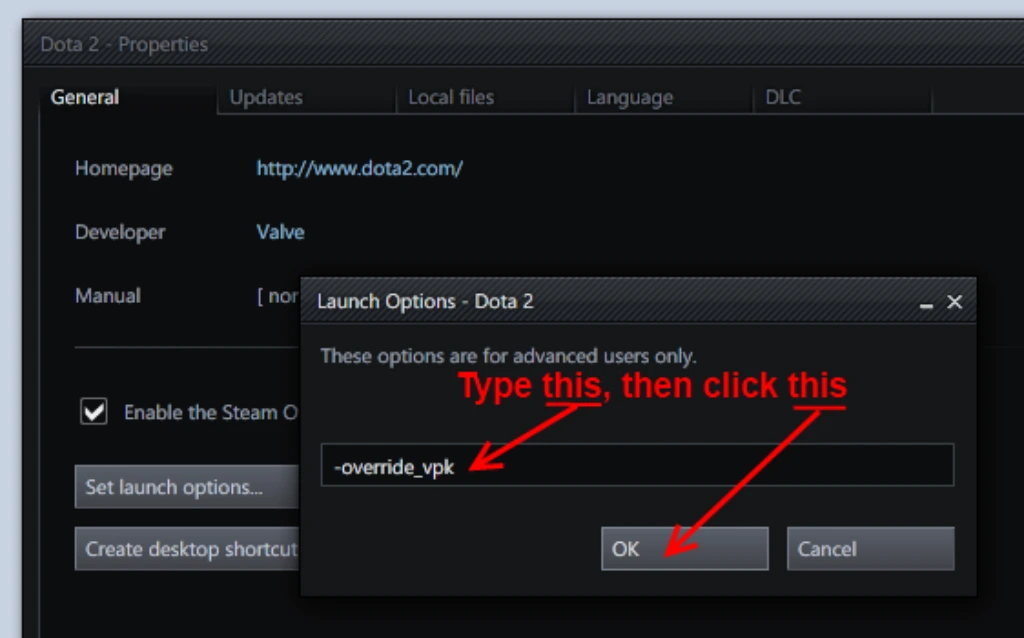
| -override_vpk | Allows the use of custom VPK files (disabled in matchmaking). |
| -autoconfig | Resets graphics and system settings to default values. |
| -sw | Launches the game in windowed mode (alternative to -windowed). |
Network & System Behavior
This category deals with the connection and interaction of the client with the servers. Some parameters help stabilize the Dota 2 connection and reduce network latency. These are useful for those with weak internet or unstable ping.
| -perfectworld | Connects to the Chinese version of Dota 2 (CN). |
| -nexon | Enables Nexon server support (deprecated). |
| -tcp | Forces the client to use TCP instead of UDP (may help with some connection issues). |
| -netgraph | Displays network statistics such as ping and packet loss. |
| +clientport | Specifies the client port used for network connections. |
Development & Debug Commands
Advanced parameters for testing, diagnostics, and custom Dota 2 configurations. They are used by developers, streamers, and technical specialists. Casual players generally don’t need them.
| +exec autoexec | Loads a custom autoexec.cfg file on startup. |
| -dev | Enables developer mode (console logging, debug access). |
| -tools | Launches the Source 2 developer tools. |
| -addon | Activates a specific custom mod or addon. |
| -enable_addons | Allows custom HUDs or UI elements to be loaded. |
| -vconsole | Opens the Source 2 console at startup for diagnostics. |
Troubleshooting Common Problems
Even with correctly configured Dota 2 launch options, glitches sometimes occur. There can be many causes, and covering them all would require a separate article. However, there are a few typical cases where launch options aren’t working or don’t work as intended. We’ve prepared four of the most common issues and their solutions.
1. Conflicts and Non-Working Parameters
If you entered the launch options commands from our article, but for some reason they aren’t working, check the syntax. Each Dota 2 launch command must be separated by a separate command. There should be no quotation marks between commands!
The issue may also be caused by using incompatible commands (for example, -dx11 and -vulkan). To resolve this issue (if the syntax is correct), try deleting all the commands and entering them one by one. After each added command, try launching the game. This will allow you to track the impact of each command on performance, and most importantly, on the game’s functionality.
2. The Game Won’t Launch or Crashes
If Dota 2 stops launching after changing launch options, we recommend resetting the settings. You can do this using the autoconfig command. It resets all settings except bindings and saves.
In rare cases, the problem may be slightly more serious, so if this doesn’t help, delete the autoexec.cfg file in the dota/cfg folder. This is completely safe. After restarting Steam, a clean client profile will be created, and Dota 2 will launch with the default settings.
3. FPS Drops and Lag After Changing Settings
While launch options can increase FPS, the opposite can also happen. This is more the exception than the rule. For example, on Reddit, there were frequent reports that -high conflicted with antivirus software or graphics card drivers. This manifested itself as micro-freezes in the game.
If you unfortunately encounter a similar problem, try removing commands that change the priority or graphics API. Also, check for driver updates and the integrity of files through Steam (Library – Dota 2 – Properties – Installed Files – Verify Integrity). This usually solves the FPS drop, but if it doesn’t help, it’s better not to use the launch options command that’s causing your freezes.
4. If Your Game Fails to Start
If Dota 2 fails to launch even after resetting the settings, there may be conflicts with external programs such as overlays, monitoring modules, or antivirus software. Disable Discord Overlay, Steam Overlay, and video recording applications.
Launch Steam as an administrator and test the game without third-party services. If the problem persists, completely remove all Dota 2 launch options. If everything works without these settings, start entering them one by one, testing their functionality as you go.
Conclusion — Find Your Best Dota 2 Settings
Dota 2 launch options are a very useful feature. By tweaking them wisely, you can improve performance, stabilize FPS, reduce loading times, eliminate microlags, and much more. Also, don’t forget about the launch options for graphics, interface, input parameters, network settings, and more. All of them are useful in the right hands.
We recommend experimenting with different combinations of Dota 2 launch options. Consider your system’s performance; for example, lightweight performance presets are suitable for low-end PCs. Meanwhile, balanced DirectX 11 solutions are suitable for mid-range PCs, while advanced users can enjoy flexible configurations with Vulkan and custom consoles. Find your optimal setup, test it in a real game, and get what every player strives for – a perfectly tuned Dota 2!
FAQ
Yes, this is not a myth. By choosing the right launch options, you can significantly increase your FPS. The most effective are -high, -nod3d9ex, and +fps_max.
For low-end PCs, minimal configurations that remove unnecessary processes and effects are best. The Dota launch options combination -novid -dx9 -nojoy -nod3d9ex -map dota +fps_max 90 provides a stable FPS even on older hardware.
Yes, launch options do not change game files or affect VAC. They are processed exclusively by the Steam client. There are no risks to your account or the functionality of your PC or laptop.
Most often, the problem lies in spelling (the most common error) and the compatibility of certain commands. Check this, and remember that all commands must be separated by commas and without quotation marks!
DirectX 9 is suitable for low-end systems, while DirectX 11 better unleashes the potential of modern graphics cards. Vulkan provides maximum performance and efficiency, but requires a modern graphics card.
Read also: