mn
mn  ru
ru 
How to Get Inspect Link CS2
If you are actively involved in buying or selling items in CS2, you have likely encountered the need to inspect a skin and verify its characteristics. While you can use third-party resources for this purpose, it is far more convenient to utilize a dedicated CS2 inspect link.
In this article for MelBet Pick’em, we will explain exactly what an inspect link is, as well as how to obtain and use one. After reading it carefully, you will know how to check skins before buying and why it is worth doing if you are dealing with expensive skins.
What Is an CS2 Inspect Link and Why It Matters
CS2 inspect link is a unique link containing encrypted parameters of a specific skin. By using it, you can inspect any CS2 skin directly within the game client via the “Inspect in Game” feature. This is particularly convenient because an inspection initiated through such a link accurately displays all of the item’s metadata. This allows you to verify the CS2 float value, pattern index, seed, as well as full details regarding any stickers and their placement.
CS2 skin inspect links are utilized particularly heavily by traders. In just a few seconds, one can open any skin and conduct a precise visual assessment of the item prior to purchase.
Those who trade skins worth hundreds or thousands of dollars never purchase an item without performing such a verification. This is because even minimal differences in float value and pattern can significantly impact an item’s market value.
Step-by-Step Guide to Copy Inspect Link CS2
There are several ways to get inspect link CS2. You can find them directly on third-party trading platforms, or sometimes traders may share them in private chats.
However, when it comes to the most popular methods, both involve using Steam. The first is suitable for those who want to inspect an item from their inventory. This could be your personal inventory, a friend’s inventory, or any public profile’s inventory.
The second way to get an inspect link is not very different, but it is suitable for those who want to inspect items listed on the Steam Community Market.
From Steam Inventory
If the skin you want to get an inspect CS2 link for is in your inventory or in another user’s inventory, the step-by-step guide below will work for you:
1. Open Steam and Log Into Your Account
2. Go to a Profile (Yours or Another Player’s)
You can use the top menu for this. To navigate to your own profile, simply click on your nickname located next to your small profile picture and balance.

If, however, you wish to copy the inspect link for a friend’s skin, you can use the “Friends” menu. After clicking on it, you need to open “View Friends List” and then access the profile of the specific friend you are looking for.
3. Open the “Inventory” Tab
Once you have opened the profile, locate the “Inventory” section. Typically, this section is situated slightly to the right, immediately following “Games.”
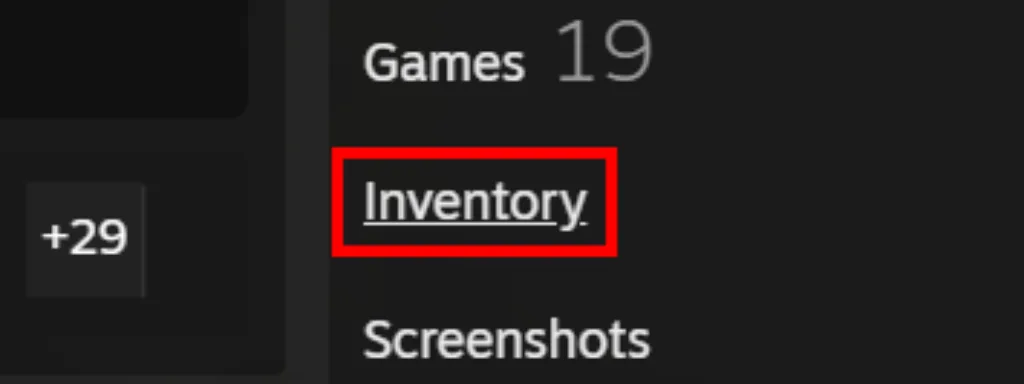
Please note that if your friend has a private profile and has closed their inventory, you will not be able to receive the inspect link.
4. Select Counter-Strike 2
From the list of games in your inventory, select Counter-Strike 2. For convenience, you can filter your items to display only CS2 skins.
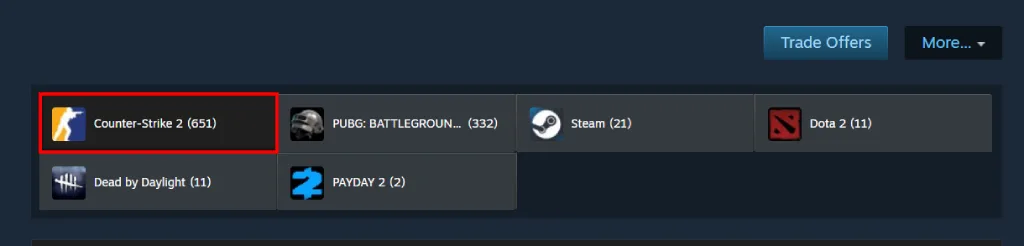
5. Find the Desired Skin and Click on It
After filtering the items, locate the specific one for which you wish to obtain a link. Clicking on it will display a card containing detailed information.
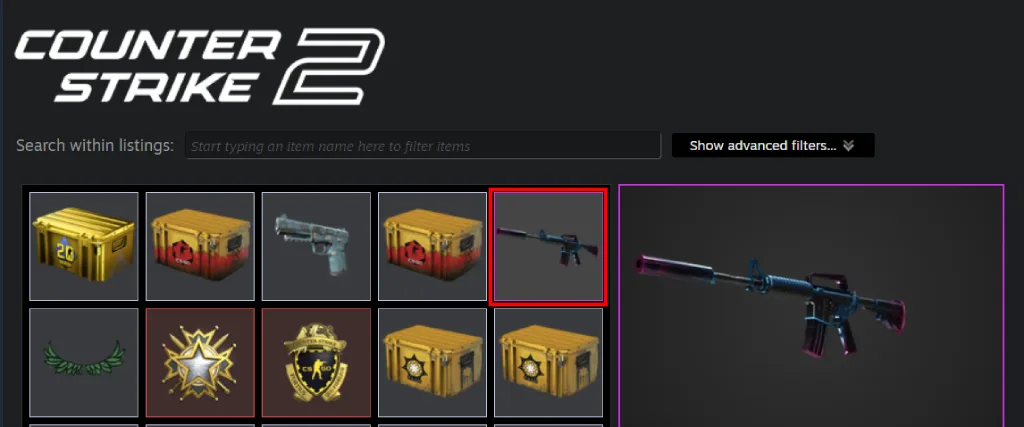
6. Locate the “Inspect in Game” Button
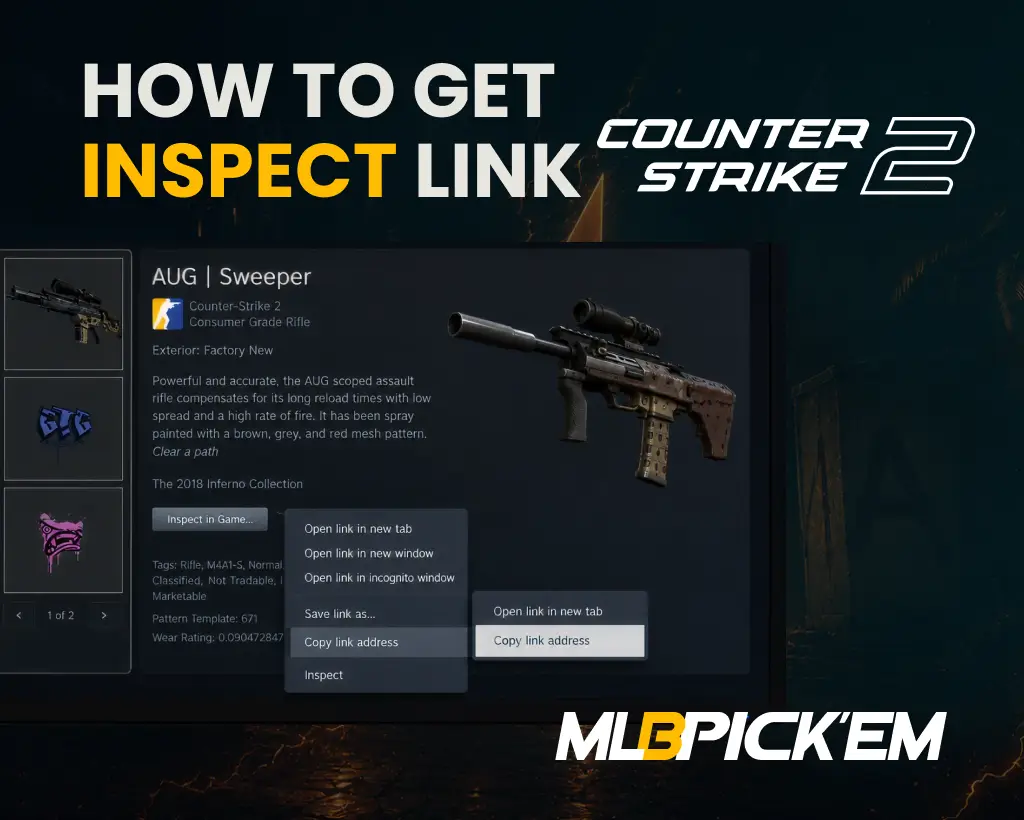
In the item card, find the “Inspect in Game…” button. It allows you to preview the skin directly within CS2 and contains the inspect link itself.
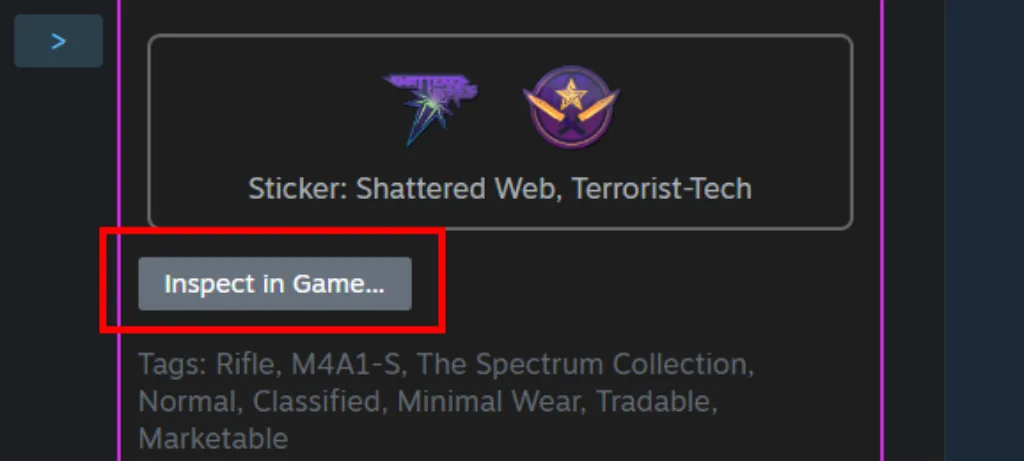
7. Right-Click on the Button
Be careful, because by clicking the left mouse button you will simply launch an inspection in the game. In that case, the link will not be copied.
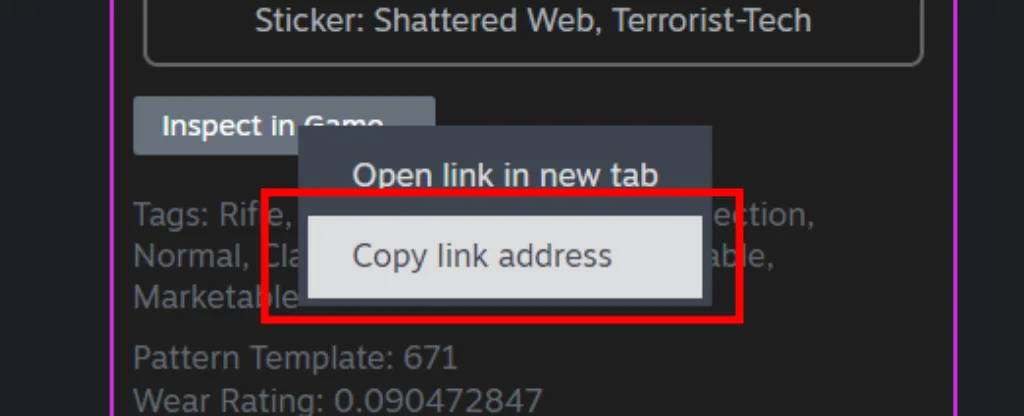
8. Select “Copy Link Address”
In the menu that appears, click “Copy link address.” The CS2 inspect link will be immediately copied to your clipboard. You can now paste it into your browser to open it, send it to another user, or use it in analysis tools.
From Steam Community Market
Every skin features a unique float value and pattern. To check these two metrics before making a purchase on the Steam Community Market, you can copy the inspect link CS2. This is done even more simply than the previous method:
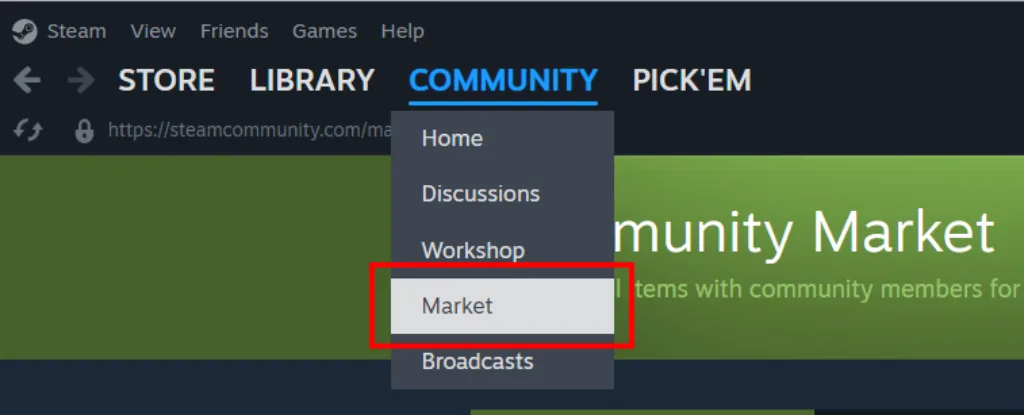
1. Open the Steam Community Market
Go to the Market. You can do this either through a browser or via the Steam client.
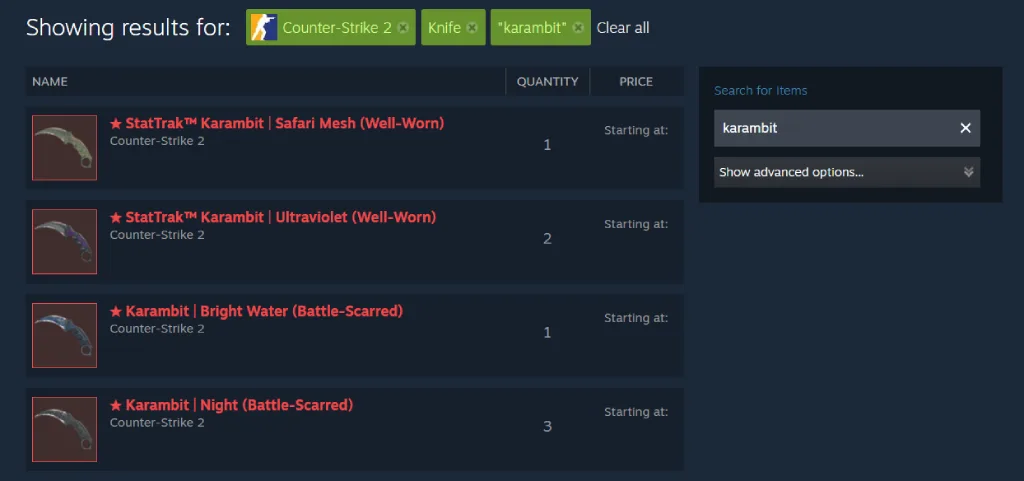
2. Search for the Desired Skin
Use the filters and search bar to find the CS2 skin you want.
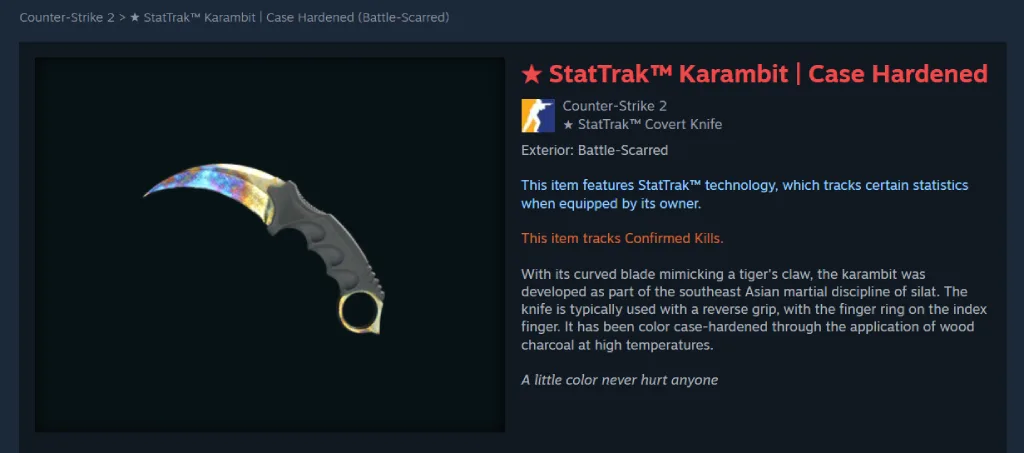
3. Open the Skin’s Page
Click on the found skin to open its marketplace listings page. Here, you will see full details about the skin and its exterior condition. Scroll down slightly to view listings at various price points offered by other players. Select a listing with a price that suits you, then proceed to the next step of the guide.
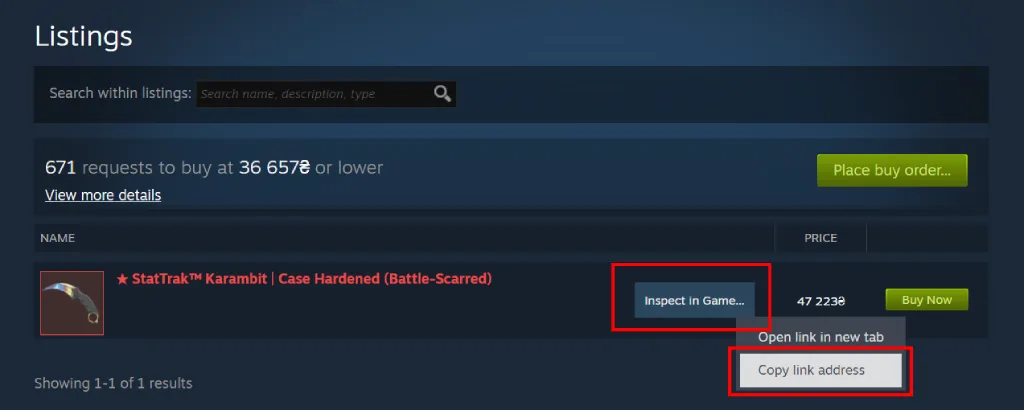
4. Find the “Inspect in Game” Button
Next to the item you have selected, you should find an “Inspect in Game…” button. Depending on your device, it may be located adjacent to the item, situated within the offer block, or appear when you hover over it.
You need to right-click on this button and select “Copy link address.” Immediately thereafter, the inspection link will be copied to your clipboard.
Tips to Use CS2 Inspect Links More Efficiently
At first glance, it seems like nothing more than a simple link for viewing a skin. This is partly a correct definition, however, even this reference can be used more effectively.
For this purpose, we have prepared some tips. These may be especially helpful for beginners:
- Analyze not just the appearance, but also the stats: Pay attention not only to the skin’s visual aesthetics but also to its float value, pattern index, and applied stickers. On expensive items, the price difference between different patterns can reach tens of times. The most famous example is the Blue Gem Karambit (Pattern #387), valued at $1.5 million. Cheaper patterns of this skin rarely cost more than $2,000.
- Utilize inspect servers: For a more thorough examination, you can join a dedicated CS2 inspect server and paste the link into the chat using the command `!i [inspect link]`. The skin will then load directly within the game, allowing you to inspect it under realistic in-game conditions.
- Compare multiple options: We recommend checking out at least 5 identical skins before purchasing. There is a high probability that, for the exact same price, you can acquire a skin with less wear and a higher-quality pattern.
Conclusion
The CS2 inspect link is a fundamental tool for evaluating skins. Using it can help you acquire skins with superior patterns and lower wear levels for the same price. By mastering the use of these links in conjunction with inspect servers, you can elevate your skills to the level of a professional trader – and, over time, make more informed decisions when buying, selling, or trading.
FAQ
Inspect links can be used in various ways. Most often, it is passed on to other users so that they can open it through a browser with Steam running and inspect the skin. Many people also use these links on inspect servers for a more detailed assessment of the appearance of skins.
No, if a player’s inventory is private, you will not be able to obtain a link to their items on your own. The only option is to send them a private message and ask for the link personally.
Inspect links do not have a fixed expiration date. However, if the item’s status changes (listing on the trading platform, transferring to another player, etc.), the link may become invalid. Issues may also arise due to updates to Steam or CS2. Therefore, you should not expect an inspect link to work indefinitely.
To open an inspect link in CS2, you must paste it into a web browser while Steam is running. The system will then prompt you to open the link within the game, where the item will appear in inspection mode, allowing you to rotate and zoom in on it.
No, opening an inspect link requires launching the CS2 client, which is available only on PC. The most you can do with this link on your phone is copy it to transfer it to a computer or share it with another user.
Read also: