mn
mn  ru
ru 
Best NVIDIA Settings for CS2
Did you know that you can increase FPS in CS2 using more than just the game’s default settings? Yes, of course, they are the basis and the best option to start with. However, there is another very important element – NVIDIA settings for CS2, which have a very significant impact on performance.
In this MelBet Pick’em guide, we’ll explore what CS2 NVIDIA settings are, why they’re important, and how to configure them correctly. In addition to the best NVIDIA control panel settings for CS2, we’ll also cover in-game video settings and even Windows optimization in detail. We hope this will help you achieve maximum FPS and minimal input lag!
What Are NVIDIA Settings and Why They Matter in CS2
NVIDIA settings in CS2 are driver parameters configurable through the NVIDIA Control Panel. They operate at the graphics card level and complement the standard in-game options. These settings affect how the graphics card processes frames, builds the render queue, and interacts with the processor. This allows you to squeeze maximum FPS out of your system, which is impossible to achieve with CS2’s in-game settings alone.
According to the Steam Hardware Survey, over 73% of Steam users use NVIDIA graphics cards. This is due not only to NVIDIA’s market dominance (although this is certainly a major factor), but also to the availability of unique technologies: NVIDIA Reflex, advanced power management, and driver optimization for competitive shooters. All this makes the topic of NVIDIA CS2 settings very relevant. Both casual players and the competitive community are actively searching for the best NVIDIA settings for CS2.
NVIDIA Control Panel Settings for CS2
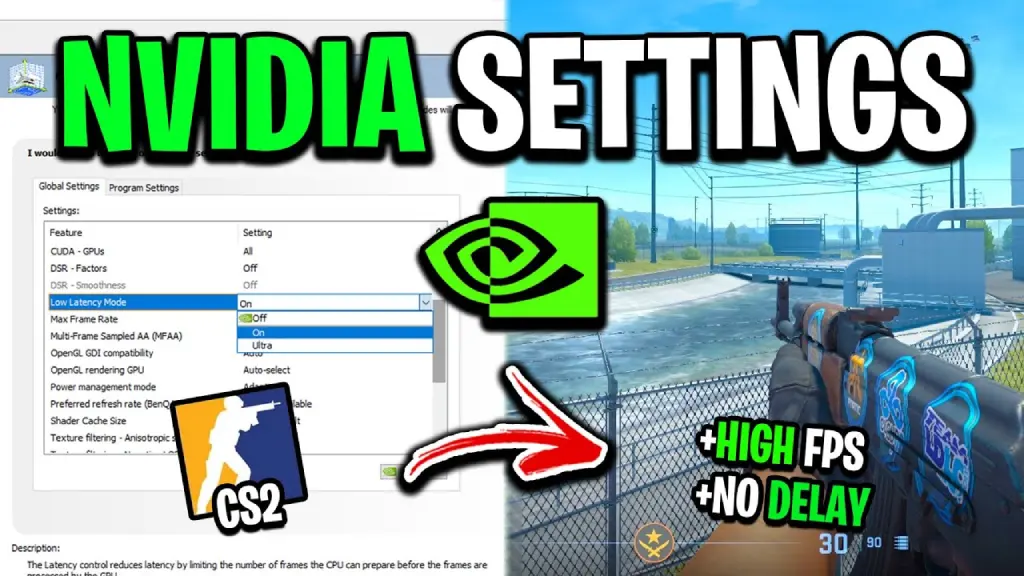
First and foremost, anyone wishing to customize anything needs to know that NVIDIA settings for CS2 are configured through the NVIDIA Control Panel. This is a separate program that allows you to manage graphics card behavior at the driver level.
Unlike standard in-game settings, CS2 NVIDIA Control Panel settings affect the render queue, load balancing between the CPU and GPU, power management, shader cache operation, and much more.
To install the best NVIDIA Control Panel settings for CS2, follow this guide:
- Open the NVIDIA Control Panel: you can find it on your desktop or by searching for it in Windows 10/11.
- Go to the 3D settings section: In the left menu, open Manage 3D settings. When you open it, you’ll see the default settings.
- Select the Program Settings tab on the right: This allows you to create a separate profile just for CS2.
- Add the CS2 executable: Click Add and select cs2.exe. The standard path is: Steam\steamapps\common\Counter-Strike Global Offensive\game\bin\win64\cs2.exe
We strongly recommend applying the settings described below only to CS2. Globally changing NVIDIA Control Panel settings may cause conflicts with Windows or other games.
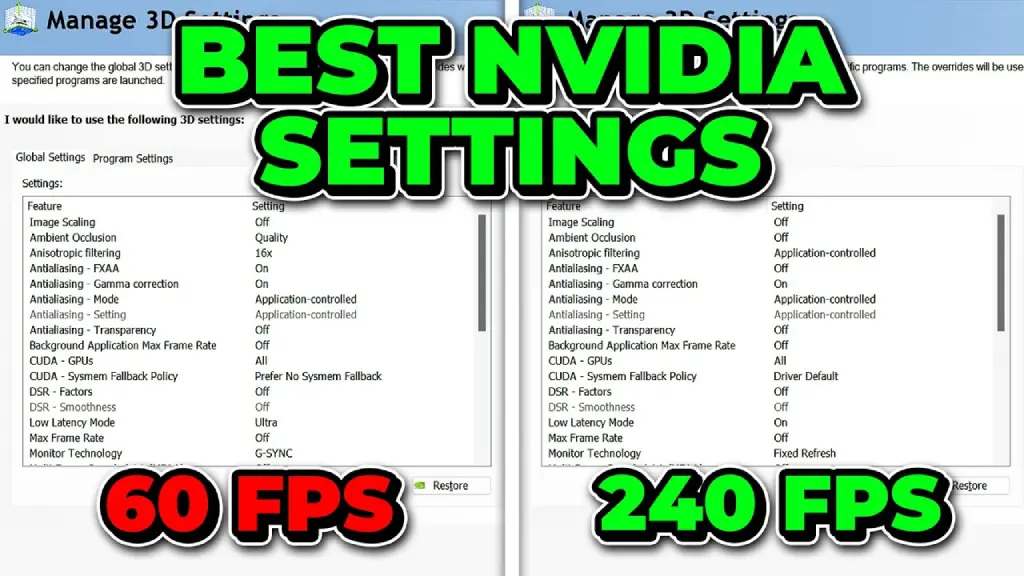
Best NVIDIA Settings for CS2 in 2026
When you open the Manage 3D settings menu, you’ll see a total of 26 parameters for adjustment. Hovering over each one reveals a description and typical usage parameters. Typically, the best NVIDIA 3D settings for CS2 are those that have been individually selected. However, this process is quite time-consuming, and non-technical users will get stuck on most of the parameters.
Therefore, we’ve prepared the most important NVIDIA Control Panel settings for CS2 that will improve FPS stability. This table contains the best NVIDIA control panel settings for CS2, based on practical texts and analysis of Source 2 performance:
| Setting | Best Value for CS2 |
|---|---|
| Image Scaling | Off |
| Ambient Occlusion | Off |
| Anisotropic Filtering | Application-controlled |
| Antialiasing – FXAA | Off |
| Antialiasing – Gamma Correction | Off |
| Antialiasing – Mode | Application-controlled |
| Antialiasing – Transparency | Off |
| Background Application Max Frame Rate | Off |
| CUDA – GPUs | All |
| DSR – Factors | Off |
| Low Latency Mode | On |
| Max Frame Rate | Off |
| OpenGL GDI Compatibility | Auto |
| OpenGL Rendering GPU | Auto-select |
| Power Management Mode | Prefer maximum performance |
| Preferred Refresh Rate | Highest Available |
| Shader Cache Size | Driver Default |
| Texture Filtering – Anisotropic Sample Optimization | Off |
| Texture Filtering – Negative LOD Bias | Allow |
| Texture Filtering – Quality | High Performance |
| Threaded Optimization | On |
| Triple Buffering | Off |
| Vertical Sync | Use the 3D application setting |
| Virtual Reality Pre-rendered Frames | 1 |
| Vulkan/OpenGL Present Method | Auto |
| Multi-Frame Sampled AA (MFAA) | Off |
NVIDIA Reflex Low Latency CS2
NVIDIA Reflex is a technology that reduces the latency between your actions and what you see on the screen. In Counter-Strike 2, Reflex forces the CPU and GPU to work more synchronously, preventing unnecessary frames from queuing. This makes the game slightly more responsive to shots and mouse movements.
Furthermore, attentive users may have noticed Low Latency Mode in the NVIDIA Control Panel. However, this isn’t the same thing. NVIDIA Reflex CS2 is built directly into the Source 2 engine, so it operates more efficiently.
But back to the basics, Reflex prevents the system from “preparing frames ahead of time.” This helps reduce input lag by approximately 10-30 ms, especially at high FPS (200 and above). Without Reflex, the CPU often runs faster than the GPU, causing hidden lag.
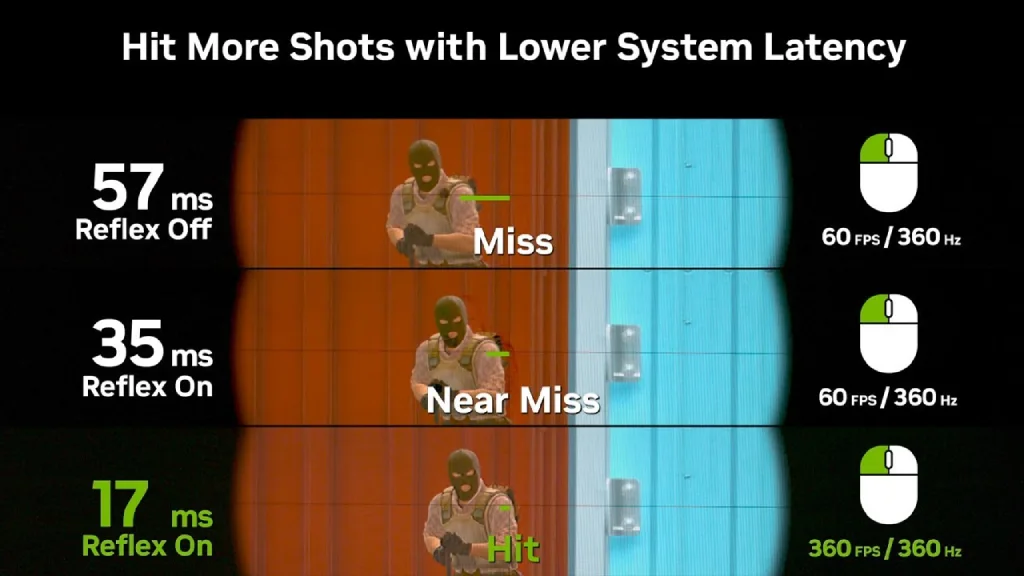
CS2 Nvidia Reflex On or Off
NVIDIA Reflex is certainly a useful feature in theory. However, if you’re one of those who prefer more than just clicking On/Off, we’ve prepared a comparison table. It will help you make a final decision, and also remind you that in addition to CS2 Nvidia Reflex “On” or “Off,” there’s also the “On + Boost” parameter, which is also compared here:
| Parameter | Reflex Off | Reflex On | Reflex On + Boost |
|---|---|---|---|
| Input Lag | Highest | Low | Lowest |
| FPS Impact | No change | Minimal (0–3%) | Slight (1–5%) |
| CPU–GPU Sync | No synchronization | CPU and GPU are synchronized | CPU and GPU are tightly synchronized |
| Render Queue | Can build up | Limited | Fully minimized |
| GPU Clock Behavior | Dynamic, may downclock | Dynamic | Forced high clocks (no downclock) |
| Power Consumption | Normal | Normal | Higher |
| Thermal Load | Normal | Normal | Higher (depends on cooling) |
| Stability Risk | High input lag | Very stable | Possible throttling on weak cooling |
| Best Use Case | Not recommended for competitive play | Best choice for most systems | GPU-bound systems with good cooling |
| Overall Recommendation | Avoid | Recommended | Situational |
Can NVIDIA Reflex reduce FPS?
Yes, NVIDIA Reflex can slightly reduce average FPS in CS2, but this is done intentionally. The technology itself works by intentionally reducing peak FPS values. This is to prevent unnecessary frames from piling up in the queue.
At the same time, 1% low and frametime stability almost always improve, and real-world input lag is reduced. Experienced players know that in a competitive environment, priority is not given to maximum FPS, but to minimal latency and stable frametime, which is what NVIDIA Reflex CS2 provides.
Best CS2 In-Game Video Settings for NVIDIA GPUs
In addition to the NVIDIA Control Panel CS2 settings, it’s also worth considering the in-game video settings for Counter-Strike 2. Driver settings are important, as they determine the basic behavior of the graphics card. However, it’s the in-game settings that determine how the Source 2 engine utilizes CPU and GPU resources. Without proper configuration, even the ideal NVIDIA settings won’t yield maximum performance.
We won’t go over each setting individually. Many of them have minimal impact on performance. Instead, we’ll describe the most important settings that have the greatest impact on FPS, input lag, and game stability.
How to Increase FPS in CS2 on Low-End Hardware
Even on a low-end PC, you can enjoy playing CS2 comfortably. You just need to minimize system load and stabilize the frame rate, sometimes, unfortunately, at the expense of image quality.
Recommended Basic Settings
- Aspect Ratio: 4:3.
- Resolution: 1024×768 or 1280×960.
- Less load on the GPU and CPU.
- Visually larger player models.
Key Settings to Lower
- Multisampling Anti-Aliasing: Low or Off
- Model / Texture Detail: Low
- Shader Detail: Low
- Particle Detail: Low
These settings put the most strain on the system during scenes with smoke, grenades, and intense firefights. Keep in mind that on low-end systems, smoothness and responsiveness are always more important than visual quality.
CS2 Settings for High-End PCs and Pro Players
On high-end systems with top-end NVIDIA graphics cards and good processors, the approach changes. Here, CS2 is more often limited by the engine itself than by the hardware. Therefore, the main goal is to maintain minimal input lag and a stable frame rate at a high FPS.
Basic In-Game Settings for High-End Systems
- Boost Player Contrast: Enabled
- Wait for Vertical Sync: Disabled
- Multisampling Anti-Aliasing: 2x–4x MSAA
- Global Shadow Quality: High
These settings are most often used by professional CS2 Teams players. They improve the readability of the map and objects on it without significantly impacting the system.
Windows Optimization for CS2 Performance
Even with perfectly configured CS2 NVIDIA Control Panel settings and in-game parameters, Windows 10/11 can be a performance bottleneck. The operating system greatly influences process priority, CPU thread scheduling, GPU operation, and the way images are displayed in full-screen mode.
Therefore, below we will discuss the most important Windows settings for CS2. We will not touch on questionable registry tweaks or outdated myths. We will only cover those settings that actually impact FPS and game stability.
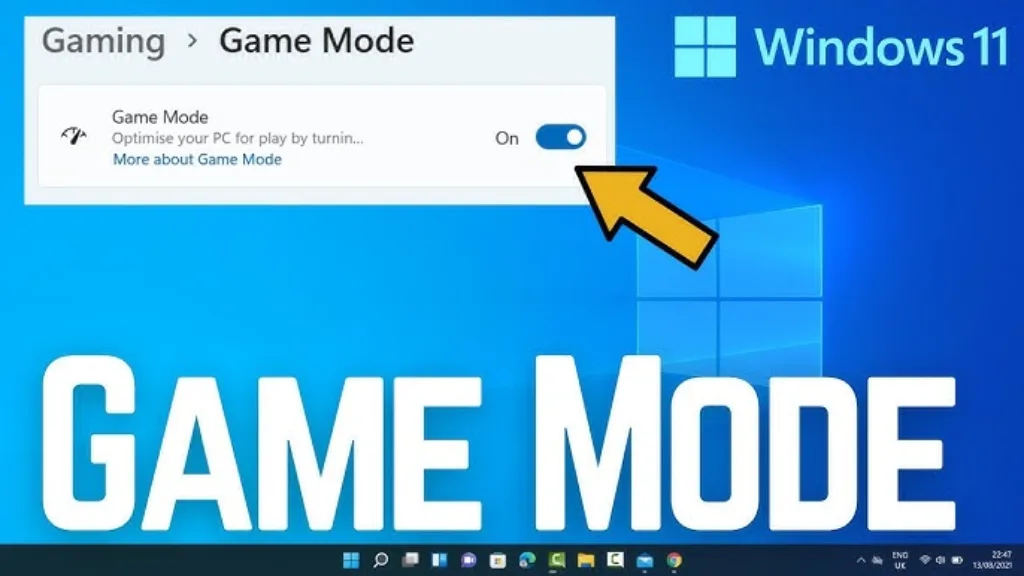
Windows Game Mode – To Enable or Not to Enable?
Game Mode in Windows is designed to prioritize gameplay and limit background tasks. We recommend using it, as it takes very little time and, in turn, allows you to:
- Allow Windows to allocate more CPU time to the game.
- Reduce the impact of background processes and updates.
- Reduce random frame-time spikes.
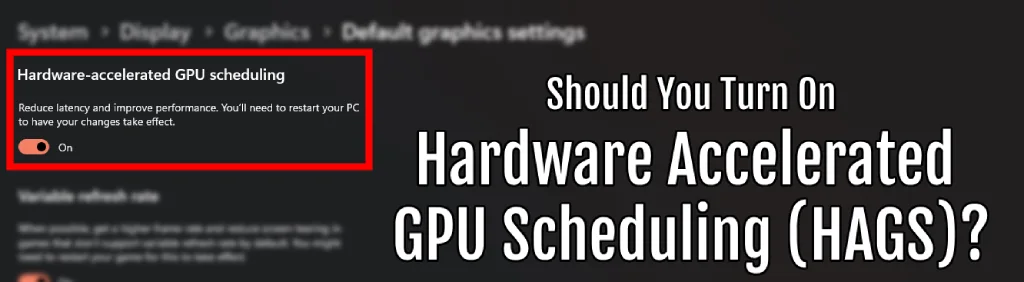
Hardware-Accelerated GPU Scheduling (HAGS)
GPU scheduling shifts some of the graphics card’s control from the CPU to the GPU. It can be enabled in:
- Settings → System → Display → Graphics → Default graphics settings
HAGS doesn’t directly increase FPS, but it can:
- Reduce latency in GPU-bound scenes.
- Improve frametime stability on high-end systems.
Enabling this feature typically has the most positive effect on PCs with a powerful GPU and a weak CPU. This shifts some of the GPU management work from the CPU to the graphics card.
Power Plan on Laptops
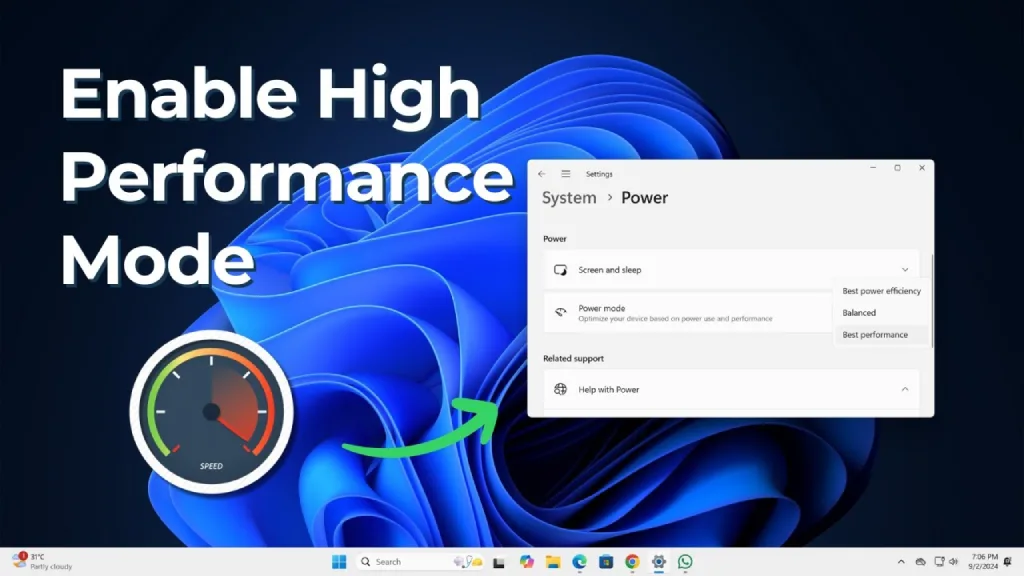
If you use a laptop, you’ve probably noticed that performance significantly degrades when gaming on battery power. However, this doesn’t mean it can’t be fixed. Windows often defaults to Balanced mode, which dynamically reduces CPU frequencies.
If you’re not concerned about your battery draining faster than before, we recommend enabling the following in Battery and Power settings:
- High Performance
- Ultimate Performance (if available)
Disable Fullscreen Optimizations
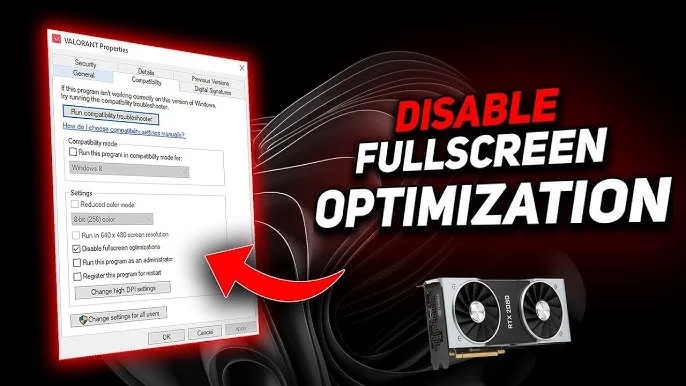
In Windows 10 and 11, even full-screen applications often run through Desktop Window Manager (DWM) by default. This means the game effectively runs in hybrid windowed mode with additional image compositing.
This can add unnecessary input lag and reduce FPS stability. To disable Fullscreen Optimizations, follow these steps:
- Find the cs2.exe file
- Right-click → Properties
- Go to the Compatibility tab
- Check the box next to Disable fullscreen optimizations
Final Recommendations: Best NVIDIA Settings for CS2
Optimizing CS2 isn’t limited to in-game settings alone. You need to combine them with NVIDIA Control Panel settings for CS2, NVIDIA Reflex, and Windows optimization settings. This is the only way to achieve the highest possible FPS for your hardware.
Take a moment to adjust the settings throughout our guide and enjoy lag-free gaming. We wish you good luck and many victories in CS2!
FAQ
Yes, you should always use Program Settings for CS2, not Global. Otherwise, you may cause conflicts with other games and programs. This can lead to even greater instability and unpredictable input lag.
Open NVIDIA Control Panel, go to Manage 3D settings → Program Settings, and click Add. CS2 is often missing from the list, and you’ll have to specify the path manually. It usually looks like this: Steam\steamapps\common\Counter-Strike Global Offensive\game\bin\win64\cs2.exe.
Yes, numerous practical tests have proven that NVIDIA Control Panel settings directly affect GPU behavior at the driver level. They determine frame queue depth and frequency management, which can reduce input lag and improve 1% low FPS.
NVIDIA driver updates are important, but not every update results in an FPS boost. Sometimes, the opposite situation occurs, where an update can cause a couple of percent drop in FPS. However, don’t be afraid of updates; new NVIDIA driver versions often optimize performance with CS2 and Source 2 updates.
Read also: