mn
mn  ru
ru 
How to Chat in CS2
Playing CS2 without text or voice chat is almost like deliberately giving up a key advantage of teamplay. Teamplay is always easier when teammates communicate enemy positions, warn before using grenades, or simply discuss team intentions.
If you want to get the maximum advantage, this article from MelBet Pick’em will help you. We’ll tell you how to enable voice chat and configure it correctly. This guide also includes tables with various console commands, allowing you to adjust the volume, mute players, and much more.
Voice vs Text Communication in CS2
The Counter-Strike series features two types of communication: text and voice. They can be used both together and separately – they do not compete with each other, but rather complement each other depending on the situation.
Voice chat is convenient when speed is important. Simply press the pre-selected CS2 voice chat key in the settings or simply start talking if you have Open Microphone enabled.
Text chat is convenient because it doesn’t interfere with in-game sounds. It’s used for targeted and non-urgent messages and is most often used by teammates who have already been killed in a round.
| Aspect | Voice Communication | Text Communication |
|---|---|---|
| Speed | Instant, real-time | Slower, requires typing |
| Best Use Cases | Clutch situations, fast rotations, urgent callouts | Quiet communication, no mic, simple info |
| Clarity | Can be unclear (noise, accents) | Clear and precise |
| Accessibility | Requires microphone | Available to all players |
| Distraction Level | Can be distracting if overused | Less intrusive |
| Control | Harder to filter in real time | Easy to ignore or read later |
| Team Coordination | Best for dynamic teamwork | Good for basic coordination |
| Reliability | Depends on mic and settings | Always works if chat is enabled |
How to Talk in CS2 (Voice Chat Setup)
Before entering matches simply by connecting a microphone or headset, you need to go to the dedicated CS2 audio settings. In this menu, you need to ensure voice chat is enabled, the key assignment for communication is correct, and the selected input device is selected. We’ve outlined each step; read carefully to avoid common mistakes.
1. Enable Voice Chat in Settings
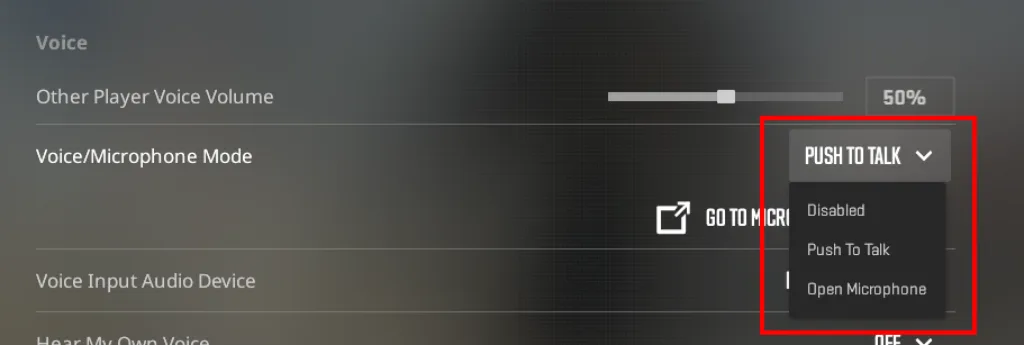
First, you need to make sure voice chat is enabled. To do this, open the Settings and find the Audio section. It has four sections, the second of which is responsible for voice communication. Find the Voice/Microphone Mode setting. It offers three options:
- Press to Use Mic: Activate with a button (push-to-talk).
- Open Microphone: Always transmit audio.
- Disabled: Disable the microphone.
To prevent background noise and random sounds from interfering with your teammates’ gameplay, we recommend using the Press to Use Mic mode.
Also, be sure to check that voice chat isn’t disabled via the console. To do this, simply enter the CS2 voice enable command – voice_enable 1.
2. Set Up Push-to-Talk Key
If you selected Open Microphone mode in the previous step, you can skip to step 3 of the setup.
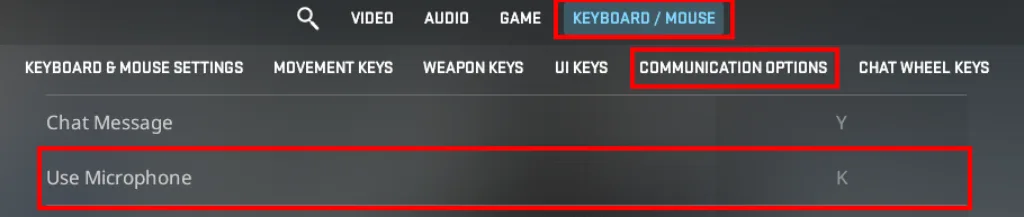
However, if you, like most players, want to use the Push-to-Talk Key, you need to configure it in the Keyboard/Mouse → Communication section.
There you will see the Use Mic option. By default, the CS2 voice chat key is set to “K” or “Mouse4.” You can leave it as is or change it to a more convenient one. The most popular options besides the standard ones are:
- V: conveniently located next to the main movement keys.
- Caps Lock or Alt: alternative options depending on the layout.
In general, you can choose absolutely any key. The main thing is that it is convenient for you personally; this usually means intuitively pressing it without moving your hand.
You should also check whether the selected CS2 push to talk button conflicts with other actions. Otherwise, the button may either not work at all, or work together with another action, which will be inconvenient.
3. Select the Correct Microphone
The last thing you need to do is select an input source. Skipping this step increases the risk of CS2 voice chat not working. To prevent this, go to Audio → Voice Input Audio Device.
Here, you must manually select the correct device. You can’t leave it as “Default Device,” as the system may use the wrong microphone. It’s recommended to select an external USB microphone or headset microphone, and only if one is missing should you use the built-in microphone.
We also recommend checking the system input level in the same menu. You can also go to Steam settings and check the selected microphone and its functionality in Overlay → Voice.
CS2 Voice Chat Volume Command and Audio Settings
After basic microphone and voice chat settings, you can move on to volume adjustments. This isn’t just a matter of comfort; it also affects in-game decisions.
An incorrect balance between teammate voices and in-game sounds can interfere with the reception of important information. To hear every footstep, shot, and grenade, adjust the volume of teammates’ voices in Settings → Audio → Voice.
The optimal setting ensures a balance where teammates’ voices are clearly audible but don’t overpower important sounds. This should be adjusted gradually, finding a comfortable balance in real matches.
There are also some CS2 voice chat volume commands. These allow you to flexibly adjust sounds without accessing the menu.
| Command | What It Does | How to Use It | Example |
|---|---|---|---|
| snd_voipvolume | Changes how loud your teammates are | Set any value from 0 to 1 | snd_voipvolume 0.6 |
| voice_scale | Adjusts voice volume compared to game sounds | Set any value from 0 to 1 | voice_scale 0.8 |
| voice_threshold | Controls mic sensitivity (filters noise) | Set a number (higher = less background noise) | voice_threshold 200 |
| voice_enable | Turns voice chat on or off | Only 0 (off) or 1 (on) | voice_enable 1 |
| voice_modenable | Enables voice processing | Only 0 or 1 | voice_modenable 1 |
| voice_loopback | Lets you hear your own mic | Only 0 or 1 | voice_loopback 1 |
| voice_system_enable | Enables the whole voice system | Only 0 or 1 | voice_system_enable 1 |
| +voice_record | Activates voice when holding a key | Used in keybinds (no values) | bind v +voice_record |
How to Use Text Chat in CS2
Voice chat can be convenient, but it’s not the only communication tool. Text chat is popular due to its ability to convey information without unnecessary in-game sounds.
It’s commonly used to provide teammates with hints after death. For added convenience, you can also bind chat CS2 commands to specific messages.
Chat Keybinds (Team and All Chat)
CS2 has standard keys for opening chat:
- T: Open team chat. These messages will be visible only to your teammates.
- Y: Open general chat. Messages sent in this chat will be visible to all players on the server, including opponents.
We recommend not confusing these two chats. Get used to always using team chat, as it is intended for coordination (communicating positions, plans, information about enemies, etc.). General chat should be used only for general communication.
Console Commands for Text Chat
Few people know this, but the developer console and some CS2 chat commands allow you to bind specific messages. This can be convenient in dynamic situations where there’s no time to type manually. First, it’s important to know the existing chat commands:
| Command | What It Does | Where It Sends Message | Example |
|---|---|---|---|
| say [message] | Sends a message to all players | All chat (everyone sees it) | say Nice round |
| say_team [message] | Sends a message only to your team | Team chat (teammates only) | say_team Enemy mid |
| bind [key] “say [message]” | Binds a message to a key (all chat) | All chat | bind v “say Hello” |
| bind [key] “say_team [message]” | Binds a message to a key (team chat) | Team chat | bind v “say_team Rush B” |
As the table shows, there are essentially only two basic chat commands. You can create convenient CS2 chat binds with both. The basic syntax is:
- bind [key] “say_team [message]”
Example
- bind v “say_team Rush B”
After this, pressing the V key will send the message instantly. You can bind several repeating commands this way (“Rush B,” “Save,” “Rotate A”), but it’s recommended to use only short and clear phrases.
Also, keep in mind that the CS2 bind chat message for these commands doesn’t completely replace voice chat, but rather supplements it. Avoid spamming identical chat binds to avoid complaints from teammates or opponents.
How to Mute Chat in CS2
If you’re looking for how to mute chat CS2, you’ve probably had some bad experiences with toxic players. This is easily fixed. There are both specific CS2 chat commands and a more flexible way to mute specific players. To do this, use the scoreboard:
- Press Tab to open the player table
- Find the desired player
- Click the sound icon or use the context menu
- Select Mute
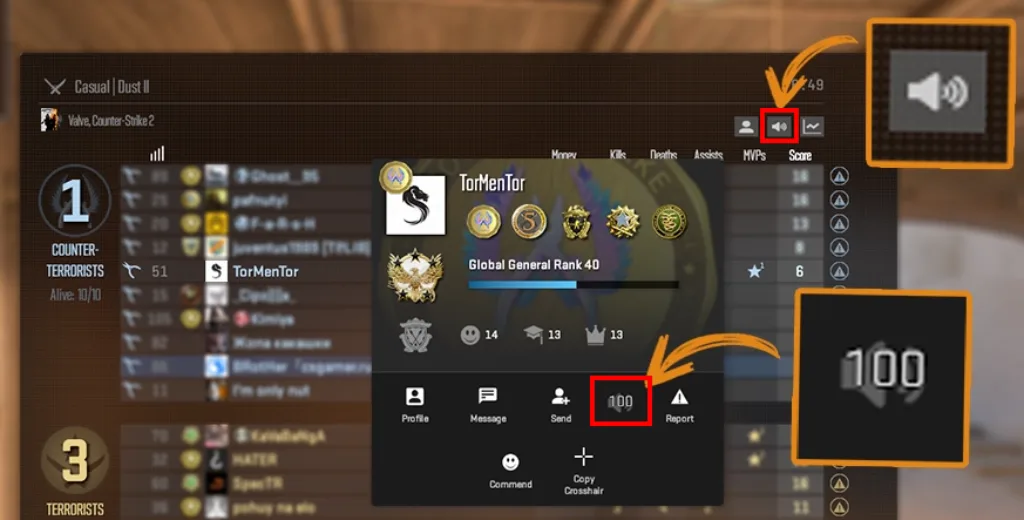
This is the fastest way to mute one or two players while maintaining communication with the rest of the team. If this isn’t enough and you want more flexibility in muting the entire team or opponents, use these console commands:
| Command | What It Does | Scope | Notes |
|---|---|---|---|
| voice_mute [player#] | Mutes a specific player | Voice | Requires player ID |
| voice_unmute [player#] | Unmutes a specific player | Voice | Reverses mute |
| cl_mute_enemy_team 1 | Mutes all enemy players | Voice + Text | Keeps team communication |
| cl_mute_all_but_friends_and_party 1 | Mutes everyone except friends/party | Voice + Text | Useful when playing in a stack |
| voice_enable 0 | Disables voice chat completely | Voice | You can’t hear or speak |
| ignoremsg | Blocks all incoming text messages | Text | Full text chat disable |
Common Chat Issues in CS2 and How to Fix Them
If your text or CS2 voice chat not working, you need to address this issue as soon as possible. Without communication, it’s much harder to play, and teammates will often think you’re ruining the game.
We’ve compiled a list of common issues, such as CS2 enemy chat not showing, along with solutions. Most of them can be resolved in a few minutes; the key is to find the source of the problem.
- Voice not transmitted or received: Most often, this issue is related to voice chat being disabled (voice_enable 0) or the wrong microphone mode. We recommend checking that Press to Use Mic or Open Microphone mode is selected in the settings. Also, check that the correct microphone is selected in Audio → Voice Input Device.
- Can’t hear teammates: check that the snd_voipvolume value is at least 0.5, as well as the voice_scale parameter. Also, make sure the correct output device is selected in the game and system settings.
- CS2 chat not showing: You may have the ignoremsg command enabled, which blocks all incoming text. Also, make sure you’re using the correct opening keys (T or Y). If you only don’t see messages from your opponents, try setting cl_mute_enemy_team 0.
Conclusion
Communication is incredibly important for winning in CS2. A strong individual performance can’t always be demonstrated without accurate information from the team. Therefore, we strongly recommend actively using voice and text chat.
Don’t forget that you should write and speak only the necessary information. Don’t spam nonsense, and make sure your microphone doesn’t create unnecessary noise that will disturb your teammates. This is the only way you can win more often and climb the ranks!
FAQ
The voice_scale command adjusts the relative volume of voice chat compared to game sounds. Entering values from 0 to 1 allows you to increase or decrease the volume of your voice relative to the surrounding environment. If your teammates are too loud or quiet, this command is a must-have.
Enable voice chat in Settings → Audio by selecting the transmit mode (usually Press to Use Mic). After that, don’t forget to assign a key in the controls section. Also, be sure to check the selected Voice Input Device and ensure voice_enable 1 is enabled.
If you want to disable only voice chat, enter the command voice_enable 0 in the console (to revert, use voice_enable 1). There’s also a similar command for text chat: ignoremsg. To re-enable, simply enter it again.
Read also: