mn
mn  ru
ru 
Best CS2 Audio Settings
Counter-Strike 2 allows you to customize virtually every aspect of the game. Dozens of crosshair settings, mouse sensitivity, screen resolutions, graphics, binds, radar, and much more.
Despite this, most players only pay attention to visual parameters. CS2 audio settings are often overlooked or ignored altogether. This is fundamentally flawed, and in this article for MelBet Pick’em, we’ll explain why you absolutely need to customize the audio in CS2.
Why Audio Settings Matter in CS2
Sound in CS2 isn’t just background noise, but a nearly primal sense of survival. Our ancestors relied on rustling sounds, footsteps, and movement around them to spot danger early.
Surprisingly, the same principle applies in the game: if you hear your opponent early, those few precious seconds to make a decision can give you the upper hand. Footsteps, reloading, jumping, throwing grenades, and planting bombs – all of this and more can be used to pinpoint enemy positions almost as effectively as visual contact.
To pick up on even the faintest sounds, specific CS2 audio settings are required. With them you can not just “hear louder”, but rather “hear correctly”. The best audio settings for CS2 enable you to react sooner and gain a tactical advantage before visual contact is even established. In terms of importance, they are on par with your CS2 crosshair settings or mouse sensitivity.
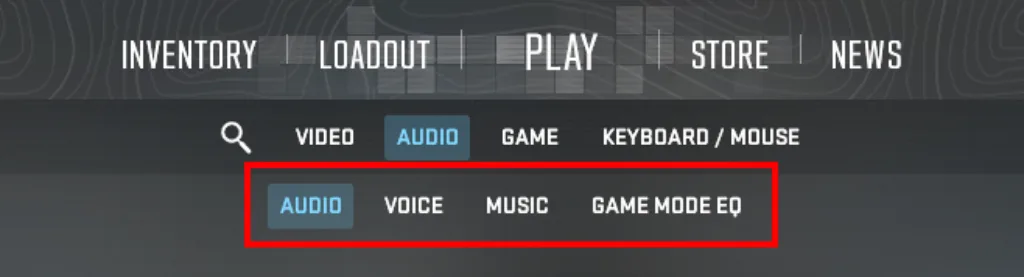
Best CS2 Sound Settings at a Glance
Below, across several tables, we have compiled the best CS2 sound settings for 2026. They strike an excellent balance between audio clarity, positional accuracy, and in-game comfort. If you prefer not to spend time fine-tuning your settings manually, you can simply use these configurations as a ready-made solution. Each setting is listed in the exact same order as it appears in the in-game menu to make navigation as easy as possible for you.
However, sound is an individual thing. Variations in hearing, playstyle, or the specific headphones you use can all impact the final result. Therefore, we recommend reading the entire article to create your own personal best audio settings CS2.
Audio Settings
| Setting | Recommended Value | Why It Works |
|---|---|---|
| Master Volume | 60% – 80% | Clear footsteps without distortion |
| Main Menu Ambience Volume | 0% – 20% | Reduces unnecessary background noise |
| Audio Device | Headphones | Best for directional audio |
| EQ Profile | Crisp / Natural | Crisp = clarity, Natural = comfort |
| L/R Isolation | 40% – 60% | Balanced directional accuracy |
| Perspective Correction | No | More consistent sound positioning |
| Play Audio When Game in Background | No | Avoids distractions |
Voice Settings
| Setting | Recommended Value | Why It Works |
|---|---|---|
| Other Player Voice Volume | 40% – 60% | Balanced communication |
| Voice/Microphone Mode | Push-to-Talk | No background noise |
| Voice Input Audio Device | Default / Your Mic | Ensures correct mic usage |
| Hear My Own Voice | Off | Prevents distraction |
| Streamlined Push-to-Talk | Yes | Faster and smoother comms |
| Microphone Trigger Threshold | -100 | Filters unwanted noise |
Music Settings
| Setting | Recommended Value | Why It Works |
|---|---|---|
| Main Menu Volume | 0% – 20% | Personal preference |
| Round Start Volume | 0% | No gameplay value |
| Round Action Volume | 0% – 30% | Avoids masking footsteps |
| Round End Volume | 30% – 50% | Informational cue only |
| MVP Volume | 30% – 50% | Post-round only |
| Bomb/Hostage Volume | 100% | Critical sound cue |
| Ten Second Warning Volume | 100% | Essential for timing |
| Death Camera Volume | 0% – 20% | No gameplay impact |
| Mute MVP Music When Players Alive | No | Doesn’t affect gameplay |
Game Mode EQ
| Setting | Recommended Value | Why It Works |
|---|---|---|
| Competitive EQ | Crisp | Best for clarity and footsteps |
| Casual EQ | Natural | More comfortable for long play |
| Deathmatch EQ | Natural | Reduces fatigue in noisy modes |
| Arms Race EQ | Natural | Less harsh sound |
Best CS2 Audio Settings Explained
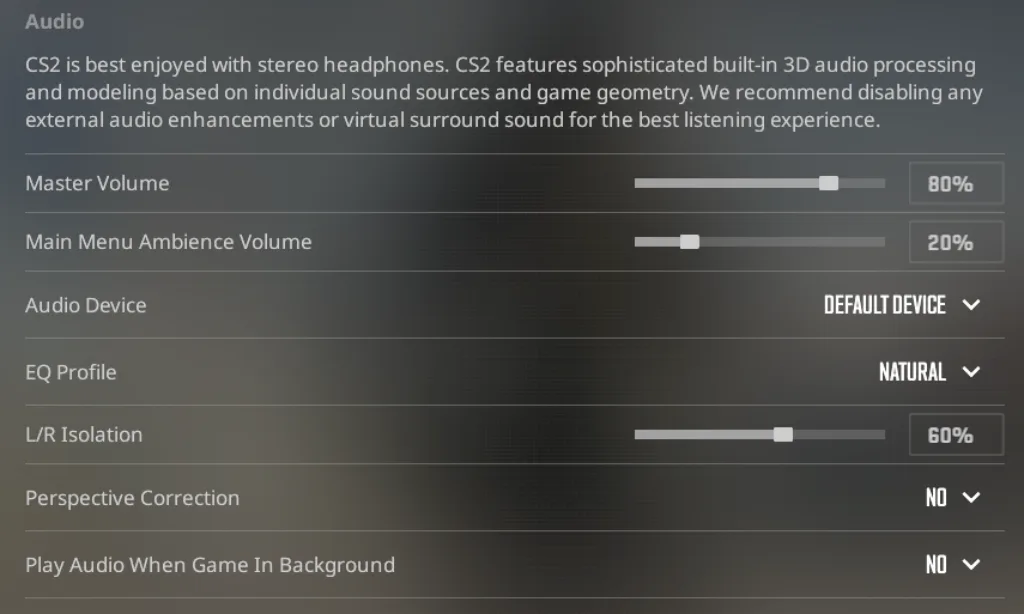
Master Volume
Master Volume controls the overall loudness of all sounds in CS2. This audio setting does not enhance individual elements, but scales the entire audio signal as a whole.
Setting the value too low can result in the loss of quiet sounds (footsteps, reloading, walking up the stairs), while setting it too high can result in sounds blending together. Important details will be lost in the background of loud AWP shots, grenade explosions, and the like.
It is recommended to set this value between 60% and 80%. You should be able to clearly hear even the quietest sounds, while ensuring that loud sounds do not cause discomfort.
Main Menu Ambience Volume
This unassuming setting controls the volume of background sounds in the main menu. It functions only outside of a round, so adjusting it is purely a matter of personal comfort.
Most users keep it at the minimum or disable it entirely.
Audio Device
The “Audio Device” setting determines which device is used for audio playback. This could be a pair of headphones, speakers, or an external sound card.
The game itself calculates audio positioning specifically for stereo headphones. This is the best option that is used by all professional players from the best CS2 teams.
That said, the configuration principle here is simple: select the device you are actually using to play. Also, when selecting a device in the system, make sure that your main device is active, and not “Default”.
EQ Profile
The EQ Profile (Equalizer) is a preset frequency filter responsible for altering how sounds are perceived. When attempting to adjust this parameter within the CS2 audio settings, you will see that the game offers three options:
- Crisp: Boosts mid and high frequencies. This is the recommended option, as it amplifies the frequency range containing footsteps, reloads, and other critical in-game sounds.
- Natural: Reduces ear fatigue and delivers a more balanced sound profile without any strong emphasis.
- Smooth: Softens the audio by smoothing out high frequencies. The downside of this option is reduced clarity regarding fine details.
For competitive matches, the Crisp profile is recommended; however, if you play for extended periods and find the sharp audio fatiguing, the Natural profile will be more comfortable.
L/R Isolation
Have you ever noticed that in CS2, it’s sometimes easy to tell the distance to an opponent, but harder to pinpoint exactly which side they’re on? The L/R Isolation parameter is responsible for this. This setting adjusts the separation of sound between the left and right channels.
- Low values: Make the sound softer, closer to how we hear sounds in the real world. The downside of this setting is that it makes it more difficult to determine the direction from which the sound is coming.
- High values: Make it much easier to determine the direction of the sound, but the sound itself may seem artificial.
We recommend choosing values in the 40-60% range. This will prevent the sound from sounding too artificial, while still allowing you to determine directions.
An even better option is to customize this parameter. To do this, go to training and try to determine the direction, increasing the value each time. You should find a value that keeps the sound natural while still making it easy to distinguish one side from the other.
Perspective Correction
Perspective Correction alters audio behavior based on your Field of View (FOV). When this setting is enabled, the game will adjust the sound to match where you are looking. This lends the audio a slightly more realistic feel.
From a competitive gaming standpoint, however, this setting presents a trade-off. The enabled option allows for a better sense of space but can be misleading during fast movements.
Conversely, disabling it results in more predictable audio positioning. Therefore, if you look at the CS2 pro audio settings of top players, this parameter is usually disabled.
Play Audio When Game Is in Background
This setting determines whether the game continues to play audio when minimized or inactive. It doesn’t affect gameplay at all, so choose based on your own comfort level.
If you often minimize the game, but want to hear, for example, the start of a round or the sounds of a match, it’s better to turn it on.
Best CS2 Voice Chat Settings
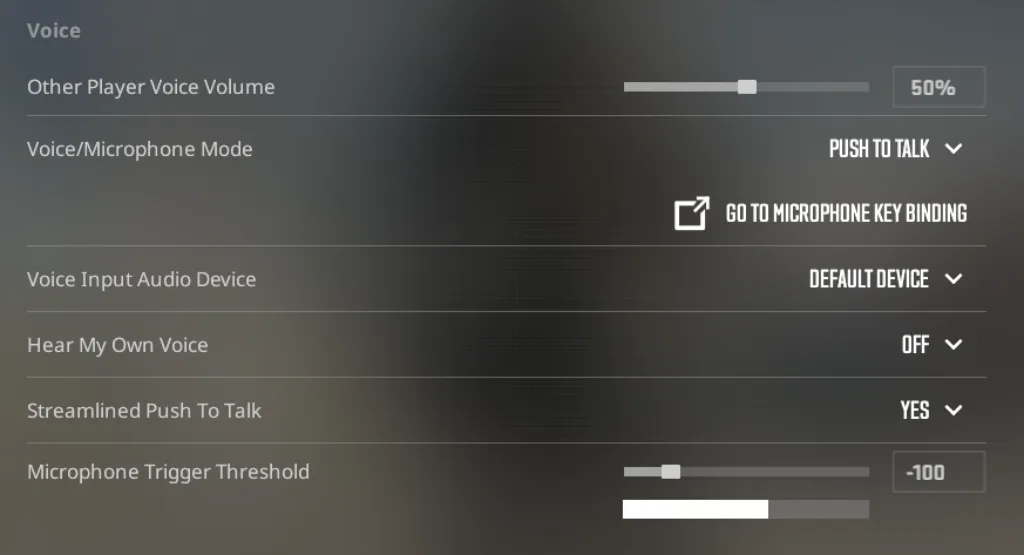
Other Player Voice Volume
This CS2 sound setting controls the voice chat volume of other players. Setting the values too high can drown out the sounds of your teammates’ voices, such as footsteps, gunshots, and other audio cues. Conversely, setting it too low increases the risk of missing important information.
It is also worth noting that different players have varying microphone sensitivities. To address this, Valve has provided the ability to adjust the CS2 voice chat volume individually for each player directly during a match.
Voice/Microphone Mode
The Voice/Microphone Mode setting determines how your microphone is activated. The settings menu offers two options:
- Push-to-Talk: The microphone is activated only when the button is pressed. The default push-to-talk CS2 voice chat key is K or Mouse4 (side mouse button).
- Open Microphone: The microphone is always on and automatically transmits audio.
In most cases, Push-to-Talk is recommended. This option eliminates background noise and allows you to transmit information only when you press the button.
Voice Input Audio Device
Here you need to select which microphone will be used for voice chat. Initially, it is detected automatically by the game, but if you have multiple microphones, you should select the one that provides the best sound without interference.
You can use any microphone tester for this. Also, keep in mind that if you have a microphone in your laptop and in your headphones, it’s better to choose the latter. Headphones typically have higher-quality microphones, which ensures your teammates can hear you clearly.
Hear My Own Voice
This feature can be used to test your microphone before selecting it in the previous step. It’s also known as “microphone monitoring.”
Enabling it will allow you to hear your own voice through your headphones. This is usually distracting during gameplay and can even cause delay, so we recommend disabling this feature.
Streamlined Push-to-Talk
Streamlined Push-to-Talk was designed to optimize voice chat in CS2. It reduces the delay between pressing a button and the start of voice transmission. Without it, a slight activation ping may occur, which may cause the first few words to be cut off.
It is highly recommended to enable this CS2 sound setting if you play competitive modes or through FACEIT. Enabling it has no negative side effects.
Microphone Trigger Threshold
Microphone Trigger Threshold determines the microphone sensitivity when using Open Microphone (selected in Voice/Microphone Mode). This setting determines the volume level at which the microphone will transmit sound. Correct settings will remove background noise (keyboard, breathing, background).
To find the best CS2 sound settings for your microphone sensitivity, experiment. Start speaking in a normal voice and gradually increase the threshold until the microphone stops responding to background noise but still consistently picks up speech.
Best CS2 Music Settings
Music settings in CS2 are often ignored by beginners, but pro players know better than to ignore them. While music doesn’t provide information about enemy positions like audio or voice settings, it can still be helpful.
A good example is improving the timing of the CS2 bomb. Setting it too quiet will make it difficult to navigate during defuse.
A counterexample would be playing music too loudly, which would drown out footsteps and other important sounds.
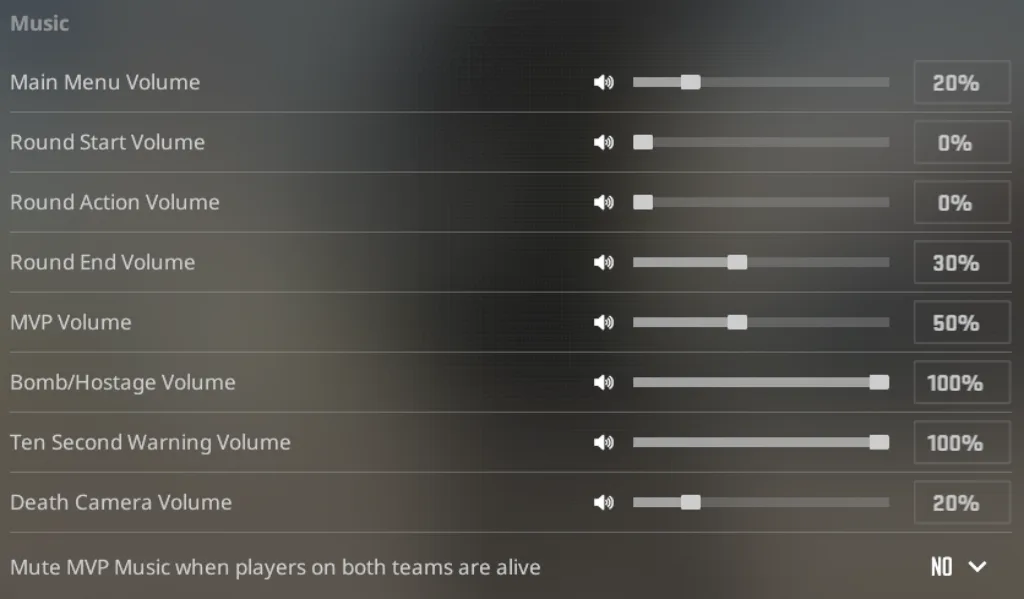
We’ve prepared a description of the impact of each CS2 music setting and recommendations:
- Main Menu Volume: Doesn’t affect gameplay, only comfort between matches. Adjust according to preference.
- Round Start Volume: Provides no useful information and can be distracting when taking positions. We recommend turning it off completely to avoid disrupting concentration.
- Round Action Volume: Can interfere with recognizing footsteps, gunshots, and other important sounds. We recommend keeping it at a minimum or turning it off completely.
- Round End Volume: Doesn’t affect gameplay; can be left at a medium level for convenience.
- MVP Volume: Doesn’t affect gameplay; can be left on to enjoy the various CS2 music kits.
- Bomb/Hostage Volume: A critically important parameter. Responsible for planting, defusing and interacting with hostages. We recommend keeping it high or at maximum.
- Ten Second Warning Volume: Helps with decision making (defuse/save/fake). It’s recommended to keep it at maximum as it’s also one of the most important audio cues.
- Death Camera Volume: Does not affect the gameplay, can be adjusted to suit your preferences.
- Mute MVP Music When Players Are Alive: Does not affect the outcome of the round, but can help kill the opponent after the timer runs out in the round.
CS2 Game Mode EQ Settings
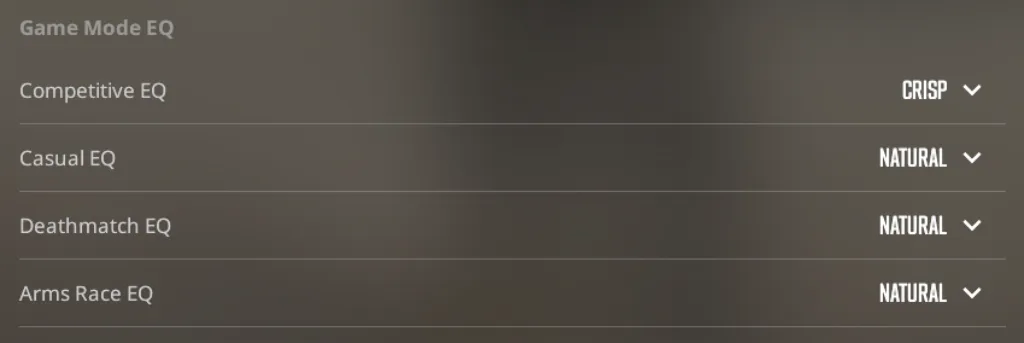
The final block of CS2 sound settings is the Game Mode EQ setting. It allows you to assign different sound profiles to specific game modes.
The developers offer four preset sound profiles that alter the audio frequency balance:
- Default: The standard profile without any additional adjustments.
- Natural: Maintains a natural sound without significantly boosting frequencies. This reduces ear strain and makes the sound softer and more comfortable.
- Crisp: A profile that boosts mids and highs. It makes footsteps, reloads, and other important sounds clearer, which can give you an advantage in-game.
- Smooth: Makes the sound as soft as possible by smoothing out high frequencies. Suitable for relaxed gaming or training.
It is not possible to configure these profiles for all CS2 game modes. Only four profiles are offered:
- Competitive EQ
- Casual EQ
- Deathmatch EQ
- Arms Race EQ
Crisp is recommended for Competitive EQ. It provides maximum information, which significantly impacts the gameplay. The other modes can be customized, but most players choose Natural.
CS2 Pro Audio Settings: What the Best Players Actually Use
For those who like to use their idols as a guide, we’ve compiled a small table of the main CS2 pro player audio settings. It doesn’t include a large number of players, but even from it, certain trends can be discerned.
For example, although Crisp is known to provide better footstep audibility, more players still prefer Natural. Even the donk audio settings CS2 confirm this, because this is one of the players that tens of thousands of fans of the game look up to.
You can also see that just under half of players set L/R Isolation to 0%. This once again confirms that CS2 best audio settings are not suitable for everyone. There’s no one-size-fits-all solution; it’s best to tailor each setting to your needs.
| Player | Team | EQ Profile | L/R Isolation | Voice Volume |
|---|---|---|---|---|
| ZywOo | Vitality | Crisp | 50% | 45% |
| donk | Team Spirit | Natural | 0% | – |
| NiKo | Team Falcons | Natural | 55% | 35% |
| m0NESY | Team Falcons | Natural | 0% | – |
| HeavyGod | G2 | Crisp | 50% | – |
| ropz | Vitality | Natural | 0% | – |
| s1mple | BC.Game Esports | Natural | 40% | 50% |
How to Fix CS2 Audio Not Working
If you’re experiencing CS2 audio not working, the first thing you need to do is determine the source of the problem. In most cases, sound issues aren’t related to the game. They’re more often caused by device conflicts, driver conflicts, or incorrect system settings.
Proper diagnostics rely on a process of elimination. First, you need to check whether the game itself generates sound, then whether it is sent to some output device, and only then move on to the drivers. We’ve compiled a list of steps that will help you resolve almost any CS2 no sound issue:
- Check In-Game Audio Settings: Go to the game’s audio settings and ensure that Master Volume and other audio parameters aren’t set to minimum. Also, be sure to check that the correct Audio Device is selected. Some updates can reset settings, so be sure to check everything at this stage.
- Verify Output and Input Devices: Check which device is selected in Windows as the primary output and recording device. CS2 may be using the wrong device, especially if multiple devices are connected (headphones, speakers, USB microphone).
- Restart Windows Audio Services: Restart the Windows Audio and Windows Audio Endpoint Builder services via services.msc. They are responsible for initialization and routing and may not function correctly after updates.
- Update Audio Drivers: Try installing the latest drivers for your sound card (Realtek, USB DAC, headset). It’s best to update drivers not only through Device Manager, but, if possible, from the website of the motherboard, USB headset, DAC/AMP, or audio chip manufacturer.
- Disable Conflicting Third-Party Audio Software: Disable third-party programs (Nahimic, Sonic Studio, SteelSeries Sonar, etc.). These audio services often run in the background and can intercept the audio signal and conflict with CS2.
- Verify CS2 Game Files: Verify the integrity of the files through Steam (Verify Integrity). Corrupted files can cause issues with the audio engine.
Final Recommended CS2 Audio Setup
Sound settings in CS2 can’t be universal. Each parameter must be individually adjusted to suit your hearing, playing style, and headset. Only after this adjustment can you confidently say that you’ve set the CS2 best sound settings.
We also want to remind you once again that sound settings truly do have a significant impact on the game. Minimal changes to EQ and L/R Isolation can significantly impact the perception of footsteps and sound direction. This gives a real, tangible advantage in the game.
Also, remember the main rule of audio settings: the best sound isn’t the loudest, but the one that allows you to quickly understand what’s happening around you.
FAQ
The first thing to check is your in-game settings. The issue is usually with the Master Volume or the selected Audio Device. If this doesn’t help, check the selected output device in Windows. Additionally, you should restart the Windows Audio services and update your sound card drivers.
First, enable the Enable Voice option in the audio settings and select a microphone mode. Push-to-Talk is recommended. You should also assign a key in the control settings; by default, this is the K key or Mouse4. Don’t forget to check the selected microphone in the Voice Input Device section.
To do this, you need to use standard voice chat in combination with virtual audio output software. Voicemeeter or Soundpad are the most popular options. This works by selecting a virtual microphone in the Voice Input Device, which is where the music will be sent. Keep in mind that this may impair team communication and be perceived as interference.
You may have the wrong output device selected, or the voice chat volume may be set to 0. Check the Other Player Voice Volume setting and your device settings in Windows.
The Bomb/Hostage Volume parameter, and partially the Ten Second Warning Volume, controls the volume of the bomb planting sound. It’s recommended to keep both values high or at maximum. This will allow you to better assess the situation and make the right decisions more often.
To disable voice chat, disable the “Enable Voice” option in the game settings. You can also individually reduce the volume for specific players to zero using the scoreboard.
Read also: