mn
mn  ru
ru 
Best Viewmodel CS2 2026
Many players believe that consistently winning in CS2 requires hours of practice, polished mechanics, perfect aim, and economy control. They’re generally right. But there’s one critical thing that most players forget – CS2 viewmodel settings.
Viewmodel is more than just “what your weapon looks like.” It’s a tool that directly affects your visibility, reaction speed, field of view, movement perception, and even aim consistency. Proper CS2 viewmodel settings can help you reach a higher rank, and that’s no joke. In this article for MelBet Pick’em, we’ll explore what CS2 viewmodel is and how it works. We’ll also discuss the best CS2 viewmodel configurations and what settings top players on leading esports teams use!
What is the CS2 Viewmodel?
The CS2 viewmodel is an internal, client-side model of your hands and weapons, visible only to you in first-person mode. This is not a real game character model (world-model) and not an object interacting with server-side physics. The viewmodel is a client-side element rendered in its own camera layer, with its own FOV matrix, its own animation system, and is completely separate from the character’s hitbox structure.
Technically, the viewmodel is a foreground projection entity that is rendered in front of the world-space and is not involved in calculating trajectories, collisions, or network interpolation. Therefore, changing the CS2 viewmodel settings does not affect game balance. However, it does significantly impact visual perception, decision-making speed, and cognitive load while shooting, but we’ll discuss this later.
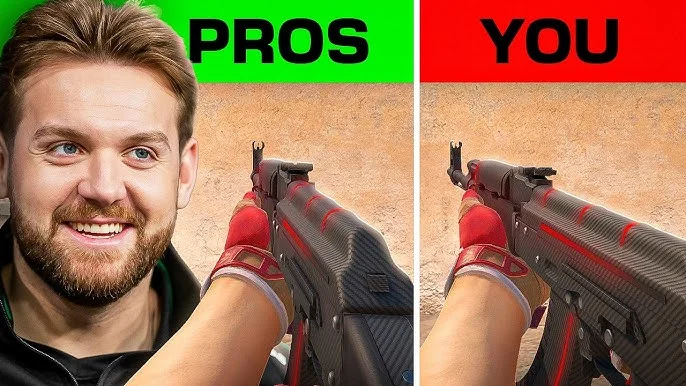
Why the Viewmodel Doesn’t Equal the World-Model?
To better understand the viewmodel CS2, we’ve prepared a comparison table. It compares the viewmodel and the world-model (i.e. the real model of your character that other players see) using simple parameters.
| Characteristic | Viewmodel | World-model |
|---|---|---|
| Render Space | Camera-space | World-space |
| FOV | Separate projection matrix (54–68) | Fixed |
| Scale | Artificial, “visual illusion” | Real weapon scale |
| Animations | Simplified, client-side | Full, server-side |
| Impact on Gameplay | Visual only | Full impact (hitboxes, POV, body position) |
Therefore, changing the CS2 weapon position (viewmodel_offset_x/y/z) does not provide an unfair advantage. They do not change the weapon’s position in reality, but merely adjust the player’s visual comfort.
Why Viewmodel Settings Matter in CS2
Now that you know what the CS2 viewmodel is, it’s worth discussing why it’s so important. This setting in CS2 directly affects how the brain perceives movement, threats, and target positions in the frame. And that’s just part of its impact. We’ve prepared a whole list of reasons why properly selected CS2 viewmodel settings provide a real advantage:
- Peripheral Vision Awareness: When the weapon is shifted down and to the right, the side zones remain open. This improves peripheral vision and allows you to react more quickly to sharp peaks and off-center movement.
- Aim Focus Stability: A stable viewmodel reduces unnecessary visual weapon movement. This helps your eyes focus on the enemy, not the animation, making flicks and tracking more predictable.
- Recoil Control Visual Clarity: A clear and low weapon position improves the visual perception of recoil. You’ll more easily form muscle memory and better read vertical and horizontal movements, meaning recoil control becomes more stable.
- Competitive Advantage: Optimal viewmodel CS2 settings reduce visual noise, speed up reaction times, and make on-screen information clearer. This provides a real competitive advantage, so esports players use nearly identical settings.
How to Change the Viewmodel in CS2
In 2026, there are two ways to change the CS2 viewmodel. The first is through the CS2 developer console, which is familiar to players who have played since CS:GO. The second method is through the built-in viewmodel settings menu.
Both methods use the same parameters, but the level of control is different. The menu is better suited for quick, ready-made presets. The console, on the other hand, allows you to manually adjust the FOV, weapon offset, and the precise position of the model in camera space.
Below, we’ve prepared step-by-step instructions on how to change the CS2 viewmodel using each of these methods.
Changing CS2 Viewmodel Through the Developer Console
- Enable the console: Settings → Game → Enable Developer Console → Yes.This enables access to engine-level viewmodel parameters.
- Open the console with the ~ key: CS2 uses a unified input layer, so the console is activated regardless of the layout.
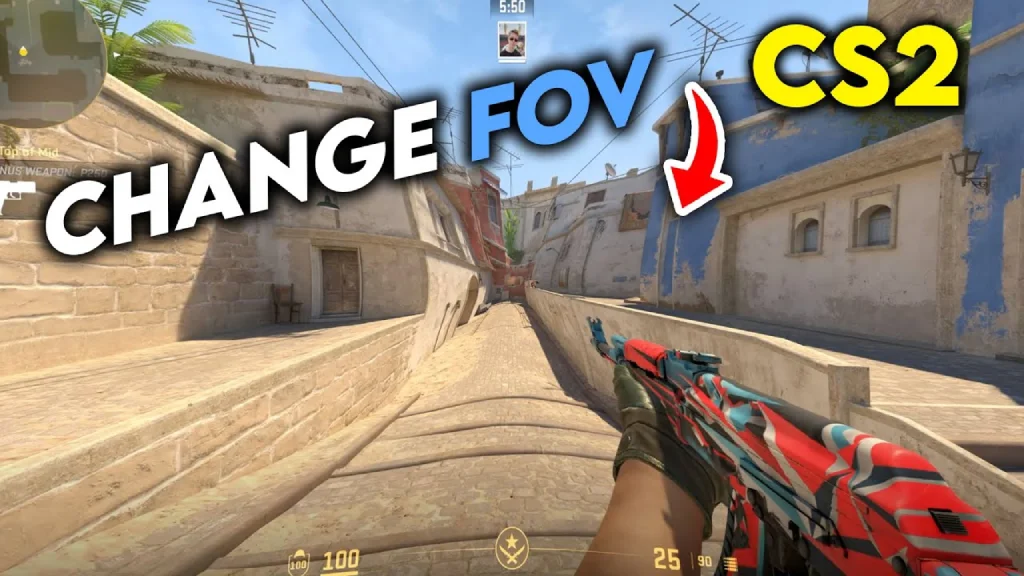
- Change the FOV with the command: viewmodel_fov Z, where Z is a number between 54 and 68, inclusive. This value changes the local FOV matrix of the weapon model, not the game camera.
- Adjust the weapon offset:
- viewmodel_offset_x Z, where Z is a number between -2.5 and 2.5, inclusive.
- viewmodel_offset_y Z, where Z is a number between -2 and 2, inclusive.
- viewmodel_offset_z Z, where Z is a number between -2 and 2, inclusive.
- Use presets as needed: viewmodel_presetpos X, where X is the numbers 1 / 2 / 3 (Desktop / Couch / Classic).
- Save and test the settings on the map. It is recommended to test the viewmodel at different viewing angles to assess the impact on visibility.
Changing CS2 Viewmodel Through the Settings Menu
- Open the settings menu: Settings Menu (gear in the upper left corner) → Game → Items.
- Choose one of three presets:
- Desktop: The standard position for most players.
- Classic: Similar to CS:GO, lower and to the right.
- Couch: Central and higher, for players sitting further away.
- Select your character’s hand: In CS2, there’s no direct cl_righthand command, but hand selection is available in the UI (Right / Left).
- Apply the settings and test them in-game: The menu instantly changes the viewmodel parameters at the preset configuration level.
- Use the menu only as a base: For precise adjustments to offsets and FOV, you’ll still need the console. The menu is limited by preset logic and doesn’t allow for fine-grained adjustments.
Thus, to fully customize CS2 viewmodel settings, you need to use both methods. Without the first, it is impossible to customize everything individually, and without the second, it is impossible to choose the character’s hand.
All CS2 Viewmodel Console Commands
We’ve already covered the methods for changing the viewmodel in CS2, but the console method has different variations in commands. Each command requires entering a specific number. To help you understand the effect of entering a larger or smaller number, we’ve prepared a description of all CS2 viewmodel commands.
Also note that we’ve included CS2 viewmodel limits in parentheses. This means you should enter numbers within this range (inclusive) in the console.
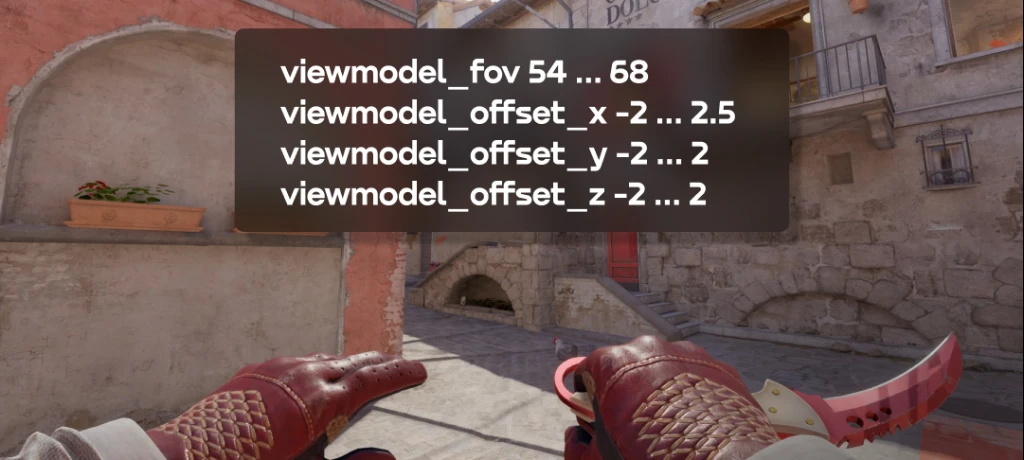
viewmodel_fov (54–68)
viewmodel_fov sets the FOV only for the weapon and hand models, using a separate projection matrix independent of the game camera’s FOV. This means that changing the weapon FOV doesn’t expand the player’s field of view, but merely scales the weapon model within the camera space.
- Minimum 54: the weapon is larger, takes up more screen space, and has higher occlusion.
- Maximum 68: the weapon is smaller, offsets further, and provides a clearer view.
A higher FOV is preferred by most professionals. It reduces visual clutter and improves visibility.
viewmodel_offset_x (-2.5 to 2.5)
viewmodel_offset_x controls the horizontal offset of the weapon. This value affects how much the weapon obscures the left/right field of view.
- Negative values (-2.5) move the weapon closer to the center → a higher risk of occluding an enemy at an angle.
- Positive values (up to 2.5) move the weapon to the right edge → clear the central foveal zone → faster reaction time.
To achieve maximum visibility and minimal occlusion, use the maximum offset to the right.
viewmodel_offset_y (-2 to 2)
viewmodel_offset_y controls the distance of the weapon from the camera. This setting significantly affects the perceived recoil and visual amplitude of weapon animations.
- Low values (-2) bring the weapon closer to the camera. This visually makes the weapon model larger, but also increases virtual recoil.
- Higher values (2) move the weapon further away. The perceived recoil is reduced, as are visual distractions when shooting.
If you look at the viewmodel_offset_y settings of professional players, most use neutral or distant values for aim stability.
viewmodel_offset_z (-2 to 2)
viewmodel_offset_z sets the vertical position of the weapon. Simply put, this axis affects how much the weapon obscures the bottom of the screen and interferes with enemy visibility.
- Low values (-2) lower the weapon, opening up the central and upper view zones.
- High values (2) raise the weapon higher, increasing the obstruction and reducing target acquisition speed.
A low or mid-low position is considered optimal. High values are rarely used, and the reasons for this are quite clear even to beginners.
viewmodel_presetpos (1/2/3)
viewmodel_presetpos switches between preset offset configurations. This is a quick way to change the display style without manually entering each parameter.
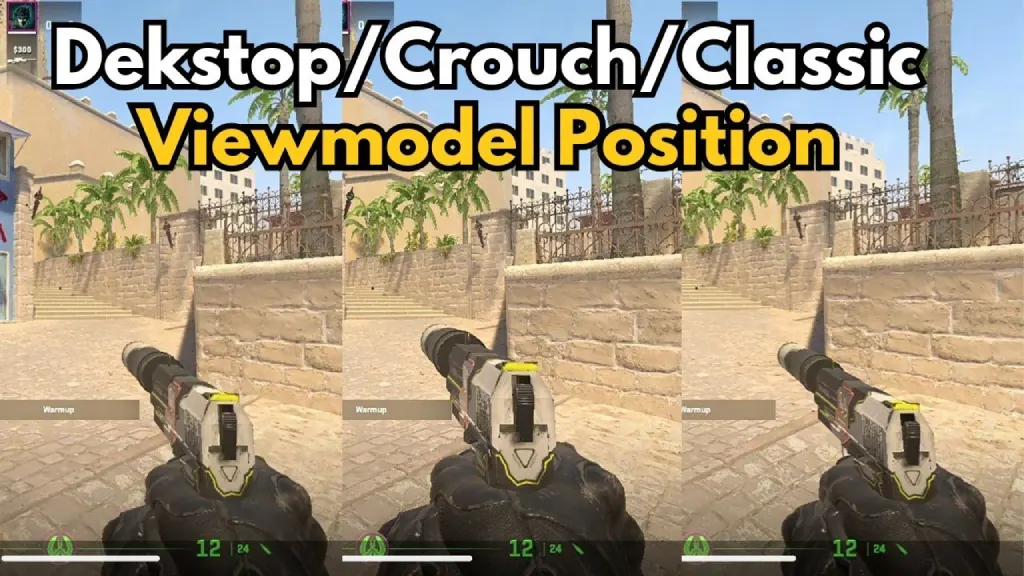
- Preset 1 – Desktop: The basic CS2 style. Moderately low position, minimal interference with view. Suitable for most players.
- Preset 2 – Couch: Higher and closer to the center, designed for screens at a distance (TV setups). May increase visual noise on PC.
- Preset 3 – Classic: Inherits the CS:GO style: low and right position, optimal for competitive visibility.
Default Viewmodel Presets in CS2
We’ve already covered the commands, but there’s another interesting point worth highlighting. The Settings Menu contains a complete analogue of the viewmodel_presetpos (1/2/3) command. These are the so-called CS2 default viewmodels. Valve has selected them for different game scenarios and device types.
We provided brief descriptions of each default CS2 viewmodel in the section above. However, a text description can’t convey all the changes. We recommend trying each viewmodel CS2 default preset yourself. You might like it, but if not, try creating your own preset using the other viewmodel commands listed above.
Best CS2 Viewmodel Settings
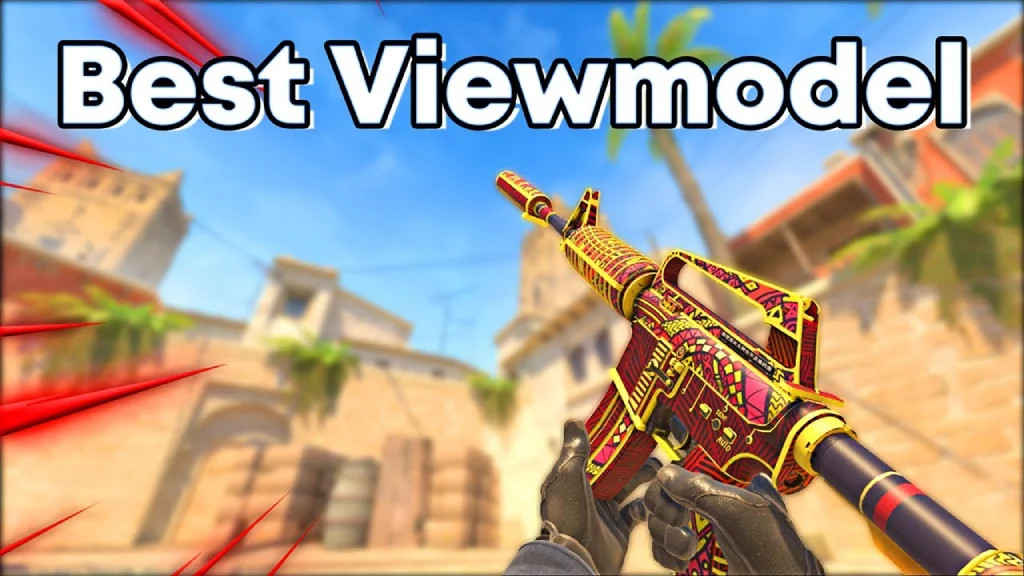
We’ve already covered each command, and with the three basic CS2 default viewmodel presets, we believe there shouldn’t be any difficulties. But now we’ve come to the most important thing: the best viewmodel CS2. Based on analysis of professional CS2 esports players, a universal CS2 viewmodel configuration was created.
To use the best CS2 viewmodel, simply open the console and enter:
- viewmodel_fov 68
- viewmodel_offset_x 2.5
- viewmodel_offset_y 1
- viewmodel_offset_z -1.5
Reasons why this configuration is considered the best CS2 viewmodel settings:
- FOV 68 minimizes the weapon model size. This reduces visual occlusion and expands the useful foveal field of view.
- Offset_x 2.5 moves the weapon to the right edge of the frame. This completely clears the center sightline, where the player most often looks for enemy model movement.
- Offset_y 1 sets the mid-range distance at which the weapon remains visually stable but doesn’t obscure the enemy model’s dynamics.
- Offset_z -1.5 lowers the model down, clearing the bottom third of the screen. This is important for angle control, head-level checks, and tracking rushing targets.
How to Choose the Best Viewmodel for Yourself
Using the best CS2 viewmodel may not be suitable for everyone. Similarly, Valve’s three presets aren’t suitable for most players.
The best option in 2026 is to customize the CS2 viewmodel settings yourself. This way, you can find the ideal settings based on your needs and perception. To help you navigate the parameters, we’ve prepared a few things to consider when setting up your CS2 viewmodel.
Screen Size & FOV
The larger the diagonal and the wider the effective field of view, the less space the weapon should occupy in the frame.
- On large 27-32″ monitors, an excessively tall or large viewmodel creates “visual dead zones” and interferes with movement tracking.
- On compact 24-25″ monitors, a weapon position that is too low can actually complicate tracking, as the eye loses some visual cues.
The general rule is: larger screen → smaller viewmodel FOV.
Eye-to-Screen Distance
The visual system works differently when playing at 30 cm from the monitor than at 80 cm.
- If you’re sitting close, the weapon appears larger, requiring a lower FOV or a lower offset_y/z.
- If you’re sitting farther away, a slightly larger FOV and a slightly more centered position help you keep up with animations.
Essentially, the CS2 viewmodel should match the optical density of your working distance.
Visual Comfort & Cognitive Load
Every player has a different threshold for perceiving visual noise.
- Some are comfortable with a weapon that’s clearly visible on the screen.
- Others need a central area that’s as empty as possible.
It’s important to understand the key principle here: the viewmodel CS2 should reduce cognitive load, not create it. If the weapon is distracting, obscures parts of the enemy model, or moves too much, the configuration is incorrect.
Pro Player CS2 Viewmodel Settings
Many CS2 gamers try to emulate esports athletes. This isn’t always a good thing, as the best CS2 viewmodels are those that have been individually selected. However, it would still be useful to look at what CS2 viewmodel settings professionals use.
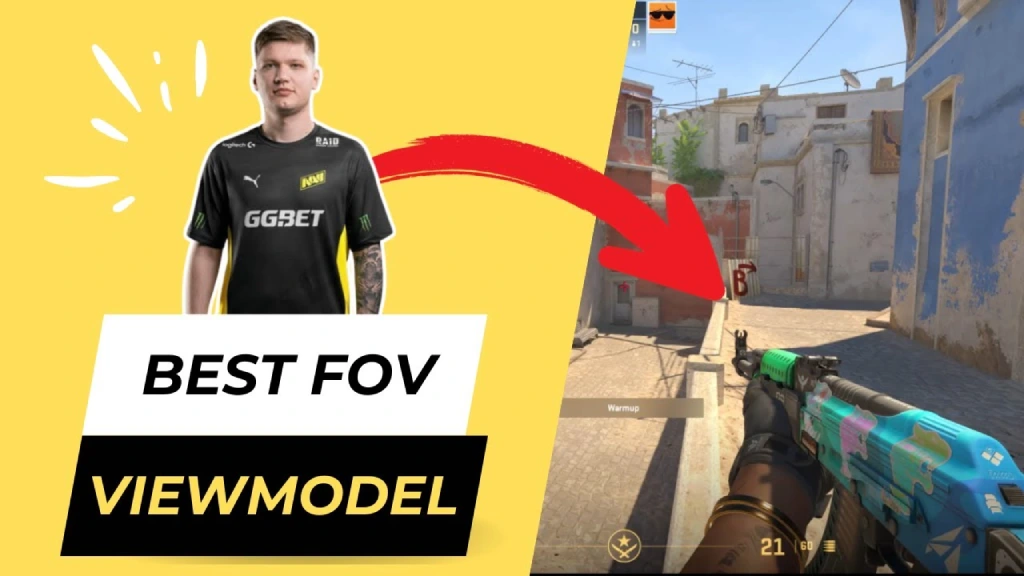
We’ve prepared a table with some of the most popular professional CS2 players. Here are players from The MongolZ, NaVi, Vitality, Falcons, and other popular CS2 teams:
| Player | Team | viewmodel_fov | offset_x | offset_y | offset_z | preset |
|---|---|---|---|---|---|---|
| Techno4K | The MongolZ | 68 | 2.5 | 0 | -1.5 | 2 |
| ZywOo | Team Vitality | 68 | 2.5 | 0 | -1.5 | 3 |
| s1mple | NaVi | 68 | 2.5 | 0 | -1.5 | 3 |
| m0NESY | Team Falcons | 68 | 2.5 | 0 | -1.5 | 3 |
| NiKo | Team Falcons | 65 | -0.5 | 1 | -2 | 1 |
| karrigan | FaZe Clan | 60 | -1.5 | 1 | -1 | 1 |
| dev1ce | Astralis | 68 | 2.5 | 0 | -1.5 | 3 |
Conclusion
We hope by the end of this article, everyone now knows that the CS2 viewmodel is a crucial setting that shouldn’t be overlooked. This setting affects comfort, reaction speed, situational awareness, and shooting stability.
Also, although we’ve provided the best CS2 viewmodel, there’s no universal solution. We strongly recommend tailoring the settings to your individual needs. We hope the information about CS2 viewmodel commands in this article will help you. We wish you a quick and hassle-free search for your CS2 best viewmodel settings and the best chance of winning. Good luck!
FAQ
No, the viewmodel doesn’t change actual recoil, as it’s calculated by the server. However, CS2 viewmodel commands affect the visual perception of recoil. The cleaner and more stable the weapon’s position, the easier it is to track the recoil pattern and maintain muscle memory. This makes recoil control subjectively easier, although the mechanics remain unchanged.
Viewmodel_fov 68 is considered the best, as the maximum FOV reduces the weapon model and opens the central field of view. This reduces visual occlusion, speeds up reaction times, and improves the reading of micromovements.
Viewmodel can be changed through the Settings → Game → Items menu or through console commands. The menu only offers three presets, while the console (viewmodel_fov, viewmodel_offset_x/y/z) allows you to fine-tune the weapon’s position within Source 2 limits.
The optimal combination is considered to be: viewmodel_fov 68, viewmodel_offset_x 2.5, viewmodel_offset_y 1, viewmodel_offset_z -1.5.
In most cases, yes. A high FOV makes the weapon model smaller, meaning it reveals more of the screen. This improves corner visibility, speeds up information processing, and reduces visual noise. Exceptions are rare and are usually related to individual visual adaptation.
Resetting is done with the command viewmodel_presetpos 1, which returns to the default Desktop configuration.
Read also: